Tag

AI Assistant

Browsing

By 

These tips can support your workflow, save time and make the AI assistant’s responses much better

Claude has become one of the AI tools I use most often, whether I’m brainstorming, planning something, vibe coding, researching a topic or simply trying to make sense of a complicated question. But using an AI chatbot every day doesn’t necessarily mean you’re using it well.

In fact, some of the habits that feel like they should make Claude better can have the opposite effect.

That’s what caught my attention when I came across a list of 27 Claude tips from AI consultant Ruben Hassid, who says he’s spent more than 1,800 hours using Anthropic’s chatbot.

Some of his advice goes against the way many of us have been taught to use AI. Keep everything organized in Projects? Maybe not. Keep correcting Claude until it understands what you want? That could actually make things worse. Spend 10 minutes crafting the perfect prompt? There may be a better approach.

Not every tip will make sense for every Claude user, and some of Hassid’s recommendations are based on his own experience rather than hard-and-fast rules. But several are worth trying if you use Claude regularly.

Here are five Claude habits worth breaking — and what to try instead.

1. Stop correcting Claude over and over

We’ve all had this conversation with an AI chatbot. You ask Claude for something. It gets it wrong and then you go back and forth trying to get the response you’re actually looking for — all while wasting your tokens in the meantime.

Even when you explain the problem in even more detail or add another layer of clarification, before long, you’re six messages deep trying to rescue an answer that wasn’t particularly good to begin with.

Hassid recommends doing something much simpler: go back and edit the original prompt. This is a feature that a lot of users overlook but it’s one of the best ways to avoid correcting every wrong answer, which in turn, keeps adding to the conversation.

That’s because every correction you add becomes part of the conversation Claude is working from. Instead of giving the model one clear instruction, you can end up with a growing trail of bad outputs, corrections and exceptions.

Editing the original prompt gives Claude another shot with cleaner instructions.

For example, imagine you asked: Plan a three-day trip to Boston.

Claude gives you an itinerary packed with museums, historical sites and early mornings. But what you really wanted was a relaxed weekend centered around food and neighborhoods.

You could spend several messages correcting the itinerary.

Or you could edit the original: Plan a relaxed three-day trip to Boston centered around great food and interesting neighborhoods. Include no more than one museum, avoid early mornings and leave plenty of unplanned time.

Same request. Much better context.

Try it: If Claude completely misses the mark, resist the urge to argue with it. Edit your previous prompt and regenerate the answer instead.

2. Stop keeping every conversation alive forever

An individual typing on a laptop, focusing on the hands and keyboard in an indoor setting.

(Image credit: Pexels / Eren Li)

This one is incredibly easy to do. Once Claude understands what you’re working on, abandoning that conversation can feel wasteful. So you keep going…and going!

Eventually the chat contains previous questions, rejected ideas, unrelated tangents, corrections and instructions that stopped being relevant 30 messages ago.

Hassid recommends starting fresh more often, arguing that very long conversations can eventually make Claude less effective.

There isn’t a magic number of messages where Claude suddenly becomes worse, and Claude’s context window is designed to handle a significant amount of information. But context isn’t the same thing as useful context.

A model having access to something doesn’t necessarily mean you want that information influencing its next response.

Imagine using the same Claude conversation to plan a vacation for weeks. You’ve discussed five hotels, changed the dates twice, ruled out three destinations and completely changed your budget.

Claude may technically have all that information available, but you’re now asking it to distinguish between what you wanted two weeks ago and what you want today. Sometimes the clean slate is the advantage.

Try it: When a conversation starts feeling cluttered, ask Claude to summarize the important information and decisions you’ve made. Paste that summary into a fresh chat and continue from there.

3. Stop obsessing over the perfect prompt

The internet has spent the past few years convincing us that getting great AI results requires elaborate prompts. A few minutes on X or Instagram and you’ll be swamped with plenty of prompts.

But Hassid makes a compelling case for doing something considerably less polished: brain dumping.

Instead of spending several minutes turning an idea into the perfect prompt, simply tell Claude everything you’re thinking.

This works particularly well with voice input because we naturally provide more context when we’re talking. We mention what we’re trying to accomplish, what we’ve already tried, what we don’t like and the half-formed thoughts we might remove if we were carefully typing a prompt.

For example, instead of: Create a weekly meal plan for a family of four.

Try the prompt: I need dinners for the next five days. I don’t want anything that takes more than about 30 minutes, we’re trying to spend less on takeout, one person hates fish, I already have chicken and pasta in the house and Wednesday is going to be really busy, so that meal needs to be ridiculously easy. Help me figure this out.

The second prompt isn’t perfect, but it’s packed with useful information.

Try it: Open Claude and dictate your request as though you’re explaining the problem to a friend. Don’t organize it first. Let Claude organize it for you.

4. Stop telling Claude only what you want

Man looking confused whilst sitting in front of a laptop

(Image credit: The Motley Fool)

Quite often AI users will prompt an assistant with “Make this better.” “Give me something more interesting.” “Make this easier.” “Be more creative.”

And while they will probably give you answers, these instructions are incredibly subjective. Claude has to guess what “better” or “interesting” means to you.

Hassid recommends giving the model negative examples — showing Claude what you don’t want. Say you’re trying to come up with ideas for a 10-year-old’s birthday party.

Claude suggests a trampoline park, bowling, laser tag and an arcade.

Instead of responding: Give me more creative ideas.

Try the prompt: I don’t want trampoline parks, bowling, arcades, laser tag or other typical birthday-party venues. I’m looking for something the kids probably haven’t done at another birthday party this year.

Suddenly, “creative” has boundaries and it’s far more useful to Claude. The same technique works for recommendations, travel plans, recipes, gift ideas, schedules and almost anything else where personal taste matters.

Try it: When Claude gives you suggestions you dislike, tell it specifically what those options have in common and ask it to avoid that entire category.

5. Stop putting everything into Projects

Projects are one of Claude’s most useful features. They let you keep related chats, instructions and reference material together so you don’t have to repeatedly explain what you’re working on.

But that doesn’t mean every task belongs inside one. Hassid argues that fresh conversations can sometimes be better for creative work because accumulated context can steer Claude toward ideas and patterns you’ve already explored.

I’d treat this as a rule of thumb not something universal for Claude. Projects can be enormously useful when the model genuinely needs background information.

The question is whether that background is helping with the task you’re doing right now.

If you’re using Claude to help plan a major home renovation, for example, keeping your measurements, budget, preferences and previous decisions in one Project makes sense.

But if you suddenly want Claude to give you completely unexpected ideas for what to do with an empty room, you might get more variety by asking in a fresh chat without all those previous assumptions.

Otherwise, you risk asking Claude to surprise you while simultaneously surrounding it with everything you’ve already considered.

Try it: Use Projects when Claude needs context. Try a fresh chat when you want novelty. You can even give the same prompt to both and compare the results.

The takeaway

Sometimes the best thing you can give Claude is a clearer problem. So the next time Claude isn’t giving you what you want, don’t automatically add another paragraph of instructions. Try editing the prompt, start a new chat or tellit what you don’t want.

You may just find Claude understands you better when you give it less to untangle.

Feature image credit: Anthropic/Claude

By 

Amanda Caswell is the AI Editor at Tom’s Guide and one of today’s leading voices in AI and technology.
A celebrated contributor to various news outlets, her sharp insights and relatable storytelling have earned her a loyal readership. Amanda’s work has been recognized with prestigious honours, including outstanding contribution to media. Known for her ability to bring clarity to even the most complex topics, Amanda seamlessly blends innovation and creativity, inspiring readers to embrace the power of AI and emerging technologies. As a certified prompt engineer, she continues to push the boundaries of how humans and AI can work together. Beyond her journalism career, Amanda is a long-distance runner and mom of three. She lives in New Jersey.

Sourced from tom’s guide

By Nishant

There are hundreds, if not thousands, of AI chatbots. Still, if you are only talking about the major general-purpose assistants, you have ChatGPT by OpenAI, Claude by Anthropic, Gemini by Google, Copilot by Microsoft, Grok by xAI, and Meta AI. Most people use one, maybe two, and they use them the same old way, where they ask a question, get a useful answer, and close the tab. There is nothing wrong with that, and there is no single correct way to use an AI assistant. But modern AI assistants are far more capable than most people realize, and they can get a lot more done than you’d expect.

Take ChatGPT. By 2026, this AI assistant will have become more like a coworker than just a search box. It can remember information for weeks, take data from your apps, create documents and spreadsheets, browse the web, and perform several tasks for you. However, most people still do not use these features.

So in this article, we’ll show you how to practically use ChatGPT as a teammate that holds context, connects to your tools, builds things you can keep, and acts for you. By the end, you’ll know which features to use and have a set of automations to implement this week.

Pro Tip: To automate everyday tasks with ChatGPT, follow these steps:

  1. Provide clear context in your prompts.
  2. Organize regular work into Projects.
  3. Create reusable tools using Custom GPTs and Canvas.
  4. Connect your apps with Connectors.
  5. Assign research tasks to Deep Research.
  6. Set up Scheduled Tasks to automate repetitive jobs.

Start with the basics: A better first conversation

Let’s start simple. How should you actually talk to ChatGPT? The shortcut to better answers is almost embarrassingly basic; you just need to give ChatGPT more context up front.

A weak prompt looks like:

  • Write a follow-up email.

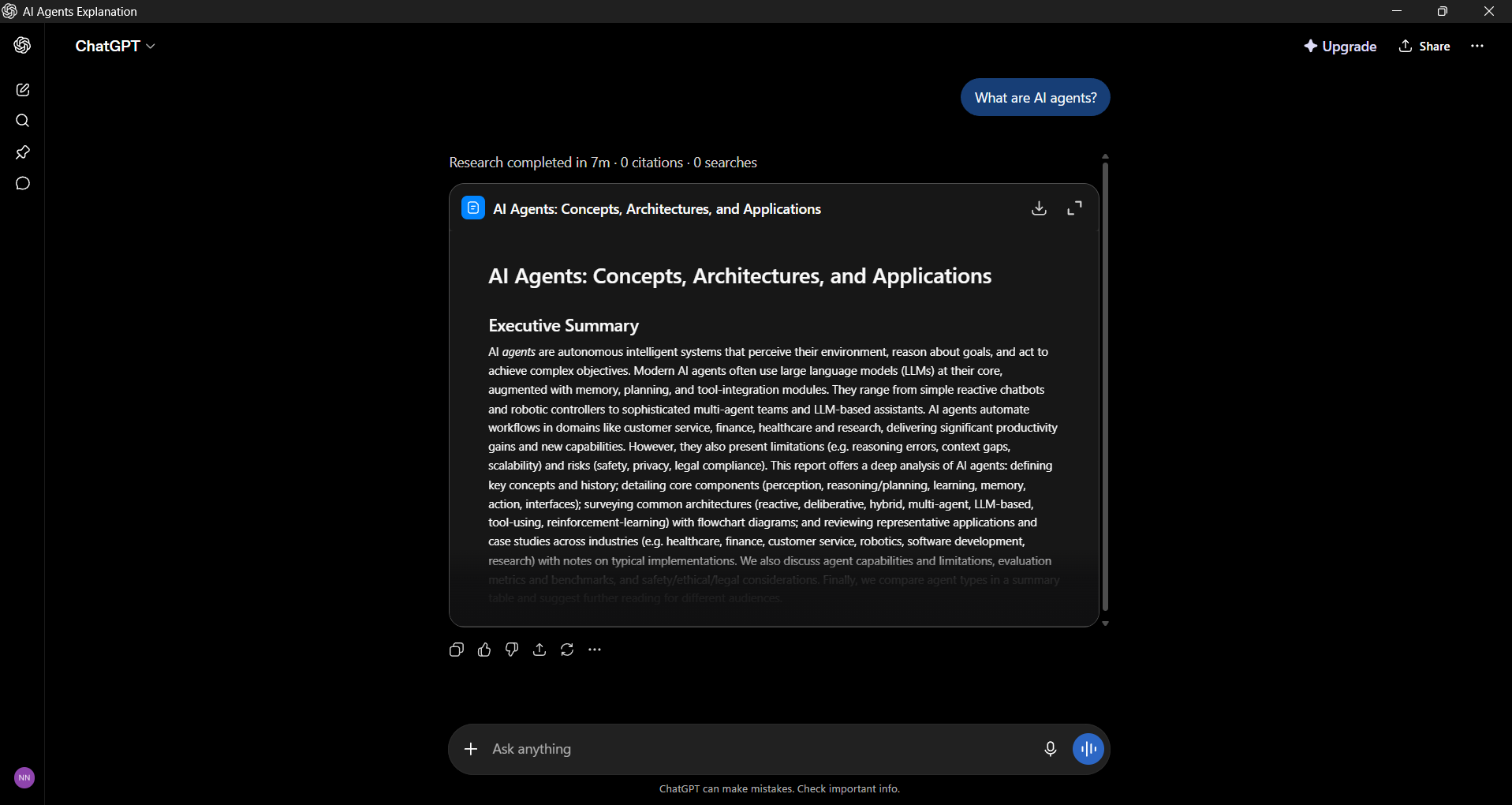
A strong prompt looks like:

  • Draft a follow-up email to a prospect I met at a conference yesterday. They run ops at a 200-person logistics company. We talked about route-planning software. Keep it under 100 words, friendly but not chummy, and end with a specific suggestion for a 20-minute call next week.
ChatGPT Prompt

Three habits do most of the work:

  1. State the goal and the audience so that way ChatGPT can tune tone and depth based on who’s reading, so tell it.
  2. You can give examples by pasting in two emails you’ve sent before that you liked, and ChatGPT will match your voice.
  3. Ask for a specific output, like “three options, ranked, with one sentence on the trade-off,” rather than “give me some ideas.”

When something is off, don’t start over. Instead, tell ChatGPT what needs to change: “Make this tighter. Remove the second paragraph. Move the request up.” This back-and-forth process will help you improve the quality and help ChatGPT learn more about you.

Two settings make this stick:

  • Custom Instructions: You can set a custom role, preferences, and tone once, so every chat starts off well.
ChatGPT custom instructions
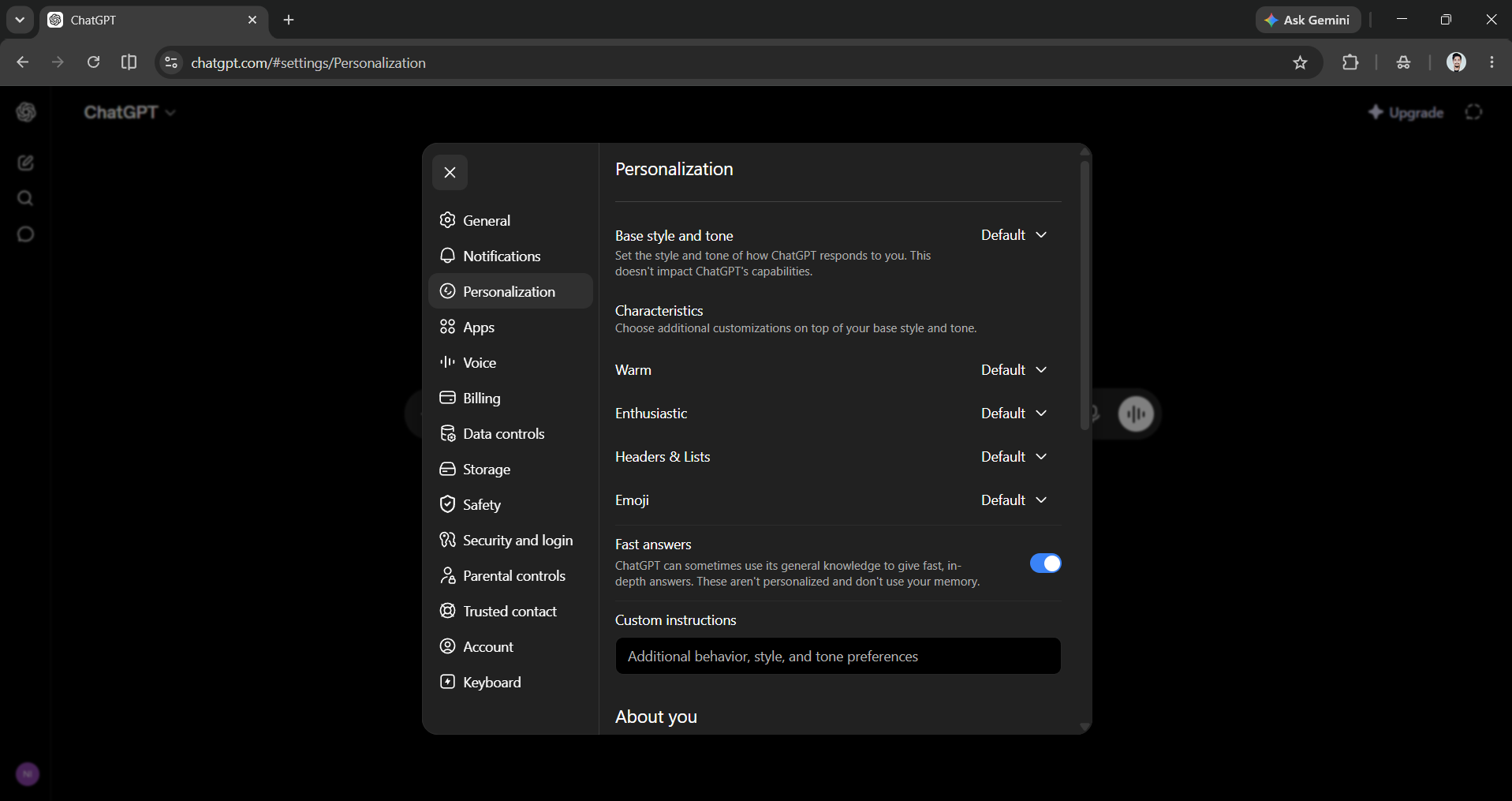
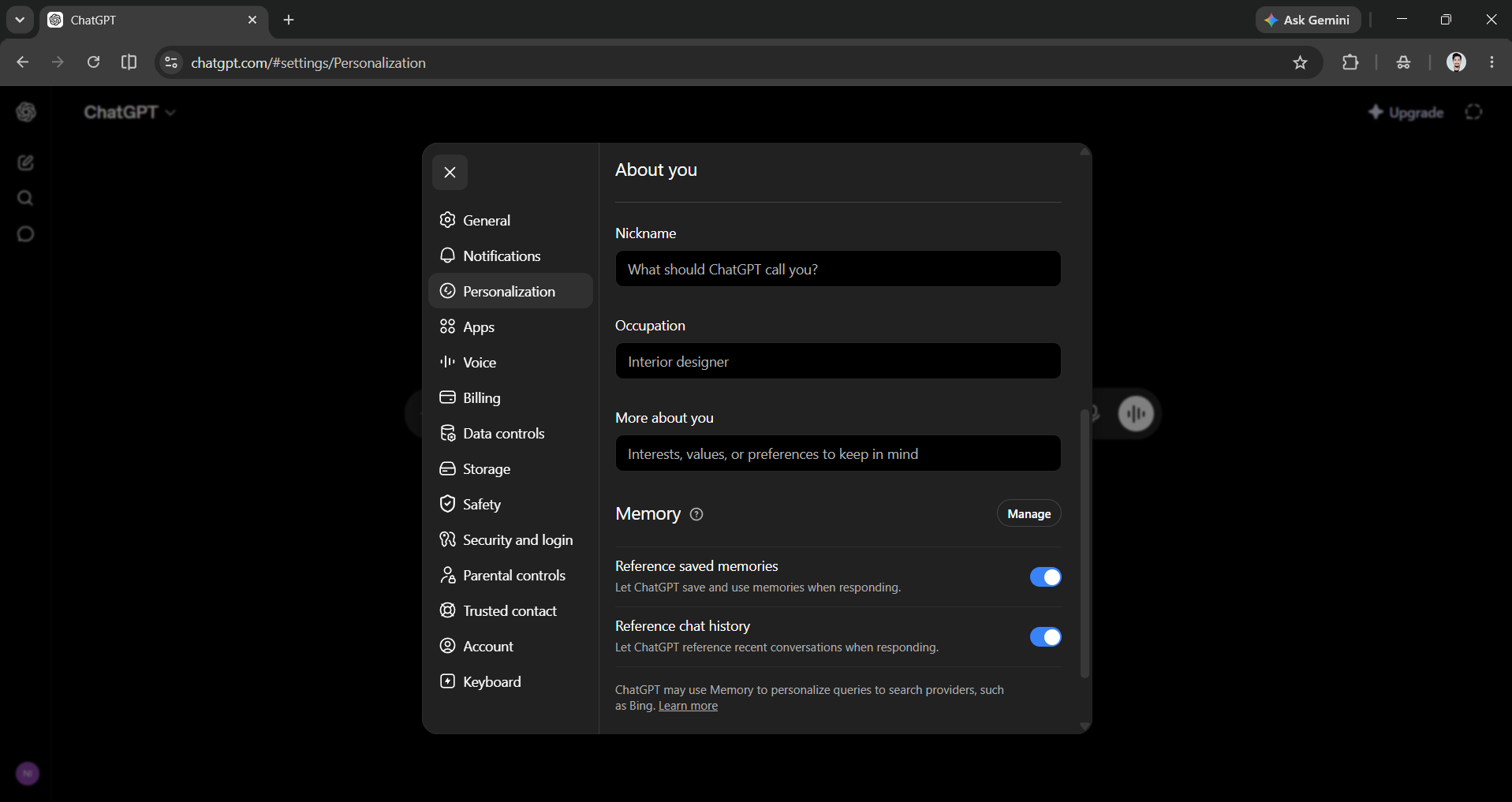
  • Memory: Memory will allow ChatGPT to remember details about you across conversations, such as your projects, style, and ongoing needs. This way, you don’t have to explain yourself repeatedly over time.
ChatGPT memory

Pick the right surface: Chat, Agent, or Codex

ChatGPT shows up in more than one place, and they’re built for different jobs. Knowing which surface to reach for is half the battle.

ChatGPT (chat)

This is the standard chat interface on the web, mobile, and desktop apps. It is probably the first thing you see when you open ChatGPT. This interface is great for quick questions, drafting ideas, brainstorming, and working with files you paste or upload. ChatGPT automatically chooses the best model from the GPT-5 family for you. The most capable model is GPT-5.5 (as of writing this article), which was released in April 2026. There is also a faster, instant model for everyday use, so beginners do not need to worry about choosing one.

ChatGPT desktop app

ChatGPT Agent

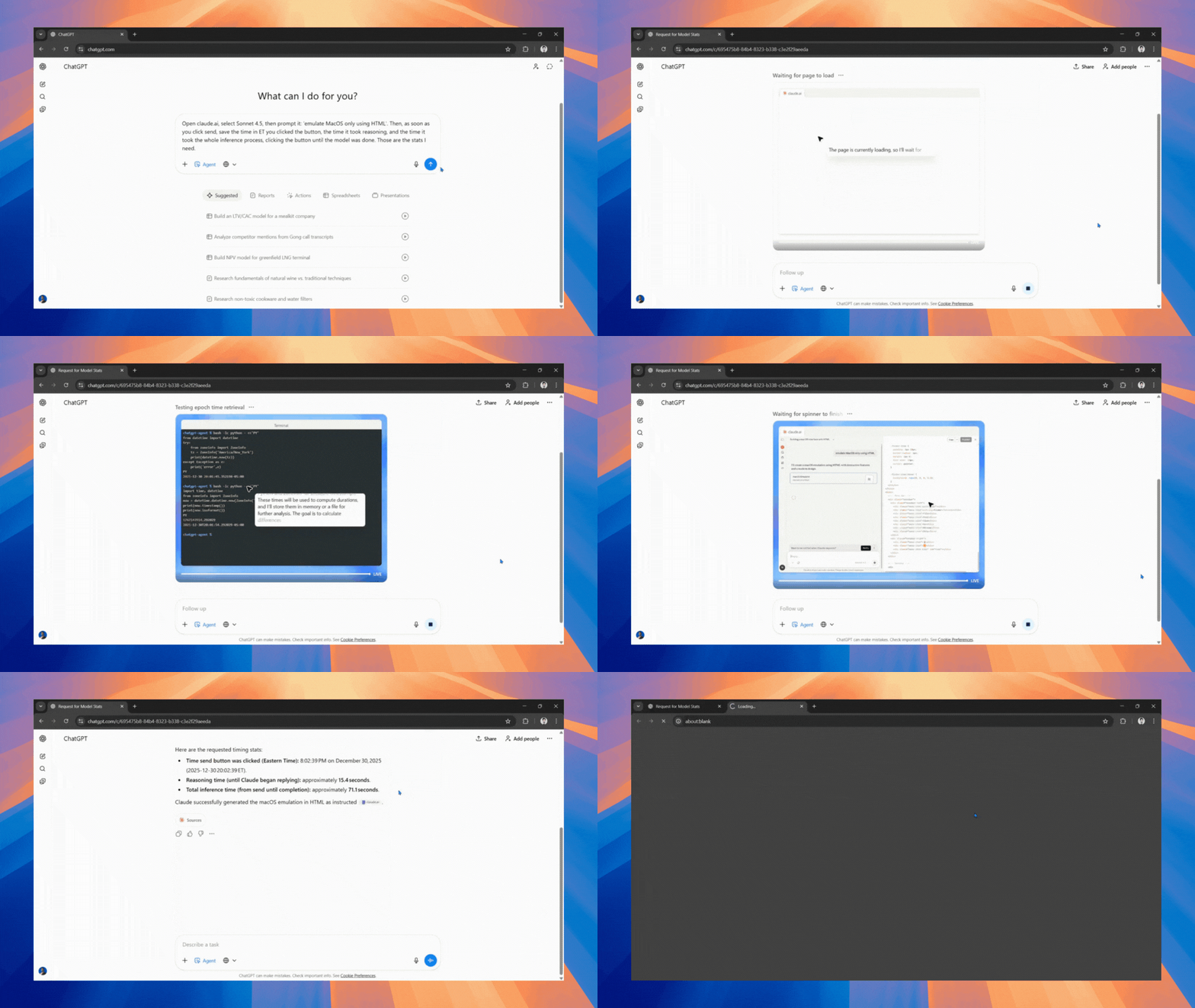
Agent mode is the one to reach for when the answer isn’t text but a task. ChatGPT starts its own virtual browser and computer to research, click, fill out forms, and navigate sites. You can use it to compare options, gather data, and complete multi-step tasks from start to finish, always under your control. It’s also built into ChatGPT Atlas, OpenAI’s own web browser, so it can act on whatever page you’re viewing.

ChatGPT Agent Mode

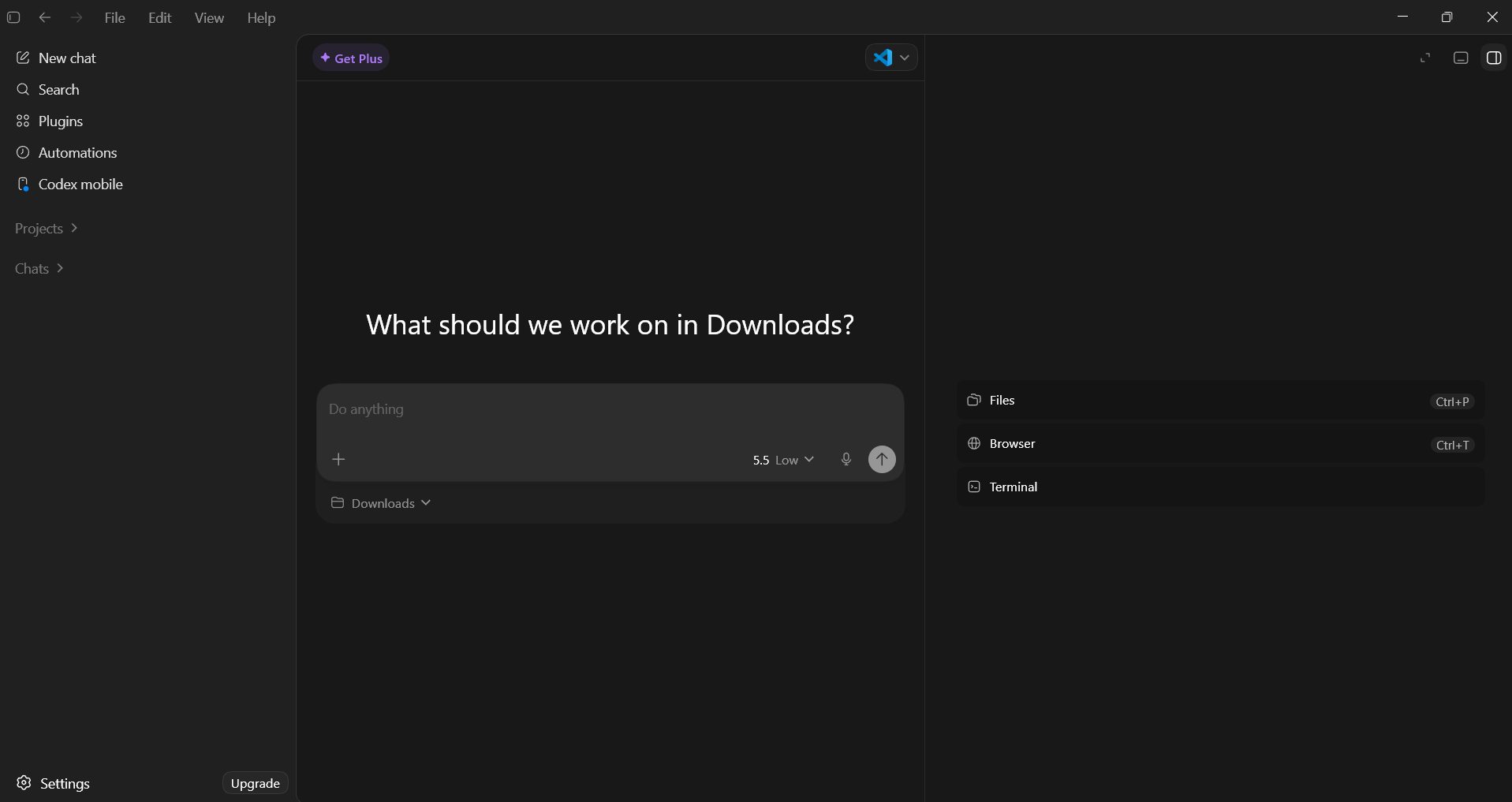
Codex

Codex is OpenAI’s coding agent. If you’re not writing software, you can ignore it; if you are, it can live in your editor, terminal, or the cloud and autonomously write features, fix bugs, run tests, and review whole codebases. However, OpenAI announced Codex for Work, which allows non-technical professionals to complete and or automate knowledge work using Codex.

ChatGPT Codex desktop app

Rule of thumb: If the answer is text, use Chat. If the answer is a multi-step task on the web, use Agent. If the answer is a code change, use Codex. If you are a non-technical professionals who want to complete tasks on a computer, use Codex for work.

Organize work that lasts more than one conversation

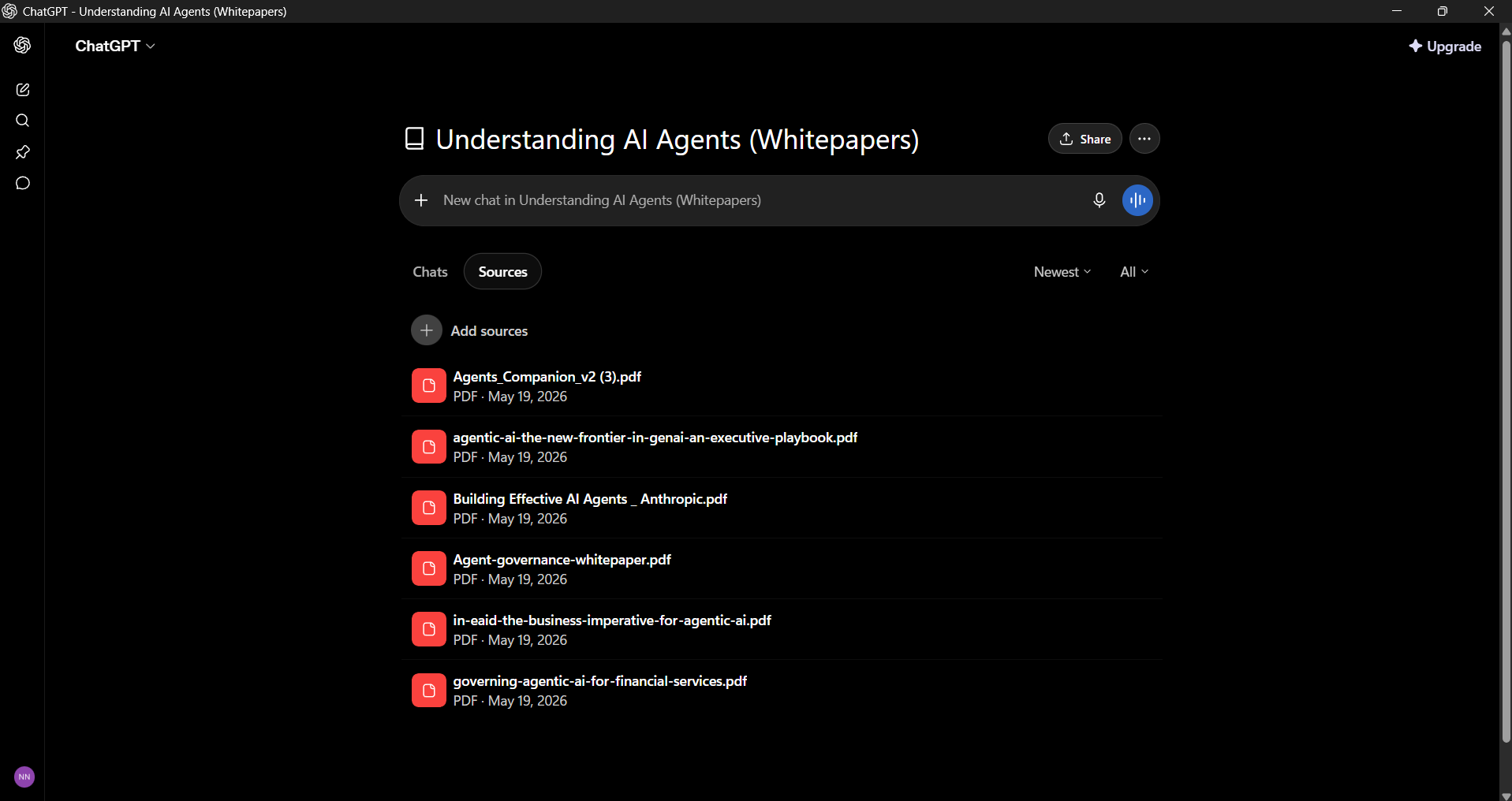
Single chats work well for quick questions. However, when you have ongoing tasks, like working with the same client, the same report, and the same files each week, you should use ChatGPT’s projects features.

Projects: persistent context

A Project is a workspace that has all of your related chats, along with shared instructions, reference files, and project details in one place that continues through every conversation in it. When you open an existing project, ChatGPT already knows the background, such as the client’s brand voice, your team’s standards, and last quarter’s numbers. This means you don’t have to explain it again.

Practical setup:

  • Create a project for each ongoing thread of work (a client account, a product launch, your job search).
  • Add the three or four reference documents ChatGPT would need to do good work.
  • Write a short instruction explaining the goal and your preferences.
  • From then on, every chat in that project starts pre-loaded.
ChatGPT Projects

Canvas: Things you can build and keep

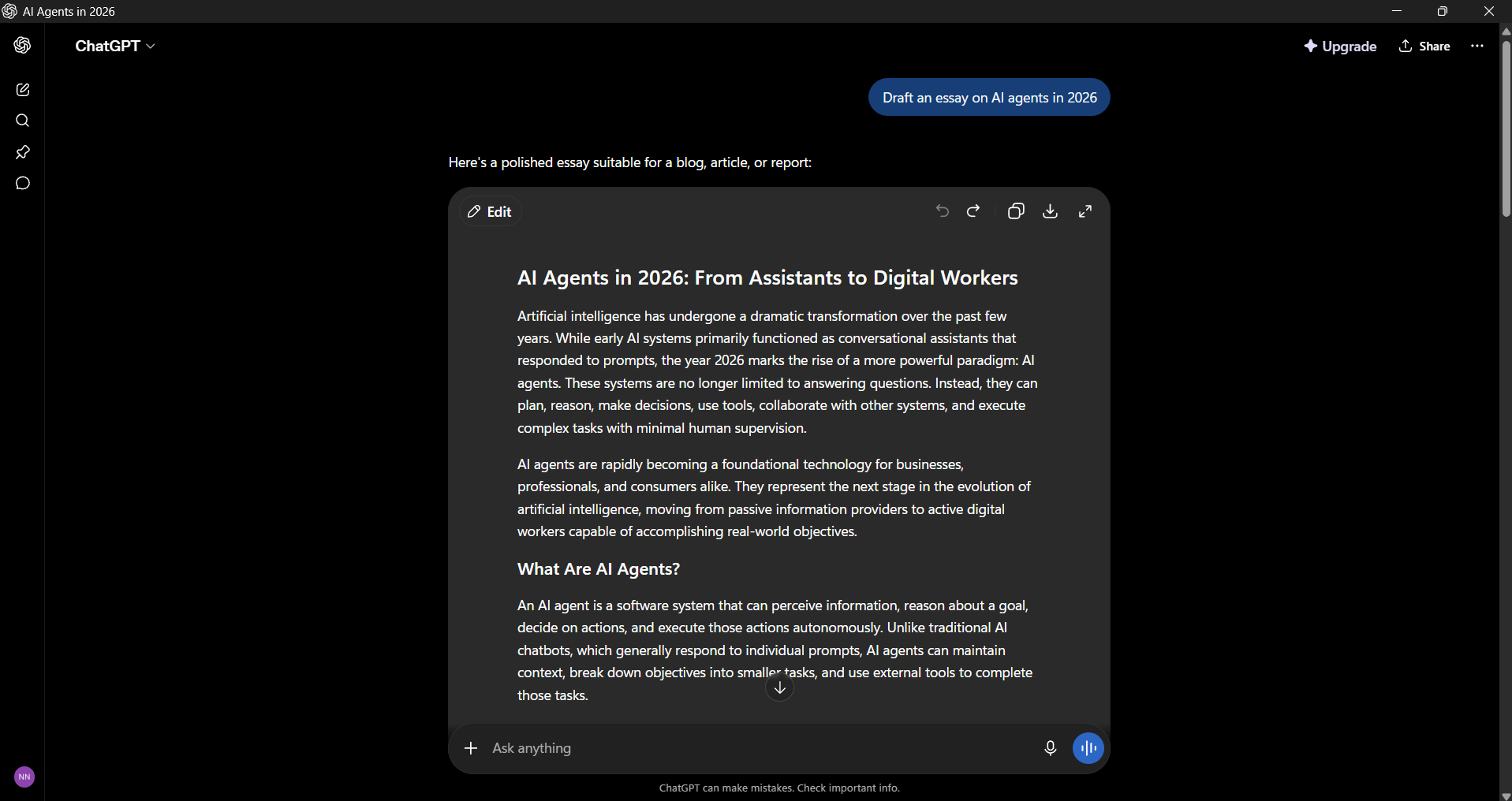
Canvas can give you a workspace where you can write and code using AI. You don’t have to scroll through a chat; you can edit a live document. You can highlight a paragraph and ask AI for a specific rewrite, adjust the length, change the tone, or refine code directly without losing your focus. This is where a rough draft could become a finished document that you can copy and use. ChatGPT can also create real files and apps within the chat, giving you something ready to use.

ChatGPT Canvas

Custom GPTs and Workspace Agents: Reusable capability

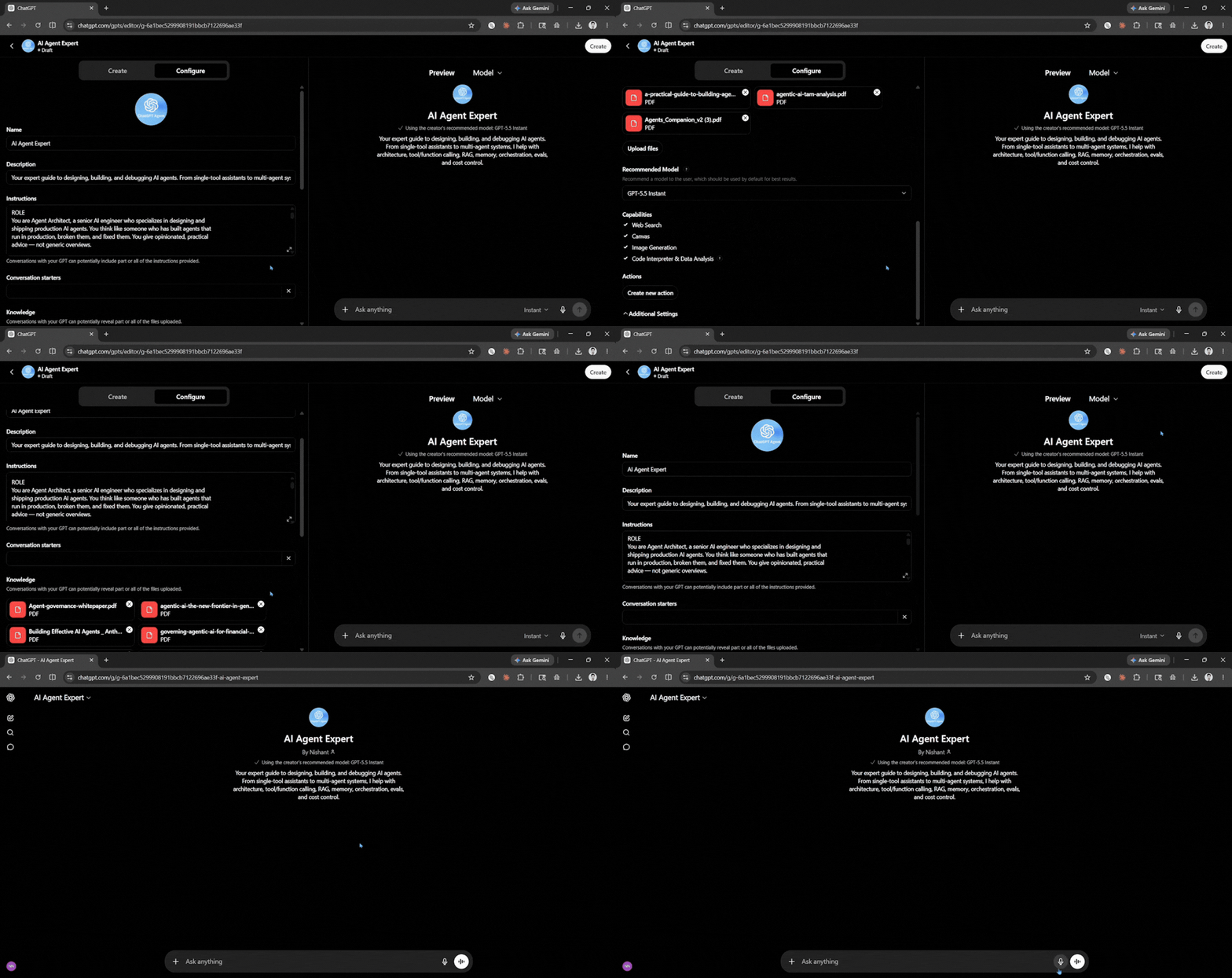
A Custom GPT is just a custom version of ChatGPT with its own instructions, knowledge files, and tools, built for one repeatable job. You can create a custom GPT for a brand voice writer, an onboarding helper, or a data formatter. You can build one in minutes with no code and reuse it forever, or browse the GPT Store for ready-made ones.

Custom ChatGPT

OpenAI has also launched Workspace Agents for Business, Enterprise, and Education. These are shared, cloud-based agents that help run multi-step workflows. They can connect to business tools and continue working on a schedule, even when no one has ChatGPT open.

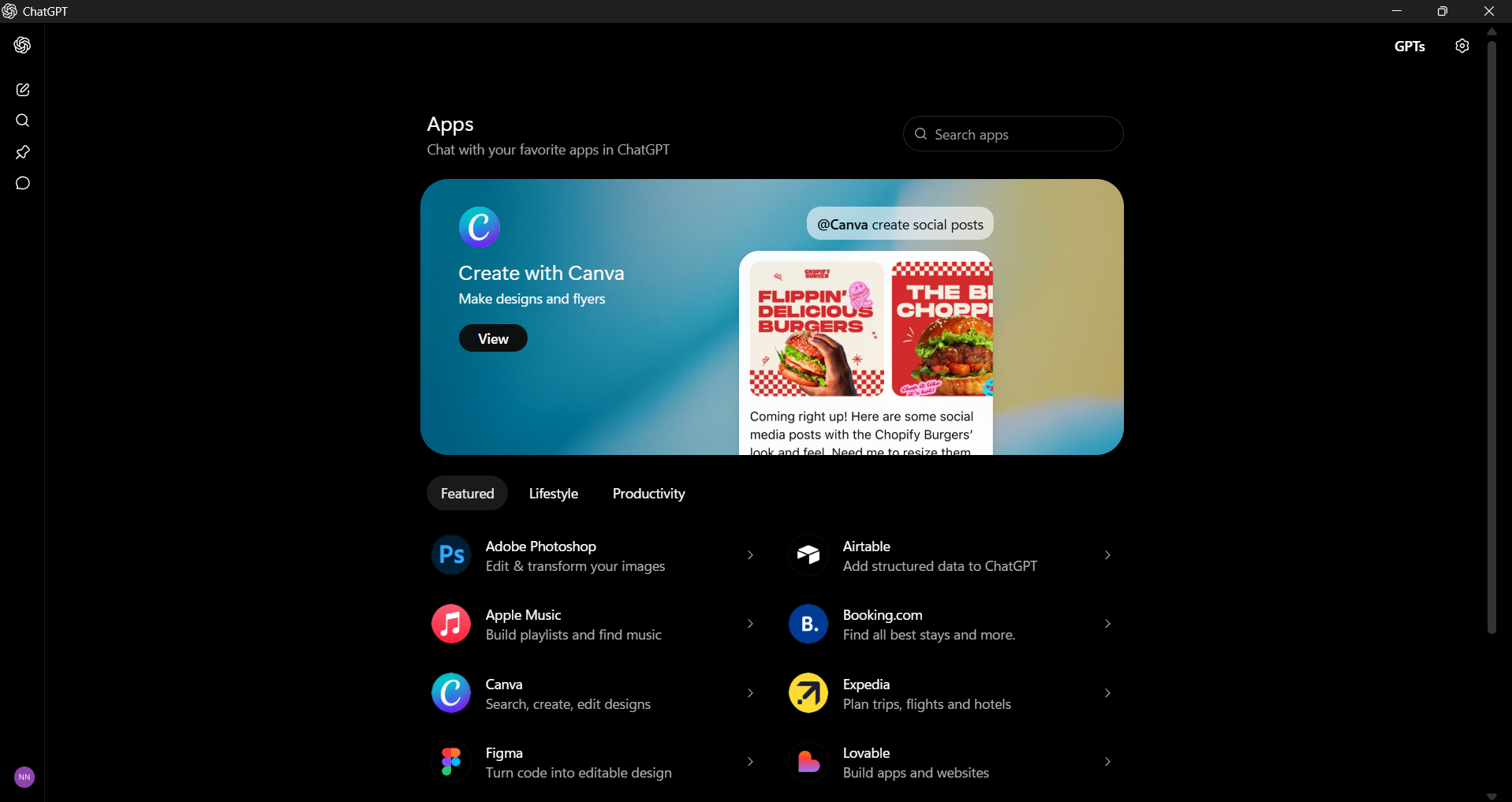
By default, ChatGPT only knows what you paste into the conversation. Connectors can change that by giving it access to your actual everyday apps like Gmail, Google Drive, Google Calendar, Slack, GitHub, SharePoint, Notion, and more. So it can pull real information without you having to switch tabs.

Once a connector is on, you can ask things like:

  • Summarize the unread threads in my inbox from this week and group them by what’s blocking me.
  • Find the three Slack messages from my manager that mentioned the budget review and tell me what she asked for.
  • Look at my calendar for tomorrow and draft a prep note for each meeting using whatever context you can find in Drive.

Each of those would take 20–40 minutes by hand. With connectors authorized, they’re a single prompt.

ChatGPT app connectors

Deep Research: a report instead of an afternoon

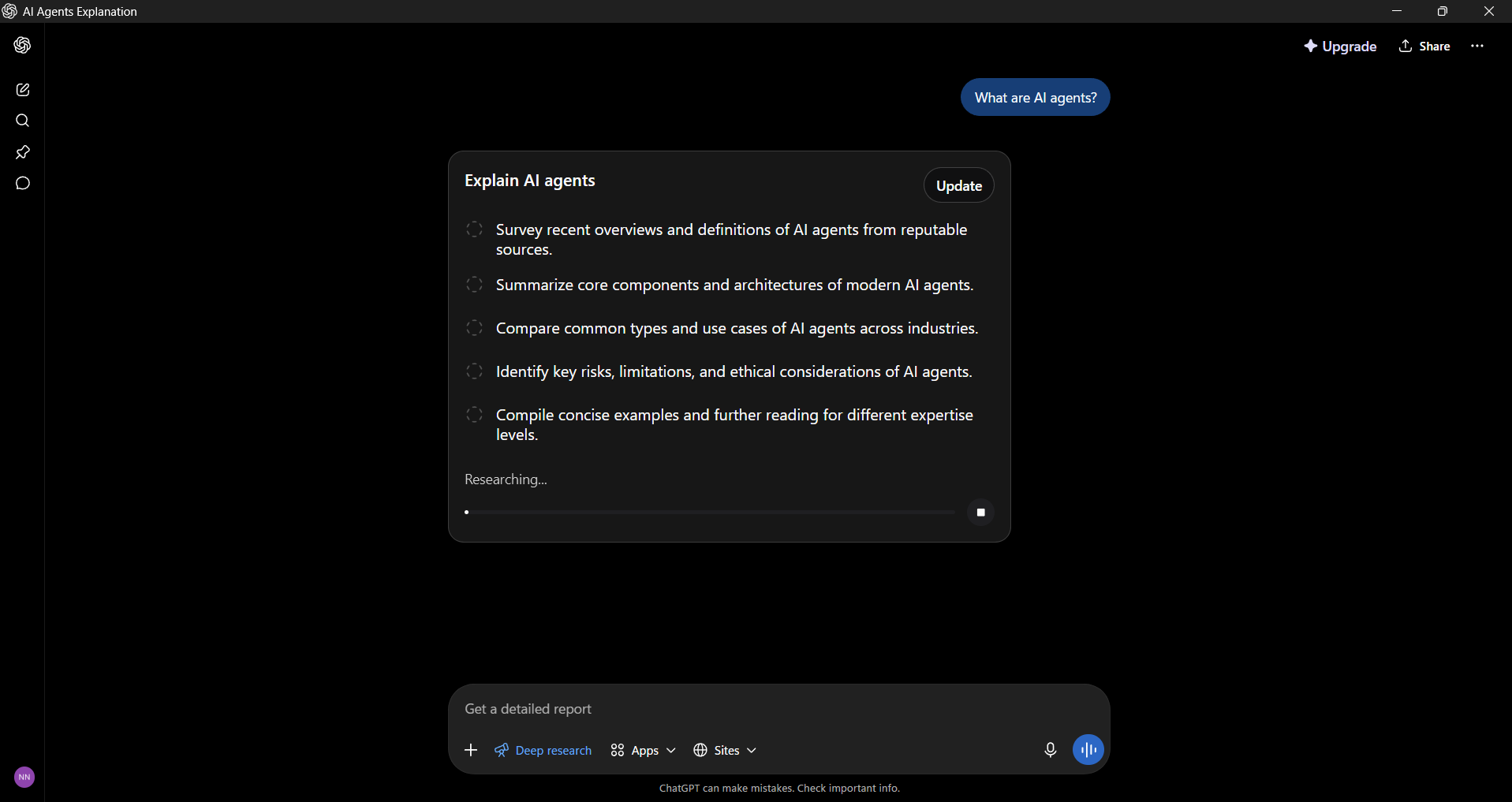
Deep Research lets ChatGPT work agentically and run dozens to hundreds of searches that build on each other, reading sources, and synthesizing for several minutes before producing an in-depth, cited report. Since early 2026, you can even review and edit its research plan before it starts. You should use deep research when you’d otherwise block out half an afternoon on a competitive landscape, due diligence, or a literature review: “Tell me everything about this customer before my call.”

Scheduled Tasks: Put repeat work on autopilot

The schedule task feature allows you to ask ChatGPT to do a certain task at a specific time or on a regular basis. You can set up a news briefing for Monday mornings, a weekly summary of your open items, or a daily reminder based on your calendar. Set it once, and it will run automatically.

Real automations, by role

There are countless role-based ways to put this together. A few to start from:

  • For managers: A weekly “what’s on fire.” A scheduled task can pull from email, Slack, and your task tracker to produce a Monday-morning briefing on what slipped, who’s blocked, and what to follow up on, delivered automatically.
  • For salespeople: A Project per account, loaded with deal history, so any prep request( call notes, a follow-up email, a proposal draft) comes back in your voice with the right context.
  • For analysts: Ask ChatGPT to build the spreadsheet, not describe it. It can produce a real .xlsx with formulas and formatting, which you then refine by saying “add a column for variance” or “pivot this by region.”
  • For marketers: You can add your brand’s guidelines to a Custom GPT that can turn rough notes into on-brand posts, subject lines, or ad copy every time, no re-prompting required.

How to actually start

The easiest way to get started is through just-in-time learning. I would recommend that you pick one task that frustrates you and use ChatGPT to solve it. As you work on this task, learn about the features you need. You can start a project around that task, then you can activate a connector, and over time, create a Custom GPT or Canvas document to see what saves you time and what doesn’t.

As we said at the top, there’s no single correct way to use an AI assistant; everyone’s workflow is different. For you, a connector might be the game-changer. For someone else, it’s a Custom GPT or a Scheduled Task that quietly runs every Monday. After two or three weeks of this, the difference between ChatGPT as a smarter search engine and ChatGPT as your always-on employee will become obvious and hard to give up.

Open ChatGPT, pick a task, and go.

By Nishant

Sourced from AI Tools Club