No need to give ChatGPT the run of your system. Instead, use this built-in Windows tool to generate a report that an AI chatbot can analyse.
Is your Windows 11 PC feeling pokey or maybe you just want an idea as to what’s going on under the hood? You could use an AI-assisted coding app like Codex or Claude Code to poke around your system, but maybe you’re not ready to give AI total access to your files.
Luckily, there’s an easy way to get ChatGPT, Claude, or Gemini to perform a quick — and hands-off — health check of your system. The trick is using the built-in Windows System Information application, a.k.a. MSINFO32.
Once you fire up MSINFO32, the utility will give you a detailed report of your system’s hardware, components, and software. It won’t tell you everything about your PC — for example, it doesn’t offer details on recent crashes, real-time performance, or battery health — but it can deliver a quick first-pass report on your PC’s health.
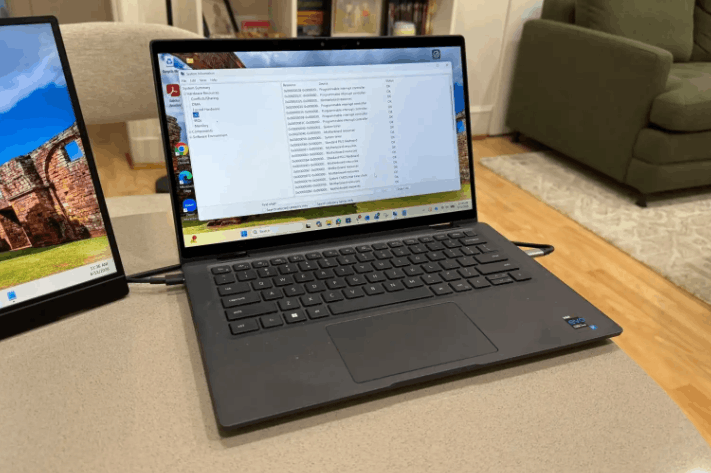
Now, the raw report that MSINFO32 spits out isn’t exactly easy reading. It’s more like a massive data dump. I ran the tool on my Dell Latitude laptop and the resulting file ran more than 3.4 million characters.
But here’s where ChatGPT comes in. This is a task it was born to handle, by the way. AI models love nothing more than to distil key findings from reams of complex data and if that data happens to be about PC components, that’s even better.
What we’re going to do is feed ChatGPT (or your AI chatbot of choice) the MSINFO32 report. We’re also going to feed it a prompt designed to create an easy-to-understand digest complete with a triaged list of potential action items and a breakdown of your hardware and software components.
The prompt will also make the AI ask you a few preliminary questions such as whether you’re having specific PC problems, is your PC for work or school, and whether anything has recently changed on your system.
Here’s how to get started:
Open the MSINFO32 application. Here’s the easy way to do it: Press the Windows key + R, type in “msinfo32”, then click OK.
Next, click File > Export, then name the file (it could be anything, like “sysinfo”) and pick the directory where you’d like the file to be saved.
Now, go to ChatGPT, Claude, or Gemini (I recommend using a “thinking” or “pro” model rather than “instant”), and upload the file.
Finally, use the prompt below (I put it at the bottom of the story because it’s a tad lengthy). You can, of course, modify the prompt or use another one entirely.
Once you run the prompt, the AI should ask you a few quick questions, and then you’ll get your PC health check, starting with a quick summary of your system configuration, a triaged list of action items, other key findings, next steps, and details on what the report doesn’t cover.
Running the report on my Dell laptop, ChatGPT said my system looked “generally healthy” and didn’t find any critical issues, although it did spot a disabled virtual Ethernet adapter. Guess I’d better call IT!
Anyway, here’s the prompt:
You are a Windows 11 PC health triage assistant for everyday users.
I will paste or attach a Windows System Information report from msinfo32. First, ask me up to five simple clarifying questions, one at a time, such as what problem I’m having, whether this is a personal or work/school PC, and whether anything recently changed. Stop asking once you have enough context. If I say “skip,” “not sure,” or “just analyse it,” proceed.
Analyse the report in plain English. Do not treat every technical-looking entry as a problem. Separate clear issues from normal Windows noise, and avoid risky advice such as registry edits, BIOS changes, driver removal, or reinstalling Windows unless there is a strong reason.
Start the analysis with Quick PC Summary, including:
PC model, Windows version, processor, RAM, storage, graphics, and network adapter
Security/boot status, including Secure Boot, UEFI, TPM/encryption clues, virtualization-based security, and Credential Guard if shown
Then provide Action Items, divided into:
Critical
Needs Attention
Optional Tweaks
Looks Healthy / No Action Needed
Then briefly cover:
Problem Devices or devices marked Error, Disabled, Unknown, or Not Available
Storage space and whether it is low
Memory/performance clues
Network/VPN/Bluetooth/virtual adapters
Notable driver or firmware issues
Explain what the user should not worry about, such as stopped manual drivers, WAN Miniports, shared IRQs, virtual adapters, Hyper-V/hypervisor messages, and “Not Available” fields when they are normal.
End with safe next steps, such as running Windows Update, checking Device Manager for warning icons, checking Windows Security, confirming BitLocker/device encryption, and contacting IT/support for work-managed PCs or VPN/security-tool issues.
Also include a short Confidence Level section explaining what the report can and cannot determine.
Everything you need to know to get started with Bard, Google’s experimental conversational AI chatbot.
Bard is Google’s artificial intelligence chatbot which generates responses to user-provided natural language prompts. In response to a prompt, Bard can pull information from the internet and present a response. The large language model behind Bard delivers the response in natural language — in contrast to a standard Google search, where a result consists of a snippet of information or a list of links.
Google announced Bard in February 2023 after OpenAI and Microsoft both garnered attention for AI chatbot systems. And in May 2023, Bard and related AI advancements featured prominently in Google’s I/O event.
According to Sundar Pichai, CEO of Google and Alphabet, Bard is “an experimental conversational AI service.”
In fact, Google places the word “Experiment” next to the system’s name to show it is still a work in progress. Additionally, Google indicates that “Bard may display inaccurate or offensive information that doesn’t represent Google’s views” in a disclaimer placed below the prompt box.
Bard’s prompt-response process can help you obtain answers faster than a standard Google search sequence.
A classic Google search requires you to enter keywords, follow links, review content, then compile the results or repeat the process with a refined keyword search string.
You also can suggest a specific length if you want a particular degree of brevity, such as “Please summarize in 100 words.”
Google Bard can compare
Bard can compare two or more items. In many cases, when you ask Bard to compare things, the system will display some of the data in a table. For example, if you prompt Bard:
Compare a Pixel 7, Pixel 7a and Samsung Galaxy S23.
Similarly, you may ask Bard to compare web pages.
Google Bard can suggest
Bard may serve as a suggestion engine for products, services or activities. Enter the title of books, music or movies you like, then ask Bard to suggest others. This can be useful when you’re researching unfamiliar topics. For example, you might try:
I am interested in learning the history of machine learning.

Can you recommend 10 useful and highly respected books on the topic?
Google Bard can explain
When you want to learn about a topic or historical event, you can ask Bard to explain it to you. If you like, you may suggest a desired level in order to guide the system toward an explanation that may be either easier to understand or more detailed. For a general overview of a core technology that helps make Bard work, you might ask:
Can you explain the basics of how neural networks operate? Explain it to me as if I am in my first year of college.
Google Bard can brainstorm
One of the best uses of a chatbot is to gather a long list of ideas. Ask Bard to “Brainstorm ideas for…” followed by whatever topic you wish, such as a new project, promotional effort or paper. Encourage Bard to provide creative, unusual or inventive ideas for additional variety in the responses.
Google Bard can code and debug
In April 2023, Bard added the ability to create and help debug code in more than 20 programming languages. When you ask for code, make sure to specify the programming language and describe in as much detail as possible the code you need. If the code generated doesn’t work, let Bard know what exactly went awry, and ask for a suggested fix or for help interpreting an error code.
Bard can help you write, too. As with most prompts, provide as much detail about the topic, length, format (blog post, poem, essay, book report, etc.) and style as possible. If you have a rough outline of a blog post, you might include the desired points in your prompt. For this section of text, for example, you might prompt:
Using the following points as an outline, can you draft

examples and explanatory text? "Bard can summarize. Bard can compare.

Bard can suggest. Bard can explain. Bard can brainstorm. Bard can draft

text. Bard can code (and debug). Bard can search."
The responses Bard generated were reasonable and might have required only a little editing and correction to be usable.
Google makes it easy to move Bard text elsewhere. Select the response export button to move content to either a new Google Doc or Gmail. Alternatively, select the More button (the three vertical dots), then choose Copy to place the response text on the system clipboard for pasting into any app of your choice.
Bard can search
Since Bard can access internet content, many conventional keyword searches will also work in Bard. Ask about current news topics, weather forecasts or pretty much any standard keyword search string. However, Bard will provide responses mostly in conventional text, sometimes supplemented with images, whereas Google search may show content in custom formats (e.g., weather forecasts often display a chart). When you seek a set of links, switch out of Bard back to a standard Google search.
Bard can be wrong
Bard can get things wrong. Never rely solely on content provided in Bard responses without verification. When Bard does provide an inaccurate, misleading or inappropriate response, select the thumbs down icon to convey to the system that it provided a bad response. Remember, Bard is an experiment.
When was Google Bard released?
At launch in March 2023, Google limited Bard access via a waitlist to people with personal Google accounts. In early May 2023, Google eliminated the waitlist and made Bard more widely available.
How can you get access to Google Bard?
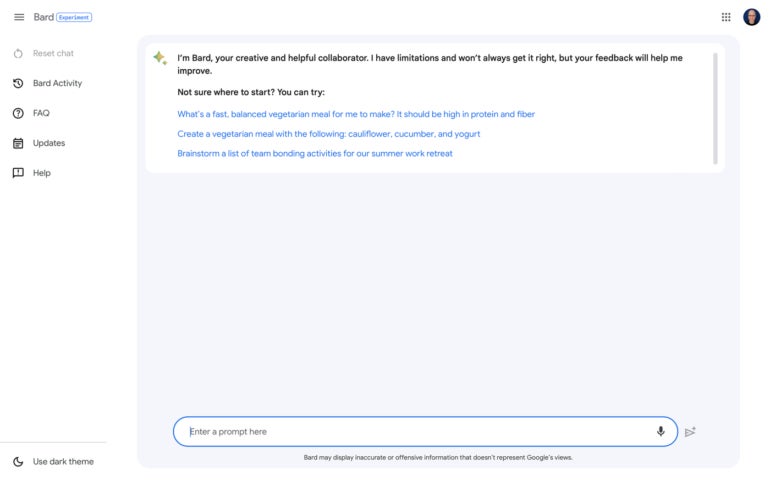
To access Bard, go to https://bard.google.com in a web browser, and sign in with a Google account (Figure A).
Figure A
Go to bard.google.com in any modern browser, then sign in with a Google account.
If your account is managed by a Google Workspace administrator, such as an account for work or school, the administrator may adjust settings to either allow or prevent access to Bard. Check with your administrator, should you have any questions.
If you are a Google Workspace administrator and wish to review or adjust the settings that affect Bard availability for people in your organization, access the Admin console | Apps | Additional Google services | Early Access Apps, then modify the Service status and Core Data Access Permissions as desired.
What countries and languages is Google Bard available in?
As of May 10, 2023, Google expanded Bard to support Japanese and Korean in addition to U.S. English. Simultaneously, Google made Bard available in more than 180 countries and territories. However, Bard was not made available on that date to people in European Union countries, such as Germany, France, Italy and Spain. By the end of 2023, Google intends to make Bard available in the 40 most spoken languages.
Can I manage my Bard activity history?
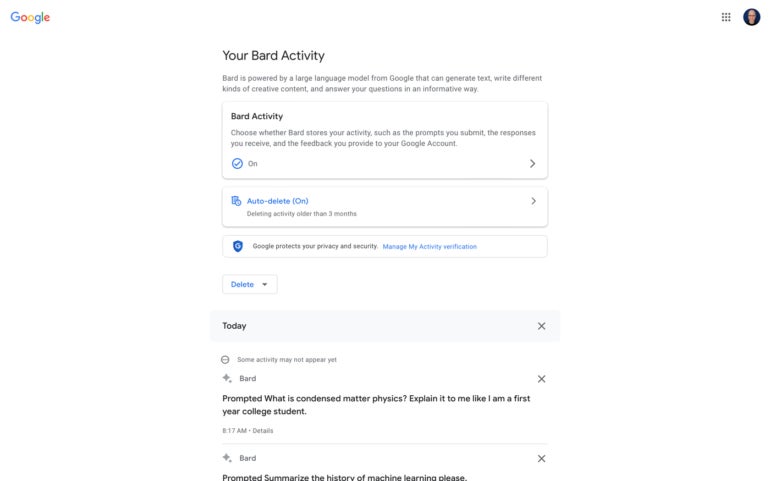
Yes, Google gives you control over your Bard activity history, much as it does your search and browsing history. To adjust the settings, select Bard Activity from the left menu. Then, you may choose whether Bard Activity history is on or off (Figure B).
Figure B
While access to previous prompts can be helpful, Google gives you full control over whether or not your Bard Activity history is stored.
If on, you may choose to Auto-delete activity after three, 18 or 36 months or not at all. Additionally, you may access your Bard activity history, which can be helpful if you wish to review or rerun a previous prompt.
Is Google Bard free to use?
Yes, Google Bard is available to use for free. As of May 2023, Google Bard remains free of advertising, as well.
Is Google Bard using PaLM 2?
In May 2023 Google announced that Bard had switched to using Pathways Language Model 2 rather than Language Model for Dialogue Applications. Google promotes PaLM 2 as a “state-of-the-art language model with improved multilingual, reasoning and coding capabilities.”
Google plans to make PaLM 2 available in four distinct sizes: Gecko, Otto, Bison and Unicorn. The distinct sizes are intended to serve a wide range of computing environments. The smallest, Gecko, is intended to be functional even on a mobile device without an internet connection.
What are alternatives to Google Bard?
The ability to access current internet content is a key differentiator between Google Bard and many other chatbot AI systems. Many large language model chatbot systems were trained on older data and lack access to information about current events. This inability to browse the internet limits the usefulness of many of these systems.
Three alternatives to Bard that can access current internet content and are worth exploring are:
Perplexity.ai: Available free on the web with account sign in optional.
Bing: Available free on the web in Microsoft Edge with Microsoft account sign in.
ChatGPT Plus: Available for $20 per month in a web browser or in an iPhone app. In late May 2023, Microsoft announced that the free edition of ChatGPT will gain access to Bing, as well.