Tag

AirPods

Browsing

By  

When Apple unveiled iOS 27, it highlighted only a pair of new AirPods features initially. But there are several more AirPods additions in iOS 27, here’s everything new.

Custom EQ
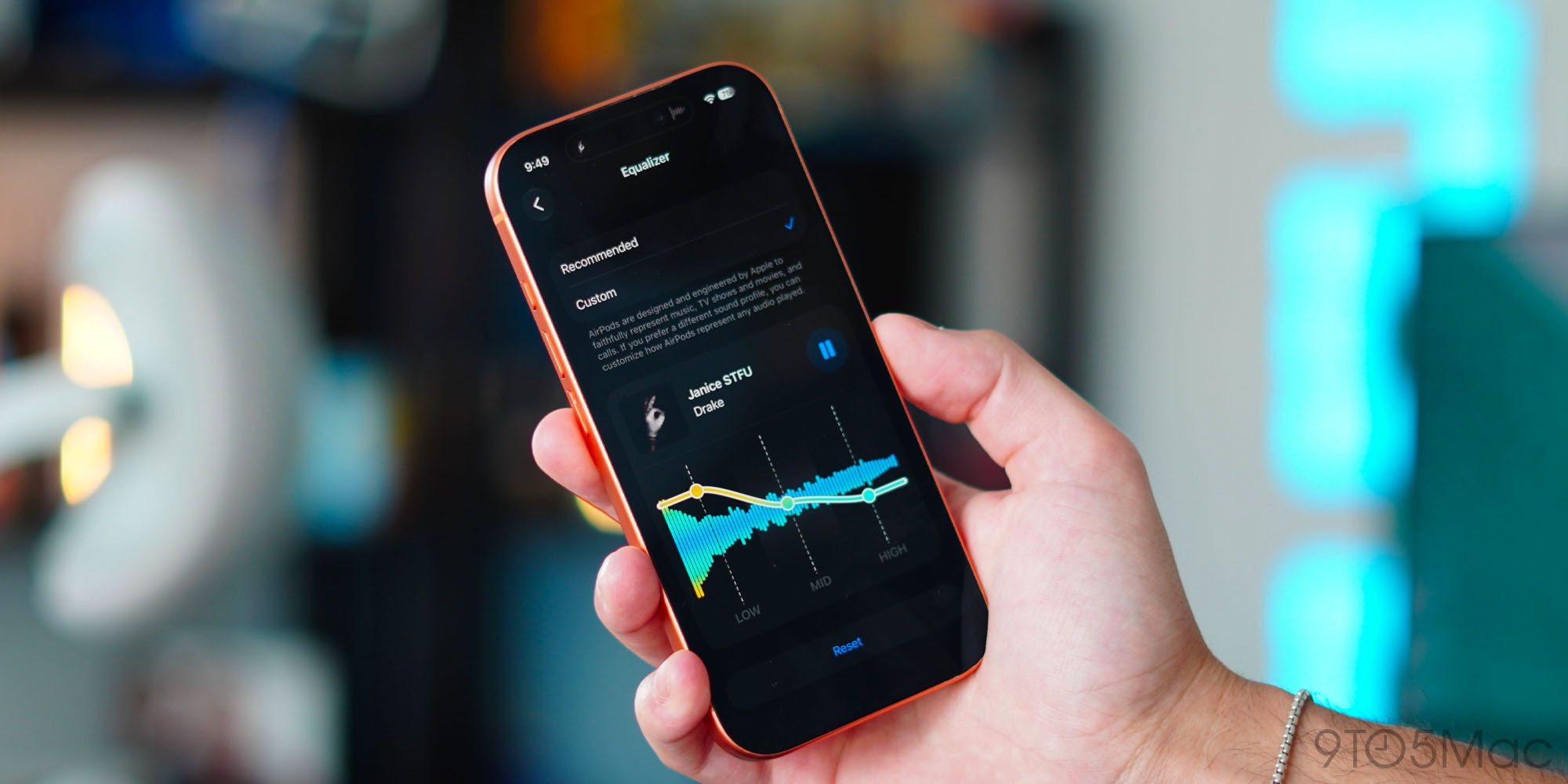
Custom EQ is a feature that some AirPods users thought Apple would never ship. But it’s here in iOS 27, available now in the AirPods beta.

With Custom EQ, Apple now lets you set your own sound profile for AirPods. Per Apple:

AirPods are designed and engineered by Apple to faithfully represent music, TV shows and movies, and calls. If you prefer a different sound profile, you can customize how AirPods represent any audio played.

You can change the EQ by going to your AirPods’ settings ⇾ Audio & Routing ⇾ Equalizer ⇾ Custom. From here, you can adjust the sound profile for low, mid, and high frequencies.

Custom EQ is available on AirPods Pro 3, AirPods Pro 2, AirPods Max 2, and AirPods 4.

GymKit can sync AirPods Pro 3’s heart rate data

Apple GymKit has been available for years, but only for Apple Watch. It lets you pair and sync workout data with compatible cardio equipment, like treadmills, ellipticals, indoor bikes, and more.

In iOS 27, GymKit expands to support iPhone using AirPods Pro 3’s heart rate sensor. My colleague Zac gave it a try:

The setup is simple. I tapped my iPhone to the treadmill, picked Indoor Walk (Indoor Run is also offered), and started the workout from the treadmill. With GymKit, workout data is stored privately on iPhone and removed from the equipment.

Once the workout started, the treadmill received heart-rate data from AirPods Pro 3. Meanwhile, the Fitness app on iPhone received the treadmill’s distance, pace, incline, and calorie data. Treadmills know details that an iPhone and AirPods can’t know on their own, especially incline and precise belt distance.

For more details on iOS 27’s GymKit feature for AirPods Pro 3, check out Zac’s full hands-on below.

Siri AI

Siri AI is powered by Gemini models, but is not Gemini – what does that mean? | Siri AI animation shown

For most AirPods users, the single biggest upgrade in iOS 27 will be Siri AI.

Siri AI is available on compatible iPhone hardware in iOS 27, and Apple made sure to expand full support for the AI assistant to AirPods too.

AirPods are essentially becoming an AI wearable thanks to the new Siri. It will let users do a lot more than the current Siri. Here are some key features via Apple’s website:

  • World Knowledge: “Ask about virtually any topic that’s on your mind, from important facts to recipes and restaurant recommendations. Siri AI can reference information online to give you detailed, up-to-date insights.”
  • Conversational: “Siri AI is your conversational AI assistant with entirely new capabilities…Ask open-ended questions, brainstorm ideas for work or creative projects on the go, and engage in natural, back-and-forth conversations.”
  • Personal Context: “Siri AI can find relevant answers to what you’re looking for just by asking. Search for a photo from years ago, easily locate an email buried in your inbox, or pull up a note you saved on your iPhone.”

Redesigned Settings menus
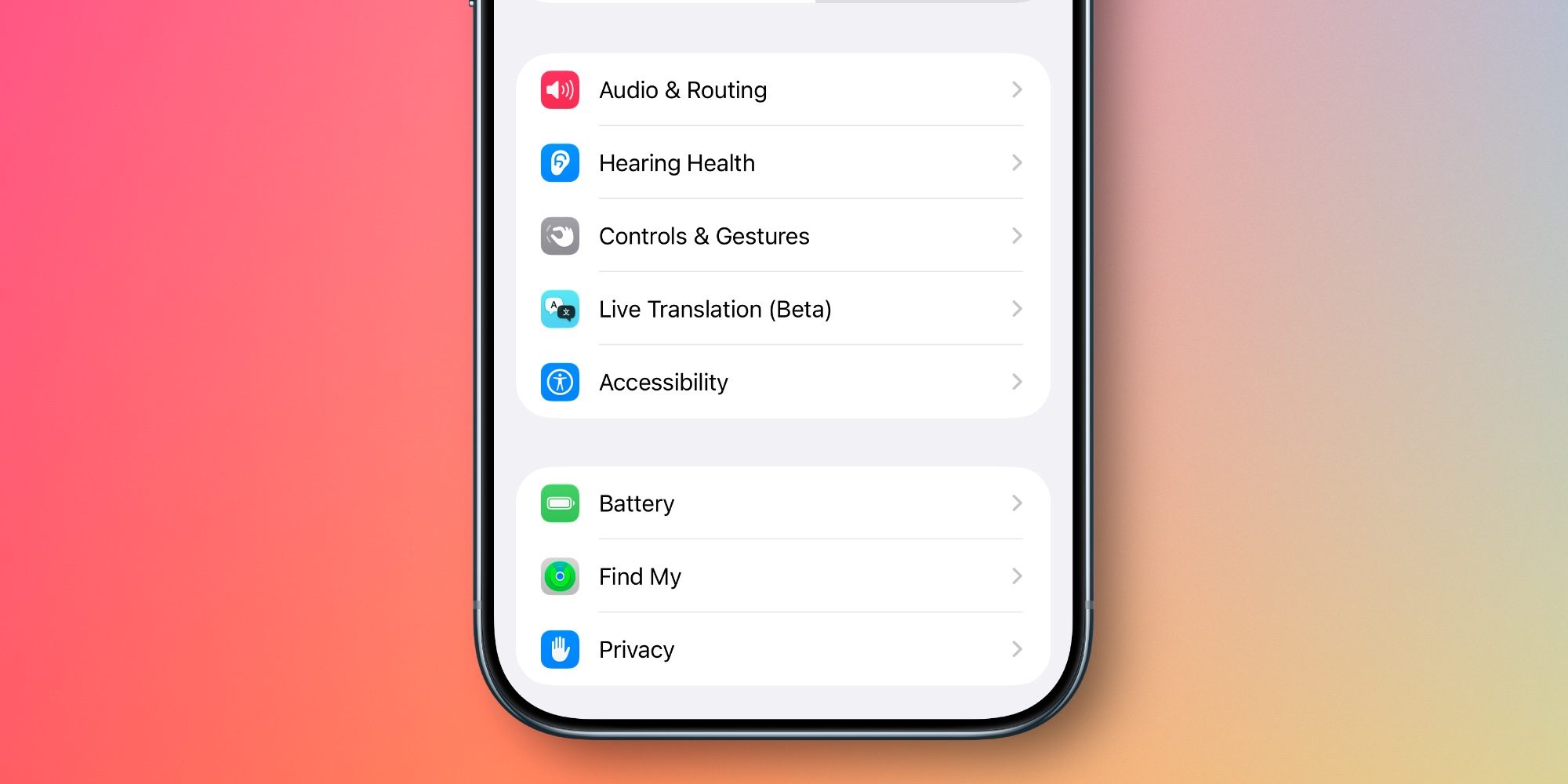
With every batch of new AirPods features that debuts, the AirPods settings screen in the Settings app gets more cluttered.

But in iOS 27, Apple has a welcome fix: it’s redesigned and reorganized all AirPods settings.

Now, you’ll find AirPods settings organized into more categories and submenus, accompanied by colorful icons. It makes finding the right setting way easier and more intuitive than before.

Read moreiOS 27 revamps AirPods settings in a big way, here’s the new design

Precision Finding via Apple Watch
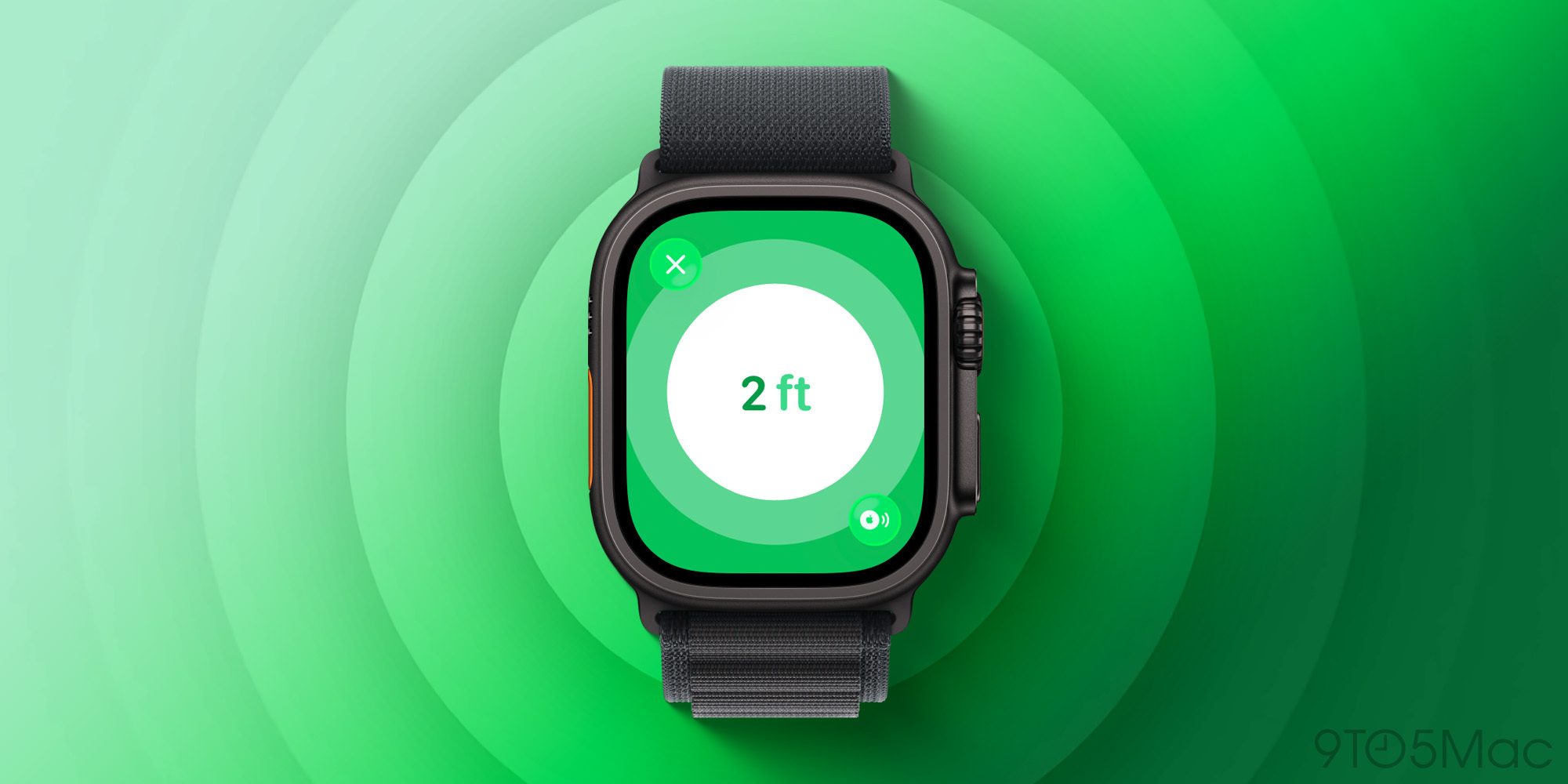
Earlier this year when AirTag 2 launched, Apple brought Precision Finding support to Apple Watch for the first time. Until now though, it’s been limited to AirTag 2.

But with iOS 27 and watchOS 27, Apple expands Precision Finding on the Watch to AirPods Pro 3.

AirPods Pro 3’s case includes the latest second-generation Ultra Wideband (UWB) chip, letting you find it with greater precision and step-by-step guidance right from your wrist.

Which new AirPods features in iOS 27 are you most excited about? Let us know in the comments.
By  

Sourced from 9TO5Mac

By 

Answer the phone with a nod, and more

Apple’s AirPods are some of the most popular earbuds and headphones that you can buy today. It’s no great surprise why, considering how well they work with iPhone devices and the sheer number of features available out of the box. But; did you know that there’s loads about your AirPods that you might not know about?

There are loads of different hidden features built into the AirPods line, from funky extras that let you take photos with your earbuds to head gestures that can answer and reject calls. Whether you own a pair of AirPods 4AirPods Pro 3 or AirPods Max, here are the hidden features you didn’t know were in your AirPods.

1. Take a picture

AirPods Pro 3

(Image credit: Future)

I’ll bet you didn’t know you could use your AirPods as a remote control for the camera on your iPhone! It’s super easy as well — you just need to activate it in the settings menu.

Head to the settings menu, and find your AirPods. Scroll down to the camera control section, and choose the option that suits you. You can choose a single or long tap to activate the shutter in the camera app.

From there, open the camera app, and try your new shortcut. You’ll get a countdown on screen, and then your phone takes a picture. Perfect for group photos!

Airpods this works with:

  • AirPods Pro 3
  • AirPods Pro 2
  • AirPods 4

2. Nod to accept a call

AirPods 4

(Image credit: Future/ Alex Bracetti)

Ever found your hands full, only to need to answer a call on your earpuds? Don’t worry, Apple thought of a solution. There’s a setting that lets you nod your head to accept a call and shake your head to decline it. It’s found hidden away in the settings menu.

Open the menu, and find your AirPods settings. Scroll down until you find head gestures, and toggle the option on. Now, you can accept and decline calls with a nod or a shake of your head.

AirPods this works with:

  • AirPods Pro 3
  • AirPods Pro 2
  • AirPods 4
  • AirPods 3

3. Make sure your AirPods fit correctly

AirPods Pro 3

(Image credit: Tom’s Guide)

Finding the right fit with any pair of earbuds can be tricky. Which ear tips should you use? How do they slip in properly? Apple has made it easier to make sure that your earbuds are fitting properly with fit test.

Head to the settings menu, and select your AirPods. Navigate to Ear Tip Fit Test, and then run the test. Adjust their fit as needed with a new set of tips — remember, you might need one side to be bigger than the other.

Once it’s all done, your AirPods will fit better, they’ll even likely sound slightly better. and, as an added bonus, the ANC will block more noise. Make sure you run this test!

AirPods this works with:

  • AirPods Pro 3 (it’s called “Acoustic Seal Test”)
  • AirPods Pro 2

4. Chill out with relaxing sounds

A pair of Apple AirPods Pro 3

(Image credit: Tom’s Guide)

Did you know that your AirPods can help you relax? There are built in sounds that can calm you down. They’re called “Background Sounds,” and there’s a series of different options to choose from. Six, in fact.

Head to the settings menu, and go to the accessibility section. Then you’ll choose the Audio/Visual menu, and navigate to the Background Sounds option. From there, choose your sound. Now you can sleep peacefully without being woken up by your snoring partner. Or the hamster wheel. Or, well, whatever it is that keeps you up.

AirPods this works with:

  • AirPods Pro 3
  • Airpods Pro 2
  • AirPods Pro
  • AirPods 4
  • AirPods 3
  • AirPods 2
  • AirPods Max

5. Watch your movies without disturbing your family

A pair of Apple AirPods Pro 3

(Image credit: Tom’s Guide)

If you’ve got an Apple TV, you can connect your Airpods and listen to the audio without waking anyone else up at more… interesting hours. It’s super easy, and if your AirPods support Spatial Audio, then you’ll get surround with some of your content as well.

To see if your AirPods are connected to your Apple TV, press the power button to bring up control center. Check the audio menu here and find your AirPods. Now you can watch all your movies and TV with your AirPods! Simple, and very useful.

AirPods this works with:

  • AirPods Pro 3
  • AirPods Pro 2
  • AirPods Pro
  • AirPods 4
  • AirPods 3
  • AirPods 2
  • AirPods
  • AirPods Max

Feature image credit: Tom’s Guide

By 

Sourced from tom’s guide