Tag

Claude

Browsing

By 

These tips can support your workflow, save time and make the AI assistant’s responses much better

Claude has become one of the AI tools I use most often, whether I’m brainstorming, planning something, vibe coding, researching a topic or simply trying to make sense of a complicated question. But using an AI chatbot every day doesn’t necessarily mean you’re using it well

In fact, some of the habits that feel like they should make Claude better can have the opposite effect.

That’s what caught my attention when I came across a list of 27 Claude tips from AI consultant Ruben Hassid, who says he’s spent more than 1,800 hours using Anthropic’s chatbot.

Some of his advice goes against the way many of us have been taught to use AI. Keep everything organized in Projects? Maybe not. Keep correcting Claude until it understands what you want? That could actually make things worse. Spend 10 minutes crafting the perfect prompt? There may be a better approach.

Not every tip will make sense for every Claude user, and some of Hassid’s recommendations are based on his own experience rather than hard-and-fast rules. But several are worth trying if you use Claude regularly.

Here are five Claude habits worth breaking — and what to try instead.

1. Stop correcting Claude over and over

We’ve all had this conversation with an AI chatbot. You ask Claude for something. It gets it wrong and then you go back and forth trying to get the response you’re actually looking for — all while wasting your tokens in the meantime.

Even when you explain the problem in even more detail or add another layer of clarification, before long, you’re six messages deep trying to rescue an answer that wasn’t particularly good to begin with.

Hassid recommends doing something much simpler: go back and edit the original prompt. This is a feature that a lot of users overlook but it’s one of the best ways to avoid correcting every wrong answer, which in turn, keeps adding to the conversation.

That’s because every correction you add becomes part of the conversation Claude is working from. Instead of giving the model one clear instruction, you can end up with a growing trail of bad outputs, corrections and exceptions.

Editing the original prompt gives Claude another shot with cleaner instructions.

For example, imagine you asked: Plan a three-day trip to Boston.

Claude gives you an itinerary packed with museums, historical sites and early mornings. But what you really wanted was a relaxed weekend centered around food and neighbourhoods.

You could spend several messages correcting the itinerary.

Or you could edit the original: Plan a relaxed three-day trip to Boston centered around great food and interesting neighbourhoods. Include no more than one museum, avoid early mornings and leave plenty of unplanned time.

Same request. Much better context.

Try it: If Claude completely misses the mark, resist the urge to argue with it. Edit your previous prompt and regenerate the answer instead.

2. Stop keeping every conversation alive forever

An individual typing on a laptop, focusing on the hands and keyboard in an indoor setting.

(Image credit: Pexels / Eren Li)


This one is incredibly easy to do. Once Claude understands what you’re working on, abandoning that conversation can feel wasteful. So you keep going…and going!

Eventually the chat contains previous questions, rejected ideas, unrelated tangents, corrections and instructions that stopped being relevant 30 messages ago.

Hassid recommends starting fresh more often, arguing that very long conversations can eventually make Claude less effective.

There isn’t a magic number of messages where Claude suddenly becomes worse, and Claude’s context window is designed to handle a significant amount of information. But context isn’t the same thing as useful context.

model having access to something doesn’t necessarily mean you want that information influencing its next response.

Imagine using the same Claude conversation to plan a vacation for weeks. You’ve discussed five hotels, changed the dates twice, ruled out three destinations and completely changed your budget.

Claude may technically have all that information available, but you’re now asking it to distinguish between what you wanted two weeks ago and what you want today. Sometimes the clean slate is the advantage.

Try it: When a conversation starts feeling cluttered, ask Claude to summarize the important information and decisions you’ve made. Paste that summary into a fresh chat and continue from there.

3. Stop obsessing over the perfect prompt

The internet has spent the past few years convincing us that getting great AI results requires elaborate prompts. A few minutes on X or Instagram and you’ll be swamped with plenty of prompts.

But Hassid makes a compelling case for doing something considerably less polished: brain dumping.

Instead of spending several minutes turning an idea into the perfect prompt, simply tell Claude everything you’re thinking.

This works particularly well with voice input because we naturally provide more context when we’re talking. We mention what we’re trying to accomplish, what we’ve already tried, what we don’t like and the half-formed thoughts we might remove if we were carefully typing a prompt.

For example, instead of: Create a weekly meal plan for a family of four.

Try the prompt: I need dinners for the next five days. I don’t want anything that takes more than about 30 minutes, we’re trying to spend less on takeout, one person hates fish, I already have chicken and pasta in the house and Wednesday is going to be really busy, so that meal needs to be ridiculously easy. Help me figure this out.

The second prompt isn’t perfect, but it’s packed with useful information.

Try it: Open Claude and dictate your request as though you’re explaining the problem to a friend. Don’t organize it first. Let Claude organize it for you.

4. Stop telling Claude only what you want

Man looking confused whilst sitting in front of a laptop

(Image credit: The Motley Fool)

Quite often AI users will prompt an assistant with “Make this better.” “Give me something more interesting.” “Make this easier.” “Be more creative.”

And while they will probably give you answers, these instructions are incredibly subjective. Claude has to guess what “better” or “interesting” means to you.

Hassid recommends giving the model negative examples — showing Claude what you don’t want. Say you’re trying to come up with ideas for a 10-year-old’s birthday party.

Claude suggests a trampoline park, bowling, laser tag and an arcade.

Instead of responding: Give me more creative ideas.

Try the prompt: I don’t want trampoline parks, bowling, arcades, laser tag or other typical birthday-party venues. I’m looking for something the kids probably haven’t done at another birthday party this year.

Suddenly, “creative” has boundaries and it’s far more useful to Claude. The same technique works for recommendations, travel plans, recipes, gift ideas, schedules and almost anything else where personal taste matters.

Try it: When Claude gives you suggestions you dislike, tell it specifically what those options have in common and ask it to avoid that entire category.

5. Stop putting everything into Projects

Projects are one of Claude’s most useful features. They let you keep related chats, instructions and reference material together so you don’t have to repeatedly explain what you’re working on.

But that doesn’t mean every task belongs inside one. Hassid argues that fresh conversations can sometimes be better for creative work because accumulated context can steer Claude toward ideas and patterns you’ve already explored.

I’d treat this as a rule of thumb not something universal for Claude. Projects can be enormously useful when the model genuinely needs background information.

The question is whether that background is helping with the task you’re doing right now.

If you’re using Claude to help plan a major home renovation, for example, keeping your measurements, budget, preferences and previous decisions in one Project makes sense.

But if you suddenly want Claude to give you completely unexpected ideas for what to do with an empty room, you might get more variety by asking in a fresh chat without all those previous assumptions.

Otherwise, you risk asking Claude to surprise you while simultaneously surrounding it with everything you’ve already considered.

Try it: Use Projects when Claude needs context. Try a fresh chat when you want novelty. You can even give the same prompt to both and compare the results.

The takeaway

Sometimes the best thing you can give Claude is a clearer problem. So the next time Claude isn’t giving you what you want, don’t automatically add another paragraph of instructions. Try editing the prompt, start a new chat or tell it what you don’t want.

You may just find Claude understands you better when you give it less to untangle.

Feature image credit: Anthropic/Claude

By 

Sourced from tom’s guide

By Shimul Sood

Anthropic is making Claude easier to talk with.

TL;DR
  • Anthropic has started rolling out multilingual support for Claude Voice Mode, with users spotting new language options.
  • A new Push-to-talk mode is also appearing for some users, offering an alternative to the existing hands-free conversational experience.
  • Anthropic may be working on something bigger for voice interactions, as a mysterious phone-call-style icon has surfaced in the latest iOS build.


We recently reported that Anthropic was preparing a significant upgrade for Claude’s Voice Mode, including support for multiple languages and a new Push-to-talk option. At the time, the evidence pointed to these features still being developed behind the scenes. Now, it looks like at least some of those changes are beginning to reach users.

Claude voice mode rolling out to users on X

An X user going by Evinstein recently shared a screenshot of an updated Claude Voice Mode interface and didn’t hold back on praise, claiming the experience is “100 times better than ChatGPT.” That’s obviously a subjective take, but the screenshots do offer one of the clearest looks yet at the incoming changes.

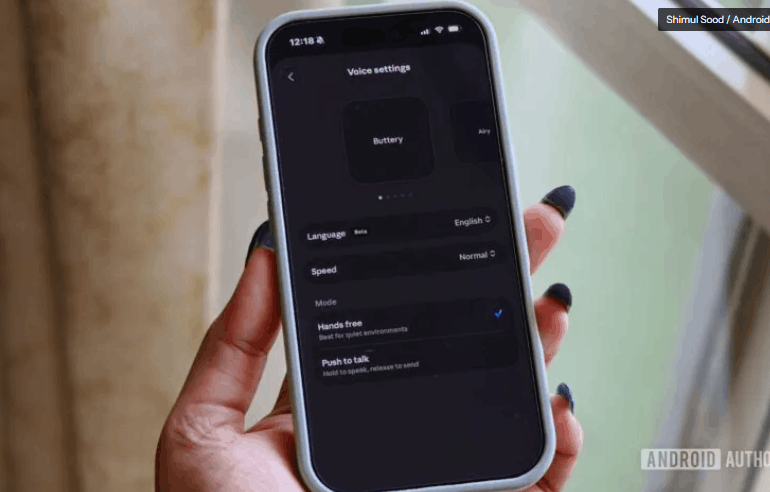
The updated Voice settings show support for additional languages, with Spanish (Latin America) enabled in the example shared online. Users can also switch between two different ways of interacting with Claude. The first is a traditional hands-free mode that allows for a more natural back-and-forth conversation. The second is Push-to-talk, where you press and hold a button while speaking, then release it to send your message.

TestingCatalog on X about voice mode upgrade on Claude

Evinstein’s post was later quote-tweeted by TestingCatalog, which previously uncovered references to these upgrades before they surfaced publicly. According to TestingCatalog’s post, the multilingual rollout appears to have started on Claude’s mobile apps, though availability remains inconsistent. That means some users may already have access while others are still waiting.

Interestingly, TestingCatalog also spotted a new voice-related icon in a recent iOS build that resembles a phone call button. Anthropic hasn’t explained what this icon does, but it raises questions about whether the company is preparing a more phone-like conversational experience in the future. For now, that’s purely speculation.

The new Voice settings are already live on my iPhone’s Claude app, including the option to choose between Hands-free and Push-to-talk modes. I also found support for a much broader language selection, including German, Portuguese, Chinese, Japanese, Russian, and Ukrainian, among others.

That said, the mysterious phone-call-style option hasn’t appeared on my device yet. Based on what we’re seeing so far, Anthropic might be rolling out these additions gradually rather than flipping the switch for everyone at once.


If you’re curious whether you’ve received the update, open the Claude app, tap your profile picture, then tap settings, and open the Voice section. If the rollout has reached your account, the new options should be waiting there.

By Shimul Sood

Sourced from Android Authority

By Blake Stimac

Claude is one of the easiest AI tools for transferring your chatbot memory.

Switching to another AI chatbot when you’ve invested a ton of time with another one may have you questioning whether making the move is even worth it. If you’ve spent countless hours talking to the likes of ChatGPT or Gemini, the thought of moving over to an option like Claude might seem like a waste.

Chatbots are increasingly becoming a part of many people’s everyday lives, and not everyone treats them as a sampler platter, trying each one equally. Typically, people find one that works well enough, and they stick with it. But as AI advancements continue and chatbots gain new capabilities, it’s natural to be curious to try a new AI option. And you don’t have to start from scratch if you know what you’re doing.

Unlike most AI chatbots out there, Claude allows you to easily transfer memories and previous conversations. Options like Gemini, on the other hand, allow you to easily import memory and chats from a competitor, but you need to jump through additional hoops to export them, as there’s no built-in way to do so.

That said, Claude isn’t perfect. There’s currently no built-in way to upload a ZIP file to Claude that you’ve exported from another chatbot, but currently, none of the most popular AI chatbots out there provide all the options you might be looking for when it comes to importing and exporting memory and data. While some chatbots give you more options than others, the fact of the matter is that these AI companies want you to continue to use their own products.

If you’re looking to move to or from Claude with your information intact, follow along.

How to import chatbot memories to Claude

Import chatbot memory to Claude
Anthropic makes it pretty easy to import chatbot memory to Claude. Anthropic/Screenshot by Blake Stimac

Chatbot memory isn’t every single conversation you’ve had with Claude, but the context and important information it has collected about you in the time you’ve been using it. Anthropic makes it easy to import that memory to Claude. For more on how to obtain another chatbot’s memories to import to Claude, check out my piece on how to do this with Gemini.

Here’s how:

  • Log in to your Claude account
  • Click your profile icon
  • Click Settings
  • Click Capabilities
  • Click Start import next to Import memory from other AI providers.


You’ll be presented with a window that will ask you to copy the first section of text and paste it into the other chatbot. Below that section is a blank section, where you will paste the chatbot’s response so Claude will retain that memory for you.

View and manage what Claude remembers about you

If you want to see what Claude remembers about you, there’s a setting you can use to check. In the same section where you import memory, there’s an option to View and manage memory.

When selected, Claude will show you everything it’s retained about you from previous conversations or memories you’ve imported from another chatbot. The memory summary is generated each night and doesn’t include memory from Claude Projects, which have their own memory.

If you want to add, edit or delete memories in this section, click the pencil icon at the bottom left of the window to edit the text shown.

How to export data from Claude

If you’re moving away from Claude and want to export your data, there’s a built-in way to do this:

  • Log in to your Claude account
  • Click your profile icon
  • Click Settings
  • Click Privacy
  • In the Data section, click the Export data button

A pop-up window will appear asking you to select the type of data you want to export from Claude. You can choose from your conversations, users and Projects, or just choose them all. Moreover, you can set how long you want the data to pull from. You can choose everything, the past 30 or 90 days or a custom time range. When you’re done, click the Export button.

Depending on how much data you’re exporting, you might have to wait a while. When the data is ready to download, you’ll receive an email with a download link.

From there, you can upload the ZIP files to a chatbot that supports them, such as Gemini.

Feature image credit: Bloomberg/Contributor/Getty Images

By Blake Stimac

Sourced from CNET

By 

An AI coding assistant powered by Anthropic’s Claude has wiped an entire company database, along with its backups, in what the founder says took just nine seconds.

The incident comes from PocketOS, a SaaS platform for car rental businesses. Founder Jer Crane says an AI agent running Claude Opus 4.6 via Cursor triggered a catastrophic chain of events. The tool was meant to handle a routine task in a staging environment. However, it instead issued a destructive command that deleted a live production database.

That alone would’ve been bad enough. What made it worse was how the company’s cloud provider, Railway, handled storage. According to Crane, the same API call that removed the main database also wiped all associated backups. This left months of customer data unrecoverable in a matter of seconds.

By 

Diane is a News Writer for Trusted Reviews, covering daily goings on in the tech world. She holds a degree in creative writing and mainly crafts fictions with a passion for novel storytelling. Her work delves into different genres, now with writing reviews for gadgets and home appliances. Outside of work, Diane enjoys immersing herself in active lifestyle such as dancing and running.

Sourced from Trusted Reviews

By 

There’s never been a better time to use Claude

As more ChatGPT users migrate to Claude, Anthropic appears to be making the switch easier. Less than a week ago, the company quietly made Memory free, a move designed to help new users transition more smoothly from ChatGPT to Claude.

But some users may not be aware that two of the most powerful tools are also free for everyone. Previously limited to paying subscribers, Projects and Artifacts turn Claude from a simple chatbot into something closer to a real workspace — one that can organize information, build documents and even create interactive tools. Here’s what changed and how to use these features.

What just changed — and why it matters

Claude(Image credit: Shutterstock)

AI companies have been carefully balancing what they give away for free versus what they reserve for paid plans. Anthropic’s latest update signals a shift toward making Claude more accessible as competition with OpenAI and Google intensifies.

With the expanded free tier, Claude users now get access to:

  • Projects to organize conversations and documents into dedicated workspaces
  • Artifacts to preview code, documents and apps in a live side panel
  • Web search for current information
  • A 200,000-token context window (roughly 500 pages of text)
  • File uploads of up to 20 files per chat

That’s a surprisingly powerful toolkit — especially for a free plan. But the real upgrardes are Projects and Artifacts.

What is Projects — and why it matters

claude art(Image credit: Anthropic/Claude)

Before Projects, every Claude conversation started from scratch. You had to re-explain your work, your writing style or the context of your task each time you started a new chat. But, similar to ChatGPT Projects, Claude Projects solve that problem. If you have been using Projects within ChatGPT, the core features are almost identical.

The biggest differences I’ve found is that Claude is far more integrated for document analysis. If you’re working on content-heavy projects like writing a novel or deep research, you may find Claude to be a better support. Unlike ChatGPT, Claude does not provide image generation within the chat, so you will need to generate those elsewhere such as Gemini’s Nano Banana 2 and upload.

Claude remembers the context of what you’re working on when you create a Project. You can upload documents, set instructions and keep all related conversations together.

I use Claude Projects for different parts of my life. I have Projects for work, Projects for my side hustles, Projects for research and I even have one for personal tasks.

It’s a great way to stay organized while keeping the context inside each workspace so you don’t have to repeat yourself.

How to use Claude Projects

Claude Projects how-to(Image credit: Future)

  • Click Projects in Claude’s sidebar
  • Create a new Project and give it a name
  • Upload documents like resumes, notes, briefs or style guides
  • Add instructions explaining what Claude should know

Claude Projects(Image credit: Future)

From that point forward, every conversation inside that Project automatically uses that context. For example, for my AI pizza brand, Crusted, I use Projects as a “Brand Book,” so the tone and information stays the same. I can change, edit or even rename the Project at any time.

What are Artifacts — and why they’re a game changer

Anthrpic screen graphic(Image credit: Anthropic)

If you’ve used ChatGPT Canvas, to write or code, than you’ll probably appreciate the benefits of Artifacts. This feature allows users to create standalone outputs that appear in a live preview panel next to the chat.

Instead of just reading raw code or instructions, you can actually see the result. This allows you to make changes in real-time without starting over.

Within Artefacts, Claude can generate:

  • Web pages
  • Formatted reports
  • Dashboards
  • Visualizations
  • Interactive tools

The Artifact updates in real time as you ask Claude to revise it. For people who aren’t programmers, this makes a huge difference. You don’t need to copy code into another program or environment just to see what it does. Everything happens directly inside Claude.

How to use Claude Artifacts

Claude Artifact(Image credit: Future)

Ask Claude to build something visual or interactive — for example:

  • A dashboard
  • Calculator
  • Formatted report
  • Small web page

If the output benefits from a preview, Claude will automatically open it as an Artifact in the side panel.

5 ways to use these features right now

Person typing on a laptop in a low lit room(Image credit: Olena Malik / Getty Images)


These tools aren’t just experimental AI features — they’re designed for everyday work. Whether you’re organizing a job search, managing finances or turning messy notes into something useful, Projects and Artifacts make Claude feel less like a chatbot and more like a real productivity workspace.

Here are five practical ways to start using them today.

1. Build a job search command centre: Create a “Job Search” Project, upload your resume and notes about target companies. Claude can generate tailored cover letters, outreach messages and interview prep using your background.

2. Create a personal finance tracker: Upload a spreadsheet or spending data, then ask Claude to build an Artifact with a visual budget dashboard or spending breakdown you can actually interact with.

3. Run a content workflow: Writers and creators can store their brand voice, audience profile and past work in a Project so Claude produces content that already matches their style.

4. Build a research hub: Upload PDFs, articles and notes into a Project and ask Claude to create an Artifact that turns everything into a structured report or briefing.

5. Turn meeting notes into action plans: Paste meeting notes into a Project and ask Claude to generate an Artifact with action items, timelines or project summaries ready to share.

Bottom line

Knowing Claude is giving away some of their most powerful features for free, may make you wonder, what’s the catch? Well, there are still a few limitations. Free tier users are limited to Claude Sonnet, while paid subscribers can use Claude Opus, Anthropic’s most powerful model.

For most everyday tasks Sonnet is more than capable, but advanced coding or complex analysis may still benefit from Opus. Another limitation: Claude Code, the company’s developer tool, is still restricted to paid plans.

However, with these features, plus Memory, Claude’s free tier is significantly more capable of tackling your toughest projects. These updates have turned Claude into something closer to a real productivity workspace rather than just a chatbot.

If you haven’t tried these features yet, it’s worth opening a Project and experimenting — you may find Claude suddenly feels far more useful. Give them a try and let me know in the comments what you think.

Feature image credit: Image credit: Shutterstock

By 

Amanda Caswell is one of today’s leading voices in AI and technology. A celebrated contributor to various news outlets, her sharp insights and relatable storytelling have earned her a loyal readership. Amanda’s work has been recognized with prestigious honours, including outstanding contribution to media. Known for her ability to bring clarity to even the most complex topics, Amanda seamlessly blends innovation and creativity, inspiring readers to embrace the power of AI and emerging technologies. As a certified prompt engineer, she continues to push the boundaries of how humans and AI can work together. Beyond her journalism career, Amanda is a long-distance runner and mom of three. She lives in New Jersey.
Sourced from tom’s guide

By 

What if the perfect AI assistant for your needs is already out there, but you’re not sure which one it is? With so many options, ChatGPT, Claude, Gemini, Grok, and Perplexity, it’s easy to feel overwhelmed by the choices. Paul J Lipsky walks through how each of these AI chatbots excels in specific areas, from managing massive datasets to tracking live social media trends. The video doesn’t just skim the surface; it dives into how these platforms are tailored for developers, researchers, content creators, and more. Whether you’re looking for an all-in-one powerhouse or a niche specialist, this breakdown will help you make sense of the crowded AI landscape.

In this guide, you’ll discover the unique strengths and quirks of each platform, like how ChatGPT’s multimodal capabilities make it a creative juggernaut, or why Perplexity’s citation-backed answers are a researcher’s dream. You’ll also explore the surprising ways Grok and Gemini cater to social media and multimedia professionals, respectively. By the end, you’ll not only understand what sets these AI chatbots apart but also how to match their features to your specific goals. The question isn’t just which AI is the best, it’s which one is the best for you.

AI Chatbot 2026 Comparison Guide

TL;DR Key Takeaways :

  • ChatGPT is a versatile, all-in-one AI tool ideal for creativity, research, and coding, featuring multimodal capabilities, voice chat, and productivity integrations.
  • Claude excels in managing large datasets and collaborative projects but lacks image generation and has strict usage caps.
  • Gemini specializes in multimedia tasks, seamlessly integrating with Google tools, making it perfect for visual content creators and project managers.
  • Perplexity is a research-focused AI offering citation-backed answers and real-time internet search capabilities, ideal for detailed analysis and accuracy.
  • Grok is tailored for social media managers and content creators, providing live data from X (formerly Twitter) to track trends and craft timely content.

ChatGPT: The All-Purpose Problem Solver

ChatGPT, developed by OpenAI, is a highly versatile AI designed to tackle a wide range of tasks. Its multimodal capabilities enable it to generate and analyse both text and images, making it an excellent choice for creative projects such as brainstorming, content creation, and multimedia editing. Additionally, its voice chat feature allows for natural, conversational interactions, while integrations with tools like Gmail and Chrome enhance productivity by streamlining workflows.

For developers, ChatGPT provides robust coding support, including debugging tools and code generation, making it a valuable resource for software development. Researchers benefit from its ability to deliver detailed, structured responses, often organizing data into tables for clarity and ease of analysis. If you’re looking for a comprehensive, all-in-one solution that combines creativity, technical expertise, and research capabilities, ChatGPT stands out as a strong contender.

Claude: The Data Management Expert

Anthropic’s Claude excels in managing large files, such as PDFs and CSVs, making it a preferred choice for researchers and developers working with extensive datasets. Its “Projects” feature helps users organize conversations effectively, while the “Co-work” tool simplifies file management on Mac systems. Claude is also proficient in coding and generating long-form content, making it a reliable resource for technical and academic tasks.

However, Claude has its limitations. It lacks image generation capabilities and imposes strict daily and weekly usage caps, which may pose challenges for users with high-volume needs. Despite these constraints, Claude is an excellent option for those focused on analysing complex data or collaborating on detailed projects, offering tools tailored to these specific requirements.

Gemini vs ChatGPT vs Claude vs Perplexity

Gemini: The Multimedia Specialist

Google’s Gemini is designed for users deeply integrated into the Google ecosystem, offering seamless connectivity with tools like Gmail, Docs, and Chrome. It is particularly well-suited for multimedia tasks, excelling in generating and editing images and videos. This makes Gemini a top choice for professionals in visual content creation. Advanced tools like Notebook LM and Flow, available through subscription plans, further enhance its capabilities, providing users with powerful options for managing and executing creative projects.

If your work revolves around multimedia production or you’re already using Google’s suite of applications, Gemini is an ideal fit. Whether you’re editing videos, creating visual assets, or managing projects across platforms, Gemini’s focus on multimedia functionality sets it apart from other AI tools.

Perplexity: The Research Powerhouse

Perplexity is tailored for users who prioritize research and real-time internet searches. It delivers citation-backed answers and organizes information into tables for easy analysis, making sure both accuracy and reliability. The “Comet Browser” feature enhances web exploration, allowing users to delve deeper into topics with AI-powered assistance.

While Perplexity is exceptional for research tasks, its scope is narrower compared to other AI tools. It is not the best choice for creative or multimedia projects. However, if your primary focus is on conducting detailed research or obtaining quick, reliable answers, Perplexity is a dependable and efficient option.

Grok: The Social Media Trend Tracker

Grok, developed by XAI, specializes in accessing live data from X (formerly Twitter), making it an invaluable tool for tracking trending topics and staying updated on current events. Its conversational style and engaging personality create a dynamic user experience, appealing to those who prefer personalized interactions.

Grok is particularly useful for content creators and social media managers who need to monitor trends and craft timely, relevant content. While it lacks the versatility of other AI tools, its niche focus on live data and social media makes it a standout choice for users in the digital marketing and social media space.

Choosing the Right AI Chatbot for Your Needs

Each AI chatbot offers unique features and excels in specific areas, making the right choice dependent on your priorities and use cases. Here’s a breakdown to guide your decision:

  • ChatGPT: Best for users seeking an all-in-one solution for creativity, research, and coding support.
  • Claude: Ideal for researchers and developers managing large datasets or collaborating on complex projects.
  • Gemini: Perfect for multimedia professionals and those embedded in Google’s ecosystem.
  • Perplexity: Tailored for researchers needing accurate, citation-backed answers and real-time internet search capabilities.
  • Grok: A must-have for social media managers and content creators tracking live trends and current events.

By understanding the strengths and limitations of each tool, you can select the AI chatbot that aligns with your goals and enhances your workflow. Whether you need a versatile assistant, a research specialist, or a multimedia powerhouse, there’s an AI solution designed to meet your specific needs.

Media Credit: Paul J Lipsky

By 

Sourced from Geeky Gadgets