

By Levin Roy
We all know that pre-built PCs come with a bunch of bloatware that needs to be uninstalled, but what about the apps you install yourself? Are there any commonly installed applications that you could do without? Plenty of them, actually. Many applications rely on huge marketing budgets to appeal to users, promising a bunch of features that are misrepresented or not needed at all. These apps then proceed to slow down your PC by running a bunch of processes in the background, often to collect user data. Even if you trust the companies in question, allowing them to collect your data presents a security risk, as their servers can be compromised.
Then there is the expense. Most such software comes with a monthly subscription model, costing you quite a bit over time for no real reason. Usually, they are loaded with advertisements for other apps and services on top of a premium subscription, forcing you to deal with annoying pop-ups even after paying through your nose. So let’s look at some apps you should never install on Windows 11.
McAfee

mariakray/Shutterstock
McAfee is one of the most well-known antivirus software suites out there, with a long history that has cemented it as a household name. It is also infamous for the dramatic life of its enigmatic founder, John McAfee, but that controversy doesn’t have much to do with the software itself. No, the antivirus is dragged down by its own poor performance and shady practices.
Let’s start with the main reason anyone gets a third-party antivirus: security. While McAfee was a decent antivirus program in the days of Windows XP, it doesn’t quite hold up anymore. But why then does it come bundled with so many pre-built computers? Because the company pays the manufacturers to include its software, not because it is a great application that secures your system. McAfee is often installed by new PC builders as well, enticed by limited-time offers, only to be constantly beset by pop-ups selling you additional plans and services. And since all of these are sold as subscriptions, you end up racking up a significant monthly bill for software that doesn’t add anything of value. Do yourself a service and avoid installing McAfee antivirus on your computer.
Norton

IB Photography/Shutterstock
Norton is another well-known antivirus behemoth that often comes installed on PCs and markets aggressively on media platforms. And just like McAfee, it is not worth the price. Heck, it is not even worth the free trial. The reason is poor performance. Norton antivirus has a reputation for slowing down your PC as it runs in the background, impacting your PC’s performance. Even that might be acceptable if it boasted perfect PC protection that could safeguard your data, but it does not necessarily work any better than Windows Defender.
This is the sad reality of most of these antivirus applications these days. Many verge on bloatware sold by an insane marketing push. Microsoft’s Defender has come a long way from the days of Windows XP, and handles most features of a proprietary antivirus by default, including virus definitions, real-time protection, and an aggressive blocklist to prevent exploits. This leaves less for a third-party antivirus to do, so they resort to shady marketing to continue making money. Norton is one of the more visible examples of this, but you should consider avoiding installing any third-party antivirus on a modern Windows computer.
ExpressVPN

T. Schneider/Shutterstock
VPNs are the next big category of heavily marketed software that users install on new systems. ExpressVPN is one of its biggest and best-known names, backed by a huge marketing campaign and a long history of success. Except that the ExpressVPN of today is very different from the software that it started as, and might actually be spying on you instead of safeguarding your privacy.
The early iteration of ExpressVPN did its job pretty well. You could use it to bypass regional website restrictions and access web content that was blocked or priced differently at your real location. But as the VPN business boomed, ExpressVPN was acquired by Kape Technologies, a massive conglomerate. And the app started pivoting more toward marketing rather than performance, buying up review websites to help sell itself.
There is also a problem with the basic premise of how VPNs are sold. VPNs are good for getting past regional controls, but the marketing pushes them as a privacy and security product. In reality, browsers already encrypt your data, and some VPNs concentrate your data on their own servers. This leaves your personal information vulnerable to hacks, even if you trust the company itself not to profit off it. Case in point is ExpressVPN’s owner, Kape, which made a fortune collecting user data and making adware. A better option might be to use a VPN-enabled home router.
Honey

GrandAve/Shutterstock
The problem with online shopping is that there are so many sites selling the same things. You often buy a product at one site, only to discover later it was available at a much lower price on a different platform. Shopping extensions like Honey offer to solve this problem by checking around for the best deals whenever you add an item to your cart, saving you the effort of manually checking. The problem is that an extension like that gets access to far more data than you should be comfortable sharing, and isn’t completely honest in its recommendations, either.
Privacy is always a major concern with a shopping extension, since it monitors your purchases, and the data it collects can be sold to advertisers. This is particularly alarming here because you are also entering your payment details while shopping, and don’t want any application monitoring that. And this is before we get into whether they are scamming you entirely.
Honey, for example, shows you alternative buying links before you are about to check out, ostensibly giving you a better deal. But it was exposed for pushing its own affiliate links instead, earning it kickbacks without saving you a penny. So steer clear of shopping extensions like Honey and instead do your own research when buying a product. It takes time and effort, but that’s the only way to confirm you are not being taken for a ride.
CCleaner
Sharaf Maksumov/Shutterstock
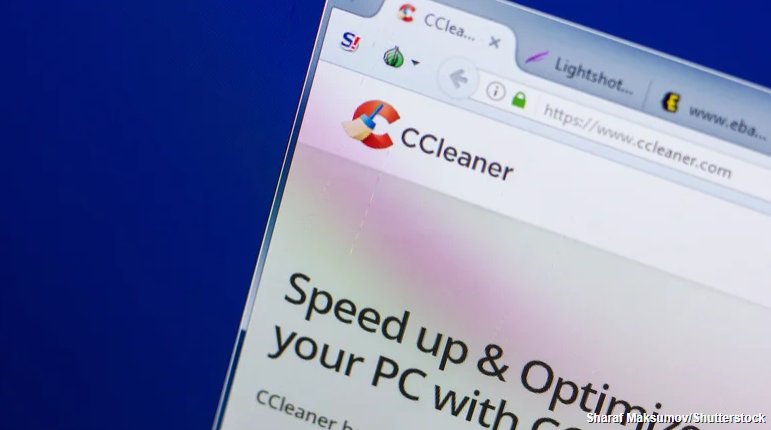
Windows XP was a very successful operating system, but it had its issues. This gave rise to a class of PC cleaning and optimizing applications that would remove these unneeded files and speed up the PC’s performance. CCleaner was one of the first apps in this category, and quickly established itself as the market leader, with great effectiveness in cleaning up system files and registry entries. It was safe to use, making it a must-have for every PC.
But in 2017, it was acquired by Avast, the antivirus company. This is also around the time when Windows 10 started phasing out Windows XP (actually Vista, but that was a disaster). One of the major improvements in Windows 10 was the optimization. No longer did Windows need third-party applications to clean up temporary files or mess with the registry; The default system services could do it just fine. At the same time, Avast started turning CCleaner into a software bundle to sell its antivirus and other utilities alongside it. The result is a bloated, unnecessary mess.
CCleaner cleans nothing and slows down your computer, all the while trying to sell you other apps you don’t need. It has been hacked in the past as well, resulting in leaks of user data. Avoid installing this app on any PC running Windows 11.
WiFi Speed Boosters

Simpson33/Getty Images
The concept of a software being able to boost your WiFi speed is tempting, even though it is completely bogus. Your wireless internet speeds are dependent on factors that cannot be controlled through software. Things like the network conditions, the router technology, and even the version of WiFi supported by your network card decide the quality of the internet you get. And of course, your Internet Service Provider (ISP), including what plan you are on.
But if you go online, you will come across apps that claim to be able to boost your WiFi speeds. They claim to be able to achieve this by optimizing your networks and selecting the right channel. The problem is that these are functions that modern routers perform by default, making such software redundant. All these WiFi boosters do is throttle services to conserve bandwidth, often blocking useful applications like downloads you left running in the background. The worst ones are just sitting there collecting data on your PC, while trying to sell you additional premium services and ads to make a quick buck.
There are better ways to increase your internet speed. If your PC has an antenna, make sure it is installed, and try to place your router in a position where it can reach your whole house evenly. Depending on the situation, it might be worth investing in a WiFi range extender or plugging your PC directly into the router through an Ethernet cable instead.
Crypto mining software

Joseph Christanto/Shutterstock
There was a time when cryptocurrency mining was all the rage. The idea that you could put your gaming PC to work and earn yourself some money while you slept was very enticing, even if the logistics didn’t quite work out for hobby miners.
But times have changed. Bitcoin mining has reached the point where you need a massive server farm to turn any profit, and cryptocurrencies like Ethereum have switched to a different model entirely, ditching the computationally intensive mining process. This means that there is no viable way of making money on the side by installing cryptocurrency software on your PC. The legitimate mining applications changed to reflect this reality, recommending specialized mining computers for enthusiasts.
And yet, there are still cryptocurrency mining applications online that claim to be able to mine from your home PC and make you money. Some will say they mine using the cloud (but will pay you for some reason) while others still pretend that mining in the background is possible. In truth, these tend to be malware just looking to infect your system and steal data. Even Android is rife with such crypto mining scams. Some variants will actually mine cryptocurrency on your system, using up all your resources to make the hacker some crypto bucks. So, whatever you do, never install any crypto-mining applications on your computer.
Razer Synapse

iama_sing/Shutterstock
Razer is a market leader in gaming peripherals, most famously for its gaming mice and keyboards. Since gaming devices usually come with RGB lighting, Razer also offers a proprietary software for managing these lighting profiles, along with adjusting keybinds for special buttons, called the Razer Synapse. Just as dedicated drivers made by a device’s vendor tend to be better than generic drivers, you would expect a dedicated app to work best with Razer devices, right? Wrong. It doesn’t work well at all.
The major issue with Razer Synapse is performance. An application like this is meant to be lightweight, running unobtrusively in the background with minimal system impact. The Synapse, on the other hand, causes a very noticeable FPS drop while playing some games. Even in games without performance issues, the basic functions of the software work inconsistently. Keybinds don’t trigger correctly, fan profiles revert to default when you minimize the app, or it fails to recognize your devices. Not to mention the software takes up too much disk space for a simple task.
To be fair to Razer Synapse, this is often the case with company-specific software like this, even from other manufacturers like MSI or Logitech. You may be better off sticking to universal software like SignalRGB, which can manage most of these devices from a common platform.
NVIDIA

Nwz/Shutterstock
NVIDIA is the GPU company, and it’s likely your PC uses an NVIDIA graphics card. Chances are also good that the company pushed you to download the NVIDIA app during driver installation. It is optional, but most users pick yes because the idea of a dedicated app for managing your GPU settings and tweaking them for every game sounds good. Except it cannot quite do that.
When you open the NVIDIA app, it greets you with a list of all installed games on your system, and then proceeds to show you graphical settings that you find in-game. Trying to change the universal settings just changes the very options you can see in the standard NVIDIA control panel on the taskbar, giving you nothing new. Worse, the NVIDIA app can negatively impact your PC performance, usually due to unoptimized overlay or malfunctioning game filters.
Another reason you might have installed this app is to record gameplay, as the previous GeForce Experience was dedicated to this function, and worked without a major drop in performance. But the new NVIDIA app struggles with this function as well, with the instant replay switching off randomly, or being unable even to take screenshots. For now, it’s better to stick with GeForce Experience or switch to something like OBS rather than installing the NVIDIA app.
Feature image credit: Alex Photo Stock/Shutterstock


:format(webp):no_upscale()/cdn.vox-cdn.com/uploads/chorus_asset/file/22679105/lcimg_9abbdc71_7b16_4ba0_b22a_2e6b359bcd82.jpg)
:format(webp):no_upscale()/cdn.vox-cdn.com/uploads/chorus_asset/file/22679133/androidappswindows.jpg)