No need to give ChatGPT the run of your system. Instead, use this built-in Windows tool to generate a report that an AI chatbot can analyse.
Is your Windows 11 PC feeling pokey or maybe you just want an idea as to what’s going on under the hood? You could use an AI-assisted coding app like Codex or Claude Code to poke around your system, but maybe you’re not ready to give AI total access to your files.
Luckily, there’s an easy way to get ChatGPT, Claude, or Gemini to perform a quick — and hands-off — health check of your system. The trick is using the built-in Windows System Information application, a.k.a. MSINFO32.
Once you fire up MSINFO32, the utility will give you a detailed report of your system’s hardware, components, and software. It won’t tell you everything about your PC — for example, it doesn’t offer details on recent crashes, real-time performance, or battery health — but it can deliver a quick first-pass report on your PC’s health.
Now, the raw report that MSINFO32 spits out isn’t exactly easy reading. It’s more like a massive data dump. I ran the tool on my Dell Latitude laptop and the resulting file ran more than 3.4 million characters.
But here’s where ChatGPT comes in. This is a task it was born to handle, by the way. AI models love nothing more than to distil key findings from reams of complex data and if that data happens to be about PC components, that’s even better.
What we’re going to do is feed ChatGPT (or your AI chatbot of choice) the MSINFO32 report. We’re also going to feed it a prompt designed to create an easy-to-understand digest complete with a triaged list of potential action items and a breakdown of your hardware and software components.
The prompt will also make the AI ask you a few preliminary questions such as whether you’re having specific PC problems, is your PC for work or school, and whether anything has recently changed on your system.
Here’s how to get started:
Open the MSINFO32 application. Here’s the easy way to do it: Press the Windows key + R, type in “msinfo32”, then click OK.
Next, click File > Export, then name the file (it could be anything, like “sysinfo”) and pick the directory where you’d like the file to be saved.
Now, go to ChatGPT, Claude, or Gemini (I recommend using a “thinking” or “pro” model rather than “instant”), and upload the file.
Finally, use the prompt below (I put it at the bottom of the story because it’s a tad lengthy). You can, of course, modify the prompt or use another one entirely.
Once you run the prompt, the AI should ask you a few quick questions, and then you’ll get your PC health check, starting with a quick summary of your system configuration, a triaged list of action items, other key findings, next steps, and details on what the report doesn’t cover.
Running the report on my Dell laptop, ChatGPT said my system looked “generally healthy” and didn’t find any critical issues, although it did spot a disabled virtual Ethernet adapter. Guess I’d better call IT!
Anyway, here’s the prompt:
You are a Windows 11 PC health triage assistant for everyday users.
I will paste or attach a Windows System Information report from msinfo32. First, ask me up to five simple clarifying questions, one at a time, such as what problem I’m having, whether this is a personal or work/school PC, and whether anything recently changed. Stop asking once you have enough context. If I say “skip,” “not sure,” or “just analyse it,” proceed.
Analyse the report in plain English. Do not treat every technical-looking entry as a problem. Separate clear issues from normal Windows noise, and avoid risky advice such as registry edits, BIOS changes, driver removal, or reinstalling Windows unless there is a strong reason.
Start the analysis with Quick PC Summary, including:
PC model, Windows version, processor, RAM, storage, graphics, and network adapter
Security/boot status, including Secure Boot, UEFI, TPM/encryption clues, virtualization-based security, and Credential Guard if shown
Then provide Action Items, divided into:
Critical
Needs Attention
Optional Tweaks
Looks Healthy / No Action Needed
Then briefly cover:
Problem Devices or devices marked Error, Disabled, Unknown, or Not Available
Storage space and whether it is low
Memory/performance clues
Network/VPN/Bluetooth/virtual adapters
Notable driver or firmware issues
Explain what the user should not worry about, such as stopped manual drivers, WAN Miniports, shared IRQs, virtual adapters, Hyper-V/hypervisor messages, and “Not Available” fields when they are normal.
End with safe next steps, such as running Windows Update, checking Device Manager for warning icons, checking Windows Security, confirming BitLocker/device encryption, and contacting IT/support for work-managed PCs or VPN/security-tool issues.
Also include a short Confidence Level section explaining what the report can and cannot determine.
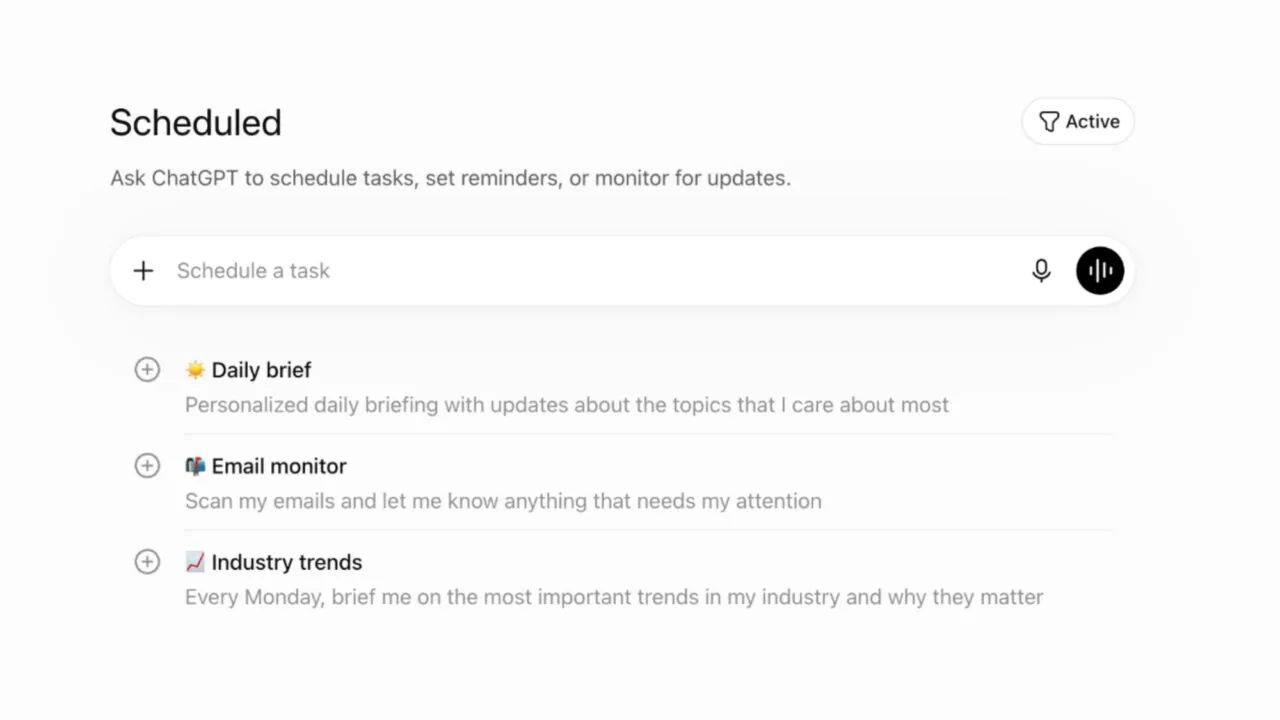
ChatGPT can now schedule one-time and recurring tasks, allowing users to set reminders and automate routine follow-ups directly within the chatbot.
It can also monitor specific topics and notify you about meaningful updates.
Task limits depend on your subscription tier, ranging from three active tasks for Go users to 15 for Pro and Enterprise users.
AI tools are steadily moving beyond answering questions and into the territory of actually getting things done. The latest example comes from ChatGPT, which is rolling out a more capable task-scheduling system that lets you set reminders, automate recurring prompts, and even monitor specific topics for important updates.
The feature, which is rolling out now, gives ChatGPT a role closer to that of a lightweight personal assistant. Instead of simply responding in the moment, it can now carry out actions on a schedule you define. Need a reminder to wish your parents a happy birthday? Or perhaps you’d like ChatGPT to keep an eye on a product launch and let you know when new information appears — these are the kinds of jobs the new task system is designed to handle.
Scheduled tasks also get their own dedicated management hub inside ChatGPT. You’ll find it in the sidebar on both the web and mobile apps, where you can view existing tasks, make changes, pause them temporarily, or remove them altogether.
Notifications play a key role here. If you plan to rely on ChatGPT for reminders, make sure notifications are enabled on your phone and in your browser. Otherwise, there’s a good chance those carefully scheduled alerts will go unnoticed.
One of the more interesting additions is the ability to ask ChatGPT to monitor for meaningful developments and alert you when they change. For example, you could ask it to track updates about your favourite app, monitor the status of an upcoming event, or notify you when a particular topic sees notable news.
There are, however, a few limitations. The biggest one is that scheduled tasks aren’t available to free users, so you’ll need a paid ChatGPT subscription to access the feature. Task availability is also tied to your subscription tier, and any usage limits associated with your plan still apply.
The number of active tasks you can maintain at once varies depending on your account. Go users can keep three tasks active; Plus subscribers get five; Business and Edu users can have up to 10; while Pro and Enterprise users can manage as many as 15. Once you hit your limit, you’ll need to complete, pause, or delete an existing task before creating another.
This new feature won’t change how you chat with ChatGPT, but it could definitely change how often you need to remember things yourself.
While Google owns two popular navigation apps for iPhone and Android, the Waze and Google Maps experiences aren’t identical. Waze offers a simpler navigation user interface that focuses on community-driven information, with incident reports used to improve navigation in real time. Google Maps is more complex, featuring more detailed maps, as well as several features that allow users to discover nearby places of interest, and Gemini AI integration. Over time, Google has brought Waze’s incident reports to Google Maps, without turning Waze into a Google Maps replica. But Google has been working to bring one useful navigation feature available in Google Maps to Waze: support for traffic lights, a feature that some Waze users have started noticing in the app.
Redditor yayoshorti posted the following screenshot on the social platform in early June 2026, showing the presence of traffic lights on the map. The user asked the community when Waze added the feature, with some other users responding that the feature had been available for them in the app for weeks. But the rollout isn’t complete — not all Waze users see traffic lights during navigation, including users who are Waze editors, according to the responses on the thread. On the other hand, some Waze users confirmed that support for traffic lights has been in testing for a while in various markets, part of Waze’s beta testing.
Separately, 9to5Google noted that the feature had been in testing since December 2025, but more Waze users are starting to see it in the app. It’s unclear when Waze will release the feature more widely.
Why do we need traffic lights in Waze and Google Maps?
Reddit/yayoshorti
Google Maps wasn’t even the first popular mobile navigation app to get traffic lights. Apple Maps rolled out the feature in early 2020, part of the iOS 13 update for the iPhone. Google started testing traffic lights for Google Maps in July 2020, when some Android users spotted traffic lights and stop signs in the app. However, it took over a year for Google to actually roll out the feature, with Google releasing a richer map design in April 2022 that included stop signs and traffic lights.
The purpose of having traffic lights in navigation maps isn’t about speeding up the navigation experience. You can’t set a course from point A to point B and direct the app to avoid all traffic lights like you can with other route options, including tolls and highways. It may be impossible to plan such routes, as traffic lights are frequent, especially in large cities. But there’s a navigation-related reason for traffic lights appearing in Apple Maps, Google Maps, and Waze. These road elements can improve navigation by offering drivers more contextual information about their route.
Traffic lights can be used as landmarks during navigation. For example, Apple insisted on more natural navigation experiences in Apple Maps. Instead of Siri directing users to turn left in 500 meters, it might tell them to turn left at the next traffic light. Google explained in 2022 that a more detailed road design in Google Maps can make the driving experience on unfamiliar roads less stressful. Traffic lights, stop signs, and the actual shape of the road can inform drivers about what’s ahead and make the driving experience safer, as drivers may make fewer last-minute lane changes to ensure they don’t miss the correct turn.
Why hasn’t Google added traffic lights to Waze already?
Kenneth Cheung/Getty Images
Google was quick to follow Apple’s lead with traffic lights in Google Maps. The early 2022 redesign offered users more detailed maps meant to improve the navigation experience by featuring a more accurate road representation than before. Traffic lights were part of the rich Google Maps experience, alongside key road details, like the shape and width of the road, with Google including the medians and islands you might see while driving. Also, the Google Maps update included “enhanced details like building outlines and areas of interest.” The update was bigger than showing traffic lights and stop signs. But Google Maps isn’t used only for driving. You can navigate a known or foreign city with Google Maps while walking or using public transit. Google Maps also allows the quick discovery of restaurants, shops, and other businesses along the way.
Since Google combined its Google Maps and Waze teams in late 2022, Google Maps and Waze users may have expected a more cohesive experience between the two applications. However, Waze remains a standalone app that offers a more barebones navigation experience with the focus on efficiency. The crowdsourced incident reports are Waze’s signature feature, one that users loved as it allowed them to save time by routing around traffic more quickly than Google Maps and other apps. The visual appearance of the maps in Waze doesn’t seem to be as important as Google Maps. That’s all speculation based on what Google did in recent years with Google Maps and Waze, however.
Also important is the involvement of the Waze community in rolling out support for traffic lights. A Waze post from February 2026 indicates that Waze editors who are level 3 or higher can add traffic lights to maps.
The version of SEO your competitors are selling is dying. The version that actually drives revenue isn’t.
Key Takeaways
SEO isn’t dead, but the tactics that once drove easy traffic are becoming obsolete as AI changes how people discover and evaluate information online.
Businesses that focus on brand visibility, customer trust and high-intent search opportunities will be better positioned to win than those still chasing rankings alone.
Last month, a founder I’d just signed asked me the question I now hear at least once a week: “Is SEO dead? Should we even bother?”
She had a point — sort of. Her competitors’ traffic had dropped. Google was answering more questions directly inside the search results page. Half of her industry’s content was being summarized by AI tools before anyone clicked anything.
I run a digital agency that has handled SEO for clients across e-commerce, B2B services and direct-to-consumer brands. After watching the past 18 months unfold, here’s the honest answer I give every founder who asks me this question.
Why SEO isn’t dead — but the old version is
The reason this question keeps coming up isn’t paranoia. Google rolled out AI Overviews across its core search experience, and zero-click searches are now the norm for informational queries.
If you sold “ranking #1 for keywords” as a service for the past decade, your business model is in trouble.
But ranking was never the point. Customers were the point. And customers are still searching — they’re just searching differently, and they’re buying from brands they recognize and trust.
What’s actually changed about search
Three things have meaningfully shifted, and any honest agency should be telling you this.
First, top-of-funnel informational content has lost most of its commercial value. If someone Googles “what is a CRM,” they’re now reading the AI summary and moving on. Writing 2,000-word explainer articles to capture that traffic is a strategy from 2019.
Second, search engines are weighing brand signals more heavily than ever. Google’s own guidance has shifted toward rewarding experience and expertise, and brand mentions, reviews and direct traffic now correlate more strongly with rankings than they did three years ago.
Third, the buying journey has fragmented. Customers research on TikTok, ask ChatGPT, read Reddit threads and check Google Maps before they ever land on your website. SEO is one channel inside that journey — not the whole thing.
What hasn’t changed at all
Here’s what I tell clients to focus on, because none of this is going anywhere.
People still have problems they need to solve, and they still type those problems into a search box. The difference is in which problems still drive a click. “Best CRM for a five-person sales team in real estate” still gets clicked. “What is a CRM?” doesn’t.
Trust still wins. A founder who shows up consistently with helpful content, real case studies and a credible point of view will outrank a faceless content farm — even one publishing 10 times more articles. Google has gotten better at telling the difference, not worse.
And local intent is more valuable than ever. If you sell anything to anyone within 50 miles of your business, your Google Business Profile, reviews and local landing pages are doing more work for you than they did five years ago.
What I’d do if I were starting today
When clients ask me how to invest their first marketing dollar in 2026, here’s the order I give them.
Build the brand first. Spend the first six months making sure people who hear your name recognize it. Podcasts, partnerships, founder-led social content — anything that gets your name in front of your customer in a context that isn’t search.
Then layer on bottom-of-funnel SEO. Write the comparison pages, the alternative-to pages, the city-specific landing pages and the case studies. These pages convert. They also tend to be ignored by AI Overviews because they require specific, current information that a generative summary can’t reliably produce.
Treat your Google Business Profile like a second website if you serve a local market. Get more than 50 reviews before you obsess about anything else. One client went from 12 Google reviews to 87 in four months — and the calls started coming in without us touching a single page on the website.
And finally — measure outcomes, not rankings. The clients who survived the past year’s algorithm changes were the ones tracking qualified leads, branded search volume and revenue. The clients who panicked were the ones staring at a keyword position report.
The version of SEO that’s actually dying
Cheap content, keyword-stuffed pages, link-buying schemes and “100 articles a month for $500” packages are dying. Honestly, good riddance. The version of SEO that survives — and grows — is the one closest to actual marketing: knowing who your customer is, understanding what they need and meeting them with something genuinely useful.
So when a client asks me if SEO is dead, my answer is the same one I gave that founder on our Zoom call last month. SEO isn’t dying. The shortcuts are. And if your business has been built on shortcuts, the algorithm change you’re worried about already happened.
There are hundreds, if not thousands, of AI chatbots. Still, if you are only talking about the major general-purpose assistants, you have ChatGPT by OpenAI, Claude by Anthropic, Gemini by Google, Copilot by Microsoft, Grok by xAI, and Meta AI. Most people use one, maybe two, and they use them the same old way, where they ask a question, get a useful answer, and close the tab. There is nothing wrong with that, and there is no single correct way to use an AI assistant. But modern AI assistants are far more capable than most people realize, and they can get a lot more done than you’d expect.
Take ChatGPT. By 2026, this AI assistant will have become more like a coworker than just a search box. It can remember information for weeks, take data from your apps, create documents and spreadsheets, browse the web, and perform several tasks for you. However, most people still do not use these features.
So in this article, we’ll show you how to practically use ChatGPT as a teammate that holds context, connects to your tools, builds things you can keep, and acts for you. By the end, you’ll know which features to use and have a set of automations to implement this week.
Pro Tip: To automate everyday tasks with ChatGPT, follow these steps:
Provide clear context in your prompts.
Organize regular work into Projects.
Create reusable tools using Custom GPTs and Canvas.
Connect your apps with Connectors.
Assign research tasks to Deep Research.
Set up Scheduled Tasks to automate repetitive jobs.
Start with the basics: A better first conversation
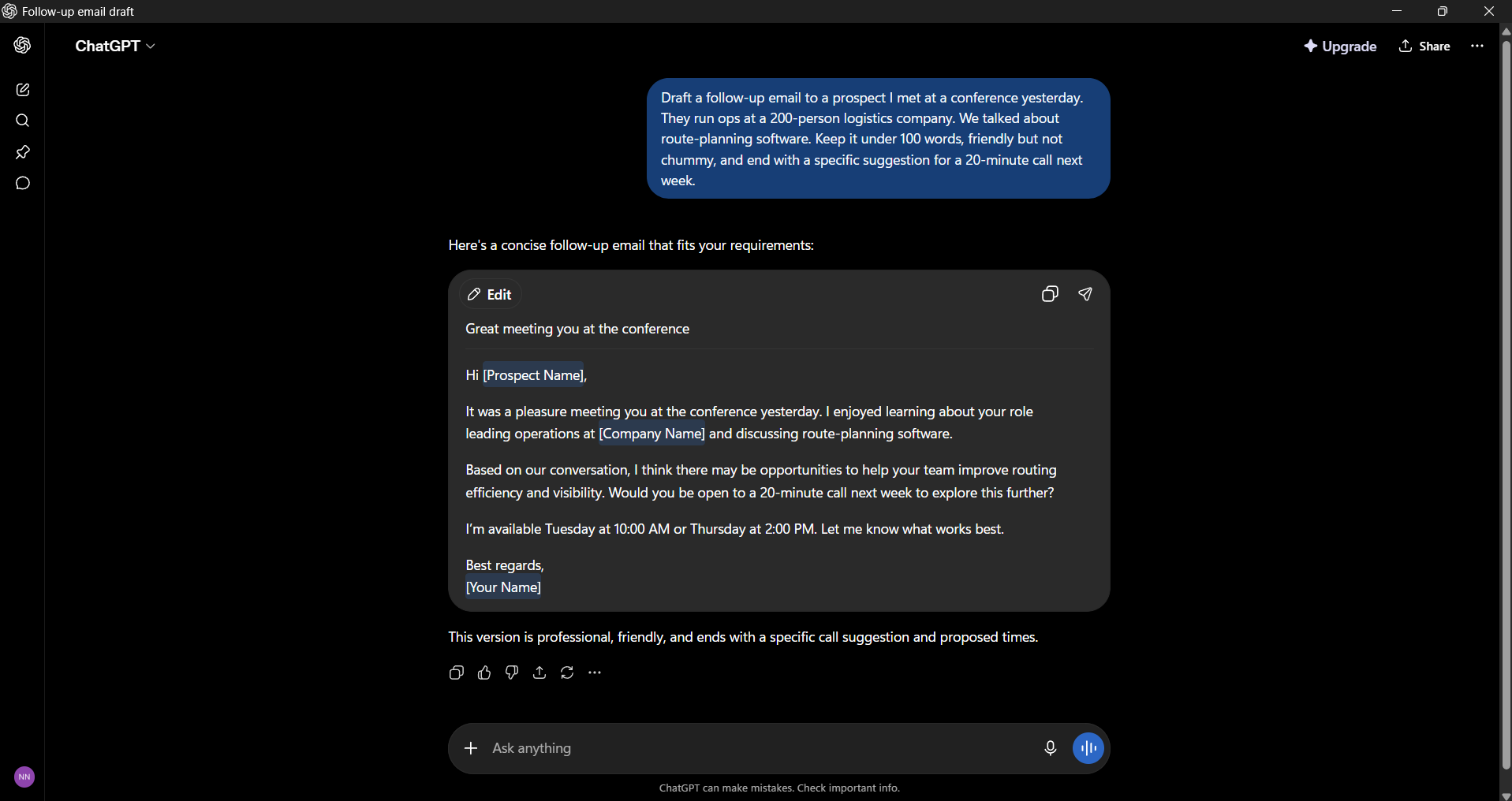
Let’s start simple. How should you actually talk to ChatGPT? The shortcut to better answers is almost embarrassingly basic; you just need to give ChatGPT more context up front.
Draft a follow-up email to a prospect I met at a conference yesterday. They run ops at a 200-person logistics company. We talked about route-planning software. Keep it under 100 words, friendly but not chummy, and end with a specific suggestion for a 20-minute call next week.
Three habits do most of the work:
State the goal and the audience so that way ChatGPT can tune tone and depth based on who’s reading, so tell it.
You can give examples by pasting in two emails you’ve sent before that you liked, and ChatGPT will match your voice.
Ask for a specific output, like “three options, ranked, with one sentence on the trade-off,” rather than “give me some ideas.”
When something is off, don’t start over. Instead, tell ChatGPT what needs to change: “Make this tighter. Remove the second paragraph. Move the request up.” This back-and-forth process will help you improve the quality and help ChatGPT learn more about you.
Two settings make this stick:
Custom Instructions: You can set a custom role, preferences, and tone once, so every chat starts off well.
Memory: Memory will allow ChatGPT to remember details about you across conversations, such as your projects, style, and ongoing needs. This way, you don’t have to explain yourself repeatedly over time.
Pick the right surface: Chat, Agent, or Codex
ChatGPT shows up in more than one place, and they’re built for different jobs. Knowing which surface to reach for is half the battle.
ChatGPT (chat)
This is the standard chat interface on the web, mobile, and desktop apps. It is probably the first thing you see when you open ChatGPT. This interface is great for quick questions, drafting ideas, brainstorming, and working with files you paste or upload. ChatGPT automatically chooses the best model from the GPT-5 family for you. The most capable model is GPT-5.5 (as of writing this article), which was released in April 2026. There is also a faster, instant model for everyday use, so beginners do not need to worry about choosing one.
ChatGPT Agent
Agent mode is the one to reach for when the answer isn’t text but a task. ChatGPT starts its own virtual browser and computer to research, click, fill out forms, and navigate sites. You can use it to compare options, gather data, and complete multi-step tasks from start to finish, always under your control. It’s also built into ChatGPT Atlas, OpenAI’s own web browser, so it can act on whatever page you’re viewing.
Codex
Codex is OpenAI’s coding agent. If you’re not writing software, you can ignore it; if you are, it can live in your editor, terminal, or the cloud and autonomously write features, fix bugs, run tests, and review whole codebases. However, OpenAI announced Codex for Work, which allows non-technical professionals to complete and or automate knowledge work using Codex.
Rule of thumb: If the answer is text, use Chat. If the answer is a multi-step task on the web, use Agent. If the answer is a code change, use Codex. If you are a non-technical professionals who want to complete tasks on a computer, use Codex for work.
Organize work that lasts more than one conversation
Single chats work well for quick questions. However, when you have ongoing tasks, like working with the same client, the same report, and the same files each week, you should use ChatGPT’s projects features.
Projects: persistent context
A Project is a workspace that has all of your related chats, along with shared instructions, reference files, and project details in one place that continues through every conversation in it. When you open an existing project, ChatGPT already knows the background, such as the client’s brand voice, your team’s standards, and last quarter’s numbers. This means you don’t have to explain it again.
Practical setup:
Create a project for each ongoing thread of work (a client account, a product launch, your job search).
Add the three or four reference documents ChatGPT would need to do good work.
Write a short instruction explaining the goal and your preferences.
From then on, every chat in that project starts pre-loaded.
Canvas: Things you can build and keep
Canvas can give you a workspace where you can write and code using AI. You don’t have to scroll through a chat; you can edit a live document. You can highlight a paragraph and ask AI for a specific rewrite, adjust the length, change the tone, or refine code directly without losing your focus. This is where a rough draft could become a finished document that you can copy and use. ChatGPT can also create real files and apps within the chat, giving you something ready to use.
Custom GPTs and Workspace Agents: Reusable capability
A Custom GPT is just a custom version of ChatGPT with its own instructions, knowledge files, and tools, built for one repeatable job. You can create a custom GPT for a brand voice writer, an onboarding helper, or a data formatter. You can build one in minutes with no code and reuse it forever, or browse the GPT Store for ready-made ones.
OpenAI has also launched Workspace Agents for Business, Enterprise, and Education. These are shared, cloud-based agents that help run multi-step workflows. They can connect to business tools and continue working on a schedule, even when no one has ChatGPT open.
Connectors: Link ChatGPT to the tools you already use
By default, ChatGPT only knows what you paste into the conversation. Connectors can change that by giving it access to your actual everyday apps like Gmail, Google Drive, Google Calendar, Slack, GitHub, SharePoint, Notion, and more. So it can pull real information without you having to switch tabs.
Once a connector is on, you can ask things like:
Summarize the unread threads in my inbox from this week and group them by what’s blocking me.
Find the three Slack messages from my manager that mentioned the budget review and tell me what she asked for.
Look at my calendar for tomorrow and draft a prep note for each meeting using whatever context you can find in Drive.
Each of those would take 20–40 minutes by hand. With connectors authorized, they’re a single prompt.
Deep Research: a report instead of an afternoon
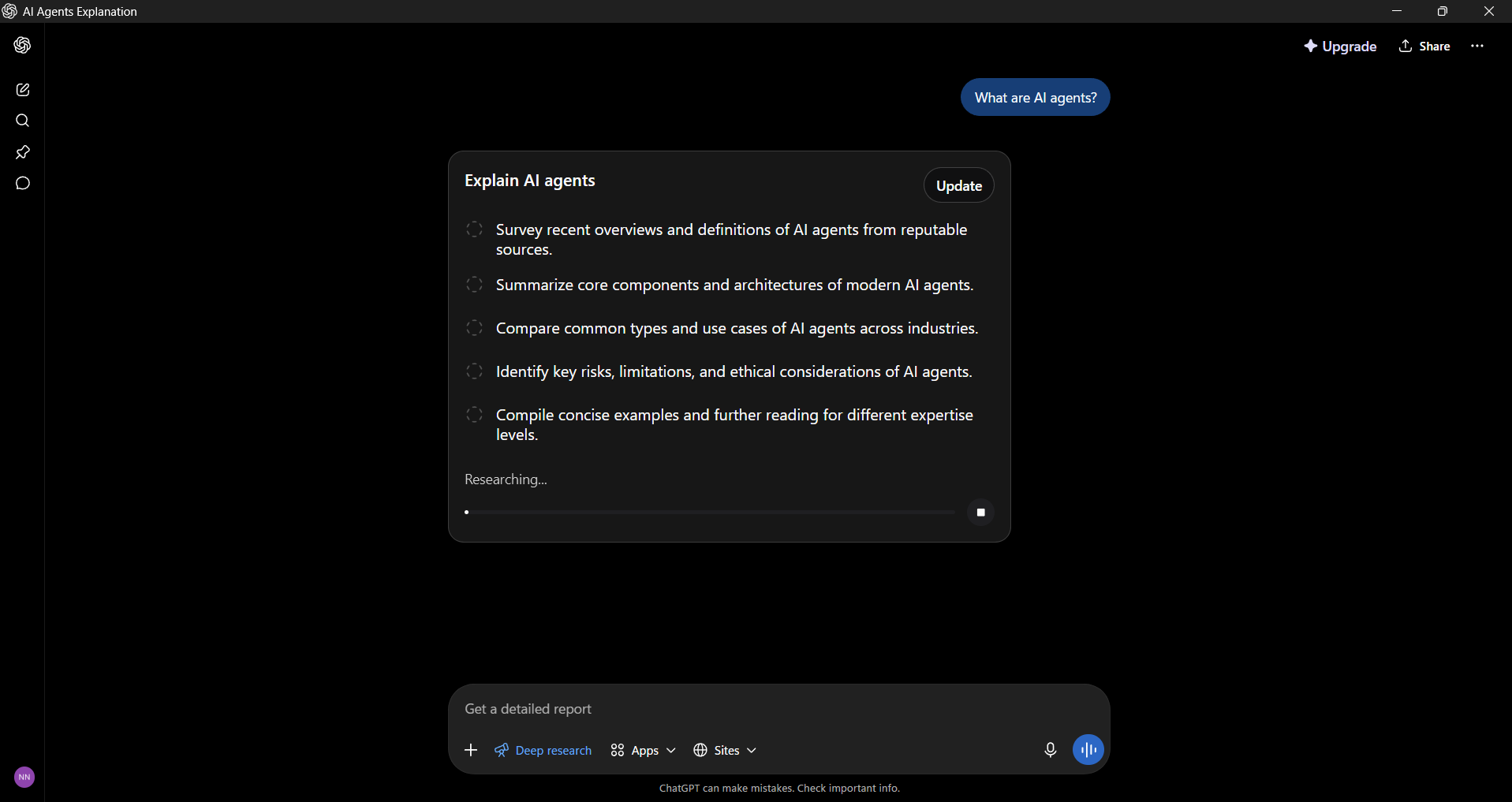
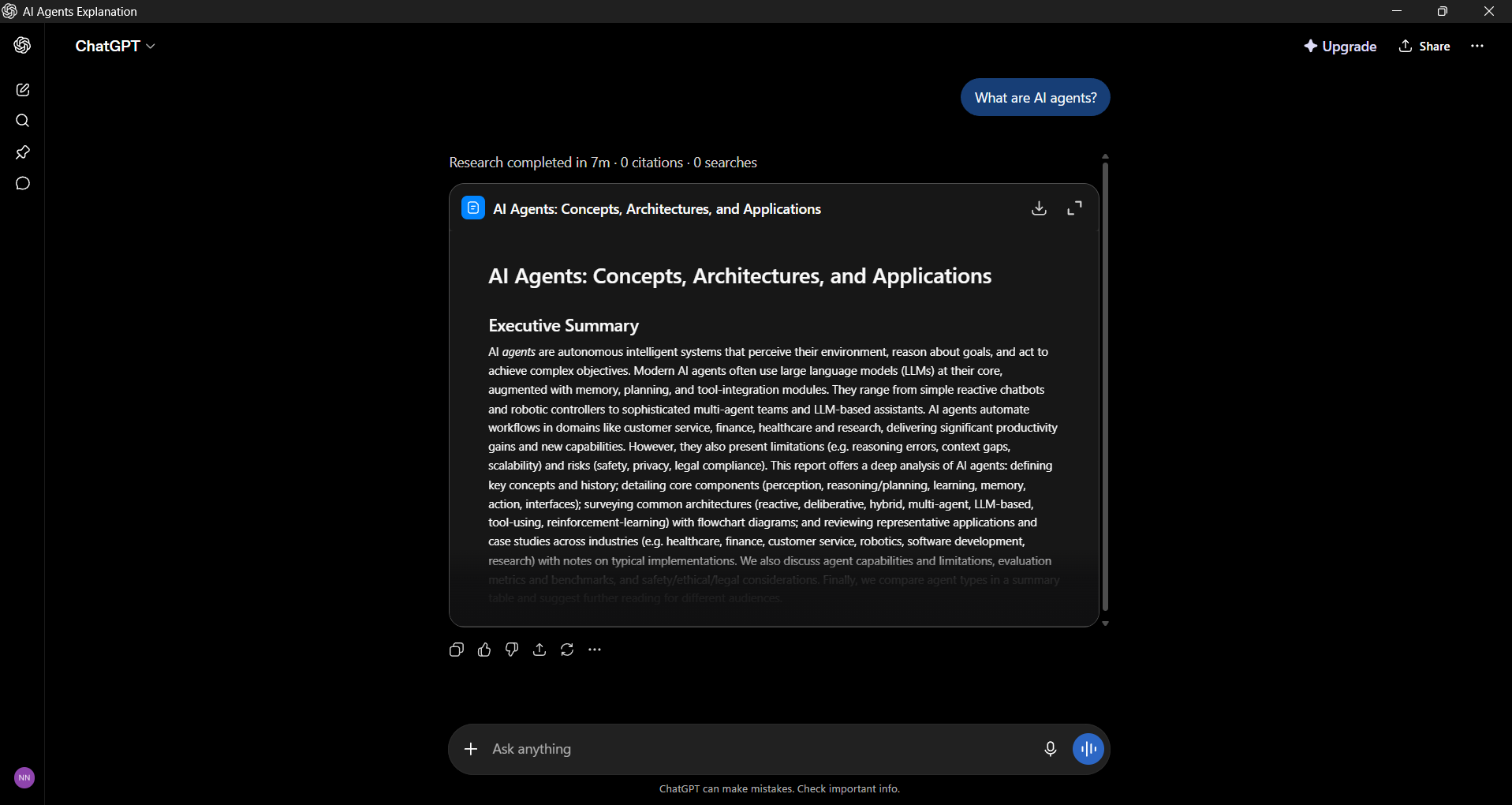
Deep Research lets ChatGPT work agentically and run dozens to hundreds of searches that build on each other, reading sources, and synthesizing for several minutes before producing an in-depth, cited report. Since early 2026, you can even review and edit its research plan before it starts. You should use deep research when you’d otherwise block out half an afternoon on a competitive landscape, due diligence, or a literature review: “Tell me everything about this customer before my call.”
Scheduled Tasks: Put repeat work on autopilot
The schedule task feature allows you to ask ChatGPT to do a certain task at a specific time or on a regular basis. You can set up a news briefing for Monday mornings, a weekly summary of your open items, or a daily reminder based on your calendar. Set it once, and it will run automatically.
Real automations, by role
There are countless role-based ways to put this together. A few to start from:
For managers: A weekly “what’s on fire.” A scheduled task can pull from email, Slack, and your task tracker to produce a Monday-morning briefing on what slipped, who’s blocked, and what to follow up on, delivered automatically.
For salespeople: A Project per account, loaded with deal history, so any prep request( call notes, a follow-up email, a proposal draft) comes back in your voice with the right context.
For analysts: Ask ChatGPT to build the spreadsheet, not describe it. It can produce a real .xlsx with formulas and formatting, which you then refine by saying “add a column for variance” or “pivot this by region.”
For marketers: You can add your brand’s guidelines to a Custom GPT that can turn rough notes into on-brand posts, subject lines, or ad copy every time, no re-prompting required.
How to actually start
The easiest way to get started is through just-in-time learning. I would recommend that you pick one task that frustrates you and use ChatGPT to solve it. As you work on this task, learn about the features you need. You can start a project around that task, then you can activate a connector, and over time, create a Custom GPT or Canvas document to see what saves you time and what doesn’t.
As we said at the top, there’s no single correct way to use an AI assistant; everyone’s workflow is different. For you, a connector might be the game-changer. For someone else, it’s a Custom GPT or a Scheduled Task that quietly runs every Monday. After two or three weeks of this, the difference between ChatGPT as a smarter search engine and ChatGPT as your always-on employee will become obvious and hard to give up.
iOS 27 includes new features for Apple Calendar, Wallet, Messages, Maps, and also the Weather app. Here are two new features coming to Apple Weather in iOS 27.
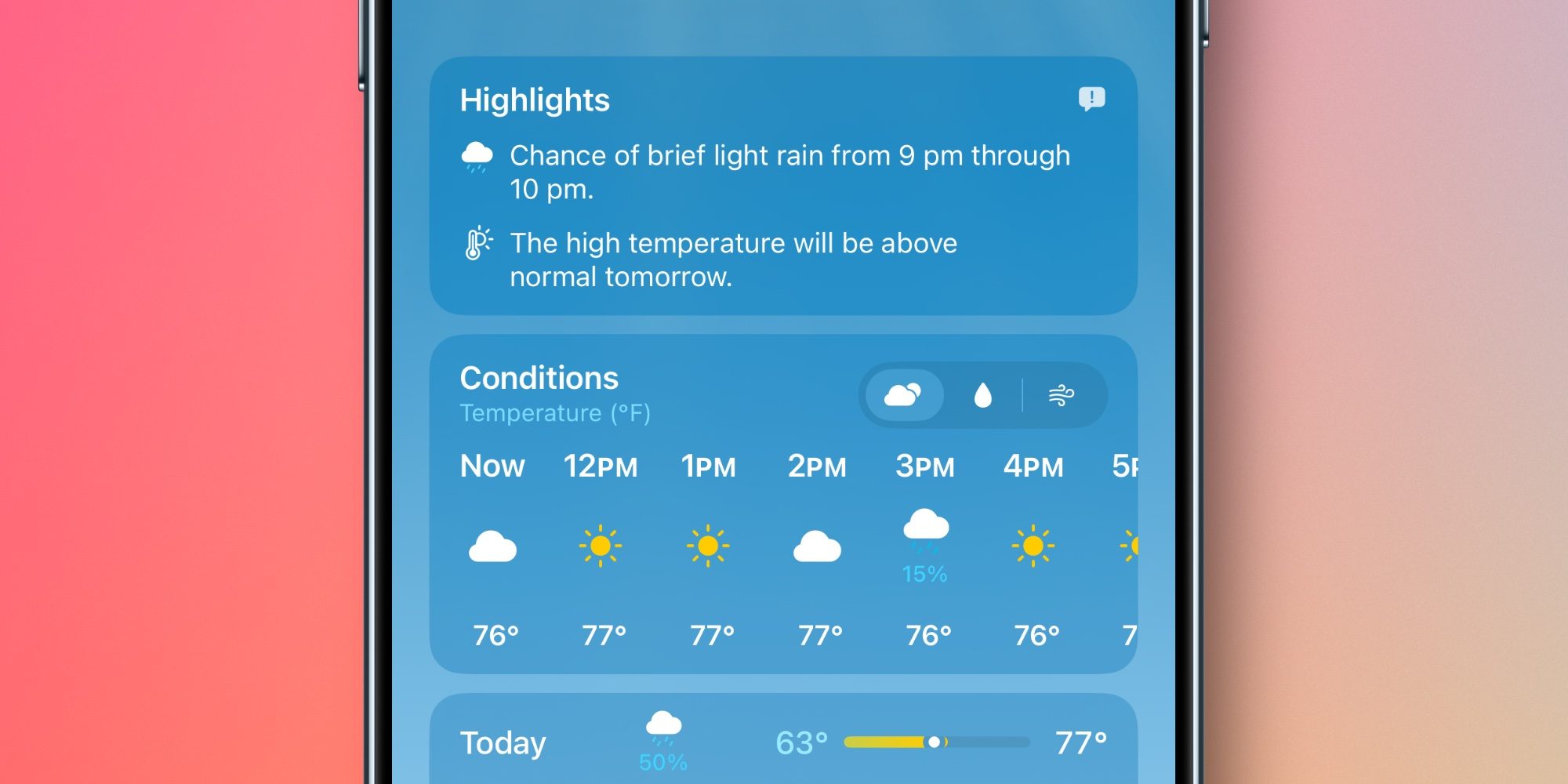
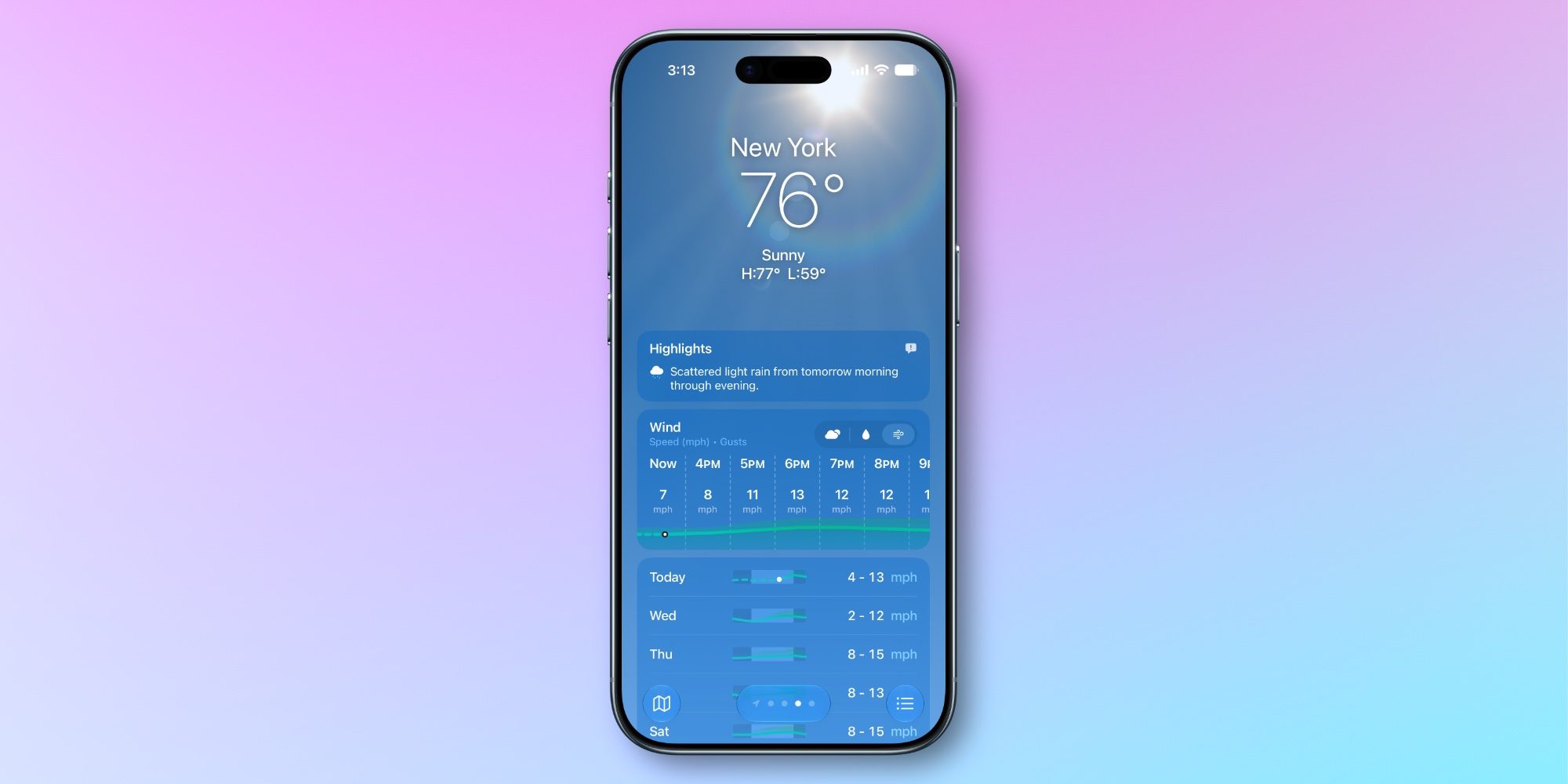
#1: ‘Highlights’ is a new summary of expected conditions
The Weather app has always offered a brief written overview of conditions near the top of the home page. But in iOS 27, Apple has upgraded and expanded this feature into a new ‘Highlights’ section.
’Highlights’ informs you of any noteworthy weather updates happening in the next day or so. It might inform you of rising temperatures, chances of rain or high winds, and the like.
Though Apple hasn’t said this, I suspect the feature might be powered by AI in some way. The iOS 27 beta placement of the ‘Feedback’ icon in the top-right corner of Highlights makes this seem likely.
So far in early testing, I’ve definitely found Highlights more helpful than the condition summaries available in iOS 26 and earlier. The updates seem more descriptive and relevant than what was offered before.
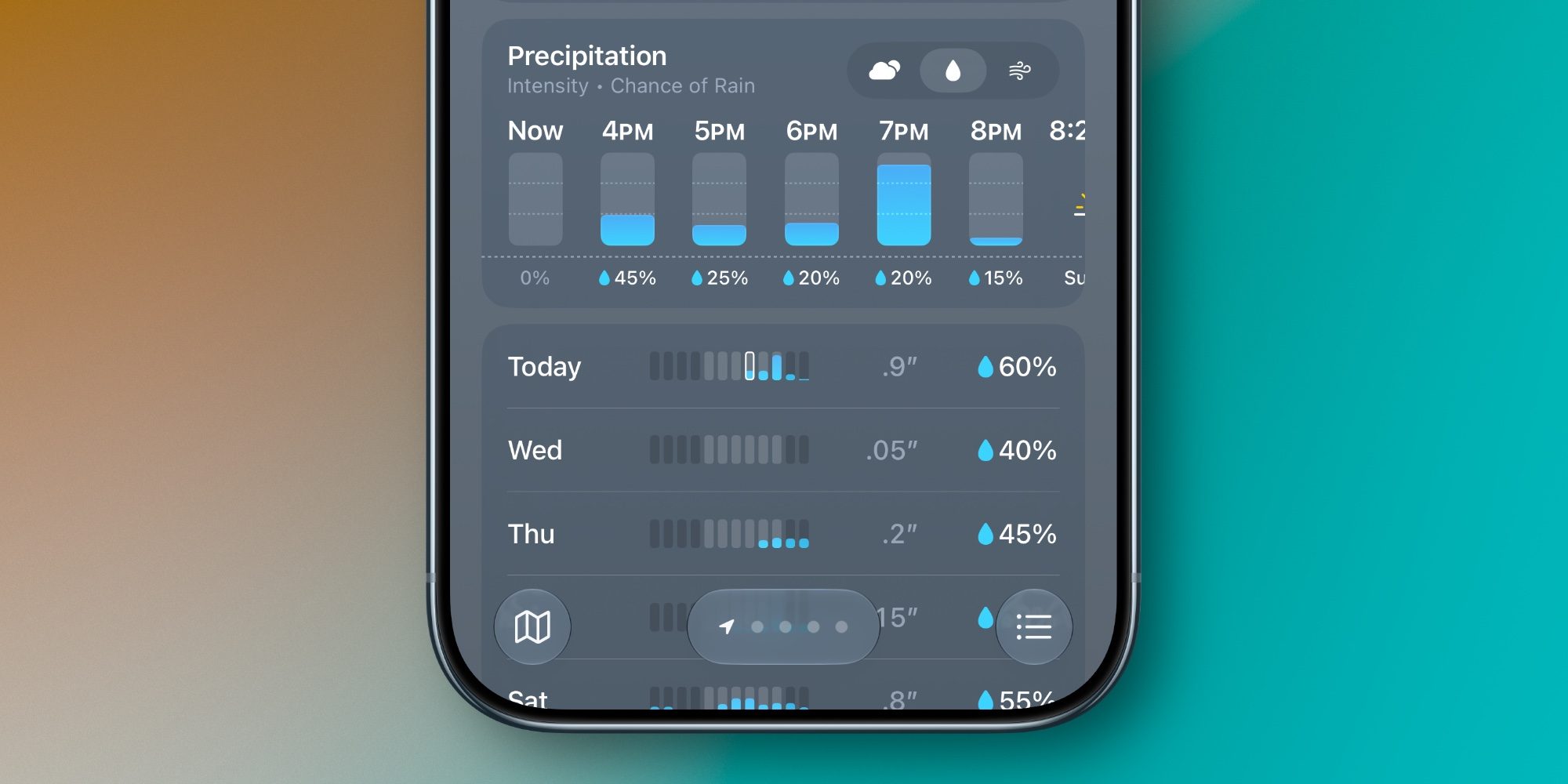
#2: New rain and wind forecast views
Another big change in iOS 27’s Weather app involves convenient new forecast views for Precipitation and Wind that live right on the home page.
You’ll notice in the images above and below that the Weather app now lets you switch between the default forecast view (signified by the cloud icon with sun behind it) and new rain and wind-focused views.
When you tap on the rain or wind icons, the hourly and daily summaries on the home page change from their default to focus solely on your chosen condition.
I’ve found the new forecast views a great addition to the Weather app. They let you stay in a familiar interface while providing in-depth data on precipitation and wind that you would previously need to dig to find.
New updates mean you should be able to go back and forth between coding and designing without interruptions.
Anthropic’s Claude Code changed the AI game last year when it turbocharged our ability to vibe code. No longer did you need a comprehensive understanding of coding languages to build new apps, websites and widgets; you could describe what you want in plain words, and the AI assistant would make it happen. Now, it’s getting into more creative work.
An update to Claude Design, announced on Wednesday, is intended to make it easier for Claude users to integrate design and visual assets into their work. Claude Design launched in beta in April, and this week’s updates make it easier to keep your AI content aligned with your company’s brand guidelines.
There will be a new administrator role; this person can set up your “design system,” which is essentially your brand kit that people can use across projects, not just haphazardly. Claude will automatically check for compliance. You can now import your GitHub repo, design files and raw uploads to your design system.
Claude Code will now be able to pull from your designs and vice versa. You can bring your designs into your coding terminal with the command “/design.” The two capabilities are synced, so you should be able to pull from the most up-to-date elements from each — no back-and-forth needed.
You can push your designs to Claude Code and vice versa.
Anthropic
It’s been a busy week for Anthropic, and it’s only Wednesday. The company was forced to pull its newest AI model, Fable 5, after the US government ordered the company to prevent non-US citizens from using it. The export control order was issued over the weekend after it found a “jailbreak” that circumvented the model’s cybersecurity guardrails. The only way to comply with the order, Anthropic said, was to pull the model for everyone, as CNET reported this week.
The debacle is the latest chapter in a growing conflict between the US government and AI developers. Anthropic very publicly refused to let the Department of Defence use Claude in certain cases involving surveillance and fully autonomous weapons. OpenAI, one of Anthropic’s biggest competitors that makes ChatGPT, was quick to fill the void and snatch up a Pentagon contract. But questions about the role of AI in military operations are still largely unanswered.
Anthropic was also sued this week by a group of Claude subscribers alleging that the company lied about usage limits for its paid plans.
Feature image credit: Joseph Maldonado/CNET
By Katelyn Chedraoui
Katelyn is a reporter with CNET covering artificial intelligence, including chatbots, image and video generators. Her work explores how new AI technology is infiltrating our lives, shaping the content we consume on social media and affecting the people behind the screens. She graduated from the University of North Carolina at Chapel Hill with a degree in media and journalism. You can reach her at [email protected]. See full bio
Every week, your business probably creates content. Blog posts, social media updates, newsletters, videos. But most of it doesn’t need to exist.
Only 29% of marketers say their content strategy is extremely or very effective, while 58% say it’s moderately effective. The effort is there. The problem is a lack of strategic thinking before hitting publish.
Having worked with more than 1,500 authors to turn their knowledge into bestsellers, I have seen that the difference between converting content and dust-gathering content is simply asking the right questions before creating the content.
Question 1: Does this serve a documented business goal?
Before writing the first word, determine the precise business goal the piece will support. Nothing too fuzzy here, such as “brand awareness.” This needs to be related to the expansion goals of your company.
Among very successful companies, 80% have developed a documented content marketing strategy, compared to significantly fewer among less successful companies.
Your content needs to ladder up to one of the following goals: create qualified leads, nurture current leads, promote product adoption, promote thought leadership on a particular subject or facilitate customer retention. If you cannot immediately tell what your content goals are, then you’re making content for content’s sake.
Question 2: Who is this for, and where are they in their journey?
Content that is generic and intended for everybody reaches nobody. The most powerful content addresses an individual who is struggling with a problem at a particular time and place during the decision-making cycle.
According to McKinsey, 71% of customers expect personalized communication from brands, while 76% reported feelings of frustration when it didn’t happen.
Align your content to your audience’s journey. Someone who has recently discovered a problem requires different information than someone who is considering multiple solutions or who is ready to buy. A CFO seeking information on efficient tools has different concerns from an operations manager who has to implement those solutions. When you identify clearly who your communication targets, your content will have greater relevance.
Question 3: What makes this different from everything else available?
Your audience doesn’t have a content shortage problem. They have a quality and relevance problem. According to industry research, the average website bounce rate across all sectors hovers around 44%, meaning nearly half of all visitors don’t find what they’re looking for on the first page they land on.
Ask yourself: If someone searched for this topic, would they find dozens of similar articles saying essentially the same thing? If yes, you need a different angle.
An original perspective may come from original research, an opposing view with supporting evidence, particular experiences from your field of practice, a unique framework for understanding your problem or a practice that others do not implement.
Question 4: Can they actually use this information?
Content that inspires is fun to create, but content that helps your audience take action creates financial value. The question is simple: Can your audience do something new after engaging with your content?
Effective communications will include things like specific examples of how one might apply the ideas, specific tools that may ease the burden of implementation, steps the reader can implement now, anticipated problems and ways to solve them, as well as ways to measure whether the plan is successful.
Question 5: Does this content have a logical next step?
Every piece of content should have a purpose beyond being read. What do you want people to do after engaging with it?
Reports show that email marketing generates $36 to $44 in ROI for every $1 spent, making it one of the highest-return channels. But that return depends on strategically guiding readers toward meaningful actions.
Your next step might be downloading a resource that captures their contact information, scheduling a consultation or demo or implementing a specific strategy and reporting results.
The Payoff
What to do in your next planning meeting? Take these five questions with you. Post them on a whiteboard. Apply them to every piece of content suggested.
You’ll see that more than half of the content you had intended to cover doesn’t adequately address these questions. This is a revelation. You now know the answers to the pieces of content that will contribute to wasting your team’s resources.
When you produce strategic content in response to those five questions, something amazing happens. The content library becomes an asset rather than just a collection of posts nobody is reading. The content works harder because it has something to accomplish.
Vikrant Shaurya, CEO of Authors On Mission, helping entrepreneurs and professionals write, publish and market their books. Read Vikrant Shaurya’s full executive profile here.
NotebookLM 2.0 introduces a suite of upgrades aimed at enhancing productivity and adaptability across various workflows. Powered by the advanced Gemini 3.5 AI model, this version emphasizes both performance and transparency, making it particularly effective for tasks like data analysis and content creation. Paul Lipsky highlights how the platform’s expanded file export options, such as editable PDFs and PowerPoint presentations, integrate seamlessly with external applications like Google Slides. For instance, users can generate a presentation within NotebookLM, refine it externally and maintain formatting integrity throughout the process, an invaluable feature for professionals managing complex projects.
Dive into this breakdown to uncover how NotebookLM 2.0 supports more personalized workflows, allowing users to create tailored outputs like charts, summaries and reports. You’ll also gain insight into its secure cloud environment for advanced research, as well as its commitment to source integrity, making sure that outputs remain accurate and reliable. Whether you’re exploring its transparent reasoning process or learning how it adapts to unique data sets, this guide offers a clear look at the platform’s capabilities and practical applications.
Expanded File Creation and Export Options
TL;DR Key Takeaways :
NotebookLM 2.0 introduces enhanced file creation and export capabilities, allowing users to generate and export editable PDFs, PowerPoint presentations, Excel spreadsheets and charts, making sure seamless integration with tools like Google Slides and Excel.
Powered by the advanced Gemini 3.5 AI model, the platform delivers more accurate and reliable outputs with transparent reasoning, making it ideal for complex tasks like data analysis and market trend evaluations.
The platform features advanced research and analysis tools, including a secure cloud computing environment and an intuitive chat interface, allowing deeper data evaluations and context-aware suggestions.
Personalized workflows allow users to create tailored notebooks with customized outputs such as charts, summaries and reports, streamlining tasks and providing actionable insights for both personal and professional use.
NotebookLM 2.0 emphasizes source integrity, making sure outputs are grounded in user-provided or approved data, making it a trustworthy tool for sensitive projects like financial reporting, academic research and legal documentation.
NotebookLM 2.0 introduces a significant upgrade in file creation and export functionalities, allowing users to generate and export editable PDFs, PowerPoint presentations, Excel spreadsheets and charts directly from the platform. These files are fully compatible with external tools such as Google Slides and Excel, making sure seamless integration into existing workflows. For instance, if you are preparing a business presentation, you can generate a PowerPoint deck within NotebookLM, refine it in Google Slides and preserve both formatting and data integrity throughout the process. This feature simplifies complex tasks, saving time while maintaining professional standards.
Enhanced Performance with Gemini 3.5
The integration of the Gemini 3.5 AI model brings a significant leap in performance, delivering outputs that are not only more accurate but also more reliable. A standout feature of this upgrade is its transparent reasoning process, which explains how results are generated. This is particularly beneficial for complex tasks such as data analysis or market trend evaluations. For example, when analyzing market trends, the AI provides clear, step-by-step explanations for its conclusions, allowing you to verify the results and make informed decisions. This transparency fosters trust and ensures that the outputs are both actionable and dependable.
NotebookLM 2.0 takes research and analysis to the next level by incorporating a secure cloud computing environment. This enhancement supports deeper and more complex data evaluations, making it ideal for tasks such as assessing business metrics, conducting academic research, or analyzing industry trends. The platform’s intuitive chat interface further enhances its utility by suggesting relevant topics or sources based on the context of your notebook. Additionally, users can import new sources with explicit approval, making sure that the tool remains aligned with specific requirements. These features make NotebookLM 2.0 a powerful ally for professionals and researchers alike.
Personalized, Data-Driven Workflows
Personalization is a core strength of NotebookLM 2.0. The platform allows users to create notebooks tailored to their specific data, generating customized outputs such as charts, summaries, and reports. For example, you can track fitness progress by visualizing weekly activity data or analyze business metrics like advertising spend versus revenue. These personalized workflows streamline tasks, reduce manual effort and provide actionable insights. By adapting to individual needs, NotebookLM 2.0 becomes an indispensable tool for both personal and professional applications, offering a seamless blend of efficiency and customization.
Commitment to Source Integrity
NotebookLM 2.0 places a strong emphasis on source integrity, making sure that all outputs are grounded in user-provided or approved data. This commitment is particularly critical for sensitive projects, such as financial reporting, academic research, or legal documentation, where accuracy and reliability are paramount. By maintaining transparency and trustworthiness, the platform ensures that your work is credible and dependable. This focus on integrity not only enhances the quality of outputs but also builds confidence in the platform’s capabilities.
Versatility Across Applications
Designed with flexibility in mind, NotebookLM 2.0 supports a wide range of use cases, making it a versatile tool for various applications. It excels at learning from external sources and creating personalized, data-driven notebooks. Whether you are developing a business strategy, tracking fitness goals, or conducting in-depth research, the platform adapts to your unique needs. Its ability to integrate seamlessly with external applications and provide tailored recommendations further enhances its versatility, making it a valuable resource for users across different domains.
Driving Productivity with NotebookLM 2.0
NotebookLM 2.0 represents a significant advancement in AI-powered tools, combining enhanced functionality with a user-centric design. Its new features, such as expanded file creation options, improved performance with Gemini 3.5 and advanced research tools, offer a comprehensive solution for diverse tasks and workflows. By prioritizing source integrity and allowing personalized, data-driven outputs, NotebookLM 2.0 ensures accurate, efficient and adaptable support for any project. Whether for professional or personal use, this platform sets a new standard for productivity and innovation.
Samsung is poised to make a significant impact on the foldable smartphone market with its upcoming Galaxy Z Fold 8 series. This eagerly awaited line-up, featuring the Galaxy Z Fold 8 Ultra and Galaxy Z Fold 8 Wide, is expected to deliver substantial advancements in display technology, performance, and overall usability. Recent filings with the Federal Communications Commission (FCC) strongly suggest that these devices are nearing their official release. The Galaxy Unpacked event, scheduled for July 22, 2026, is widely anticipated to be the platform for their grand unveiling.
FCC filings have long been a reliable indicator of a product’s readiness for launch, and the Galaxy Z Fold 8 series is no exception. These filings confirm the existence of the new foldable devices and hint at their imminent arrival in the market. Samsung’s decision to align the launch with its mid-year Galaxy Unpacked event underscores its strategy of maintaining a consistent presence in the competitive smartphone landscape. By unveiling flagship devices during this period, Samsung continues to reinforce its reputation as a leader in technological innovation.
The timing of this launch is particularly significant as it positions Samsung to capture consumer attention ahead of the holiday season. With the foldable smartphone market gaining momentum, the Galaxy Z Fold 8 series is expected to set new benchmarks for design and functionality.
Galaxy Z Fold 8 Ultra: Elevating Foldable Performance
The Galaxy Z Fold 8 Ultra is designed to redefine the capabilities of foldable smartphones. At its core is the powerful Snapdragon 8 Elite Gen 5 processor, which ensures exceptional speed and efficiency. This innovative chipset is complemented by a larger battery, addressing one of the most common concerns among foldable phone users, battery longevity. With this upgrade, users can expect extended usage without compromising on performance.
For productivity-focused users, the return of S Pen compatibility is a standout feature. The stylus support enhances the device’s versatility, making it ideal for tasks such as note-taking, sketching, and multitasking. These enhancements position the Galaxy Z Fold 8 Ultra as a premium choice for those seeking a blend of innovation and practicality in a foldable form factor.
The device also features a high-resolution foldable display with a 120 Hz refresh rate, making sure smooth animations and vibrant visuals. This combination of hardware and software advancements makes the Z Fold 8 Ultra a compelling option for both tech enthusiasts and professionals.
Galaxy Z Fold 8 Wide: Expanding the Foldable Experience
The Galaxy Z Fold 8 Wide introduces a bold new approach to foldable design with its wider 4:3 aspect ratio. This innovative design choice addresses user feedback from previous models, where narrower displays were seen as limiting for multitasking and media consumption. The wider screen enhances usability, allowing for more efficient side-by-side app usage and improved viewing experiences.
The device features high-resolution displays, including a 432 PPI cover screen and a 403 PPI foldable screen, delivering sharp and detailed visuals. A 120 Hz refresh rate further enhances the user experience by providing seamless transitions and animations. These features make the Z Fold 8 Wide an excellent choice for professionals and power users who demand versatility and performance.
Under the hood, the Z Fold 8 Wide is powered by the same Snapdragon 8 Elite Gen 5 chipset as its Ultra counterpart, making sure top-tier performance across the board. Photography enthusiasts will appreciate the inclusion of a 50 MP main camera paired with an ultra-wide lens, offering versatility for capturing diverse scenes. Additionally, the 4,800 mAh battery with 45-W wired charging ensures that the device can handle demanding usage throughout the day.
Samsung’s decision to introduce a wider aspect ratio with the Galaxy Z Fold 8 Wide highlights its commitment to addressing user feedback. Many users of earlier foldable models expressed concerns about the limitations of narrow displays, particularly for multitasking and media consumption. By offering a more expansive screen, Samsung not only improves usability but also strengthens its position as a leader in foldable technology.
This strategic move also serves as a pre-emptive response to Apple’s rumoured entry into the foldable smartphone market. By staying ahead of the curve, Samsung aims to solidify its dominance in this rapidly evolving segment. The Galaxy Z Fold 8 series reflects Samsung’s dedication to pushing the boundaries of what foldable devices can achieve, making sure that it remains at the forefront of innovation.
Building Anticipation for a Milestone Release
The Galaxy Z Fold 8 series represents Samsung’s most ambitious effort yet in the foldable smartphone market. With significant upgrades in hardware, design and functionality, these devices have the potential to reshape how users interact with their smartphones. Whether you are a tech enthusiast eager to explore the latest advancements or a professional seeking a versatile device for work and entertainment, the Z Fold 8 line-up offers something for everyone.
As the July 22 Galaxy Unpacked event approaches, excitement continues to build. If the leaks and rumours are accurate, the Galaxy Z Fold 8 series could set new standards for the industry, redefining what is possible in mobile design and functionality. Samsung’s commitment to innovation ensures that these devices will not only meet but exceed the expectations of users, making them a pivotal release in the evolution of foldable technology.
Take a look at other insightful guides from our broad collection that might capture your interest in the Samsung Galaxy Z Fold 8 Ultra.