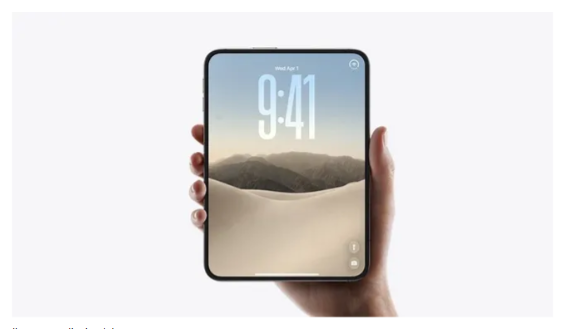
Apple’s trying its best to prove the new foldable is ergonomic.
Apple‘s first foldable, the iPhone Duo, is here, and it’s already proving divisive. Whether it’s the whopping $1,999 price tag or the controversial ‘passport’ design, Apple has its work cut out to convert the naysayers – especially after its latest stunt.
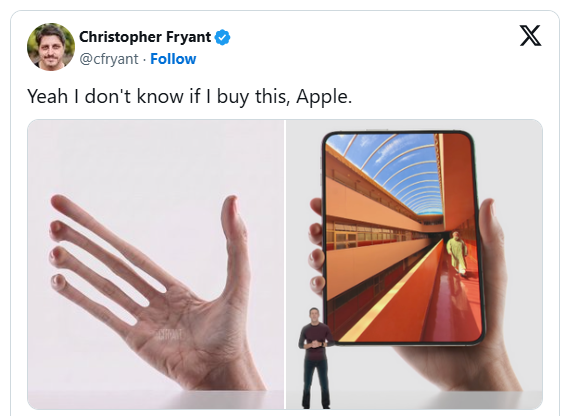
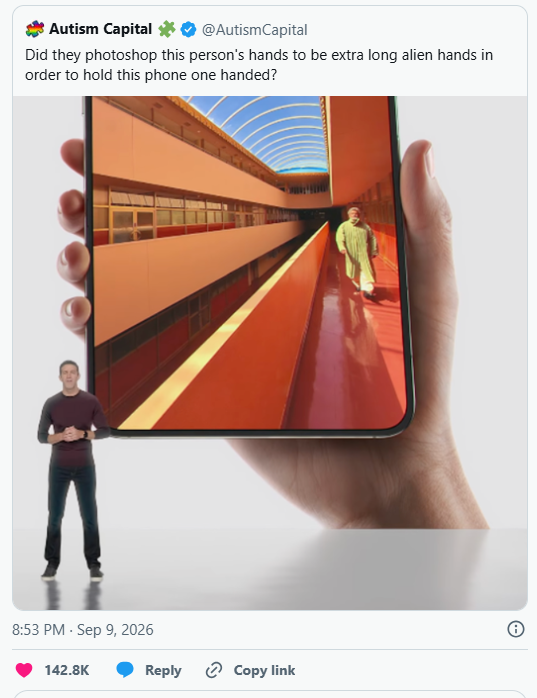
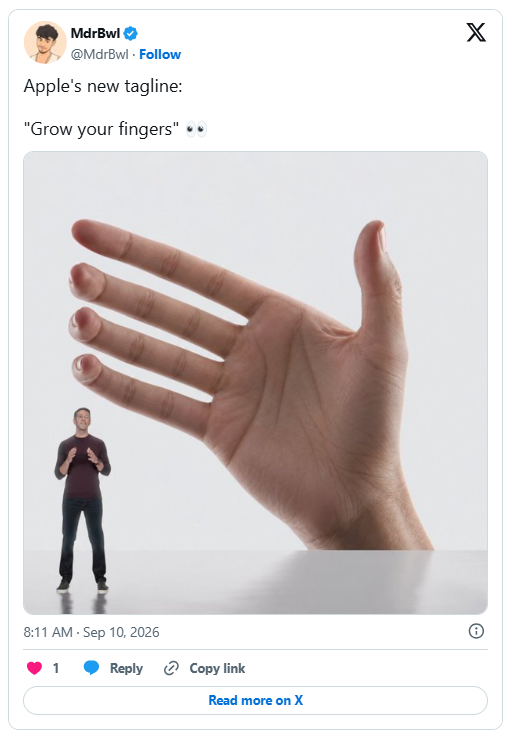
To show off the Duo’s functional, ergonomic design, Apple has tried its best to convince us the phone will easily fit in one hand when unfolded. This would be somewhat believable if the marketing pictures didn’t feature unnaturally long E.T-Esque fingers. My question is, did they think we wouldn’t notice? We wouldn’t have this issue with dumbphones, just saying.
As new CEO John Ternus sung the praises of the Duo at yesterday’s ‘Surprise and Shine’ event, an image of a strange, alien-fingered hand loomed above him. It was almost unassuming enough that it could’ve gone unnoticed, but naturally some eagle-eyed viewers called Apple’s bluff, claiming it was a botched Photoshop job.
“Apple: ‘The phone fits perfectly. Please update your fingers,'” one X user teased. “Oh, you mean your fingers *aren’t* comically long and ten times the size of your entire body?!?! Freaks!” another joked, while another suggested, “maybe they used a long-fingered person.”
Whether or not Apple used a hand model well-endowed in the digits department is beyond the point – the average-sized hand will likely struggle to cradle the Duo in its vertical form… and that’s okay. Apple trying to gaslight us into thinking the Duo is more ergonomic than it actually is? That’s less okay. True, it makes a slick marketing pic, but I can’t help but feel a little deceived.
Natalie Fear is Creative Bloq’s staff writer. With an eye for trending topics and a passion for internet culture, she brings you the latest in art and design news. Natalie also runs Creative Bloq’s 5 Questions series, spotlighting diverse talent across the creative industries. Outside of work, she loves all things literature and music (although she’s partial to a spot of TikTok brain rot).
Life could be a lot easier for anyone with an overflowing inbox because Apple’s Mail app is about to get one of the most requested improvements with iOS 27.
While Apple unveiled plenty of headline-grabbing features at WWDC, one smaller change has caught the attention of long time iPhone users.
The update focuses on fixing a frustrating issue that has plagued the Mail app for years.
And if it works as intended, finding old emails could soon become much less of a headache.
iOS 27 is bringing a major improvement to Apple’s Mail app
Apple’s Mail app tech has long been criticized for its search function, with users often struggling to locate specific emails, attachments, or conversations buried deep in their inboxes.
Apparently, the company is introducing a revamped Mail search experience that aims to deliver more relevant and accurate results when users search for messages.
Unsplash
The update is designed to better understand what people are actually looking for and prioritize the most useful emails at the top of the results.
While it might not sound as exciting as Apple’s latest AI tools or visual redesigns, it tackles a real-world problem that affects millions of iPhone owners every day.
For users who rely on Mail for work, travel bookings, receipts, and personal communication, a more effective search function could save a significant amount of time and stop that panic when you’re at a ticket turnstile.
The tech giant is stopping the turnstile panic
The Mail app improvement arrives as part of a wider collection of updates coming to iPhones with iOS 27.
But sometimes the most appreciated upgrades are the ones that simply make existing tools work better.
Unsplash
Anyone who has spent several minutes scrolling through years of emails trying to find a single confirmation message or attachment will likely welcome the change.
If Apple’s new search system delivers on its promise, it could transform one of the most frustrating aspects of using the Mail app.
The software is currently available in beta testing before a wider public release later this year, giving users something practical to look forward to alongside the platform’s bigger headline features.
Nothing’s Apple challenge is ambitious, confident, and a little hard to watch.
TL;DR
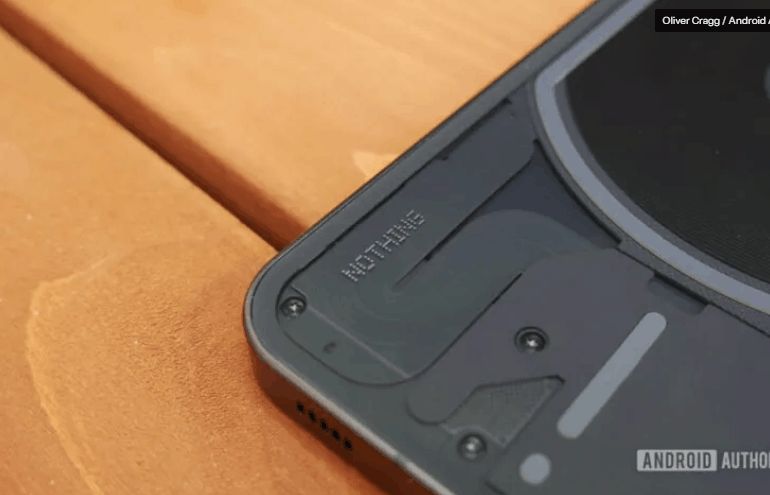
Nothing founder Carl Pei has posted a new video directly challenging Apple.
Pei says he’ll steal Apple’s customers “one bored iPhone user at a time.”
The video continues Pei’s long-running habit of positioning Nothing as the anti-Apple brand.
Nothing founder Carl Pei has posted yet another cheeky video taking aim at Apple, and this one might be his most self-affirming effort yet.
In a video posted to Instagram, Pei looks directly into the camera and declares, “This is a message to Apple. My name is Carl. I make phones in London. I’m gonna steal your customers. One bored iPhone user at a time.”
The message appears to be aimed at users who feel smartphones have become uninspiring and repetitive. Unfortunately, the video comes across as far more dramatic than the message probably needed to be.
This isn’t a new strategy for Nothing and Pei. Ever since founding the company, Pei has positioned it as an alternative to what he sees as an increasingly boring smartphone industry. He has repeatedly argued that Apple has lost its creative edge and no longer delivers the kind of innovation that once inspired him. In previous interviews, he’s criticized Apple’s direction while pitching Nothing as the brand for users who want something different from the phones their parents own.
More recently, Pei has leaned heavily into the idea that Nothing can challenge Apple and Samsung by winning over younger users. He believes Gen Z is the key demographic that could help Nothing break into a market dominated by the two smartphone giants.
The funny thing is that Nothing is actually doing decently well without the theatrics.
According to Counterpoint Research, Nothing’s shipments in India jumped 146% year over year in Q2 2025, making it one of the country’s fastest-growing smartphone brands. The company also posted 32% growth in Q4 2025, while its CMF sub-brand was the fastest-growing smartphone sub-brand in India.
But growth percentages only tell part of the story. Despite its impressive momentum, Nothing remains a relatively small player in the global smartphone market, which is dominated by Apple, Samsung, Xiaomi, OPPO, vivo, and others.
That said, Nothing has been making steady moves to grow its business in recent months. The company recently announced plans to significantly expand its retail presence in the US through Best Buy, giving its products far greater visibility in a market where breaking Apple’s and Samsung’s dominance is most difficult.
That’s a more meaningful step toward winning over iPhone users than posting a direct challenge to Apple on Instagram. So yes, Carl Pei and Nothing may very well win over a few bored iPhone users. Whether that’s enough to make Apple lose sleep is another question entirely.
Managing Editor, Adamya Sharma is a tech journalist with over 15 years of experience, currently leading the News Desk at Android Authority. She covers Android news, shares insights, and helps uncover the stories that matter.
iOS 27 includes new features for Apple Calendar, Wallet, Messages, Maps, and also the Weather app. Here are two new features coming to Apple Weather in iOS 27.
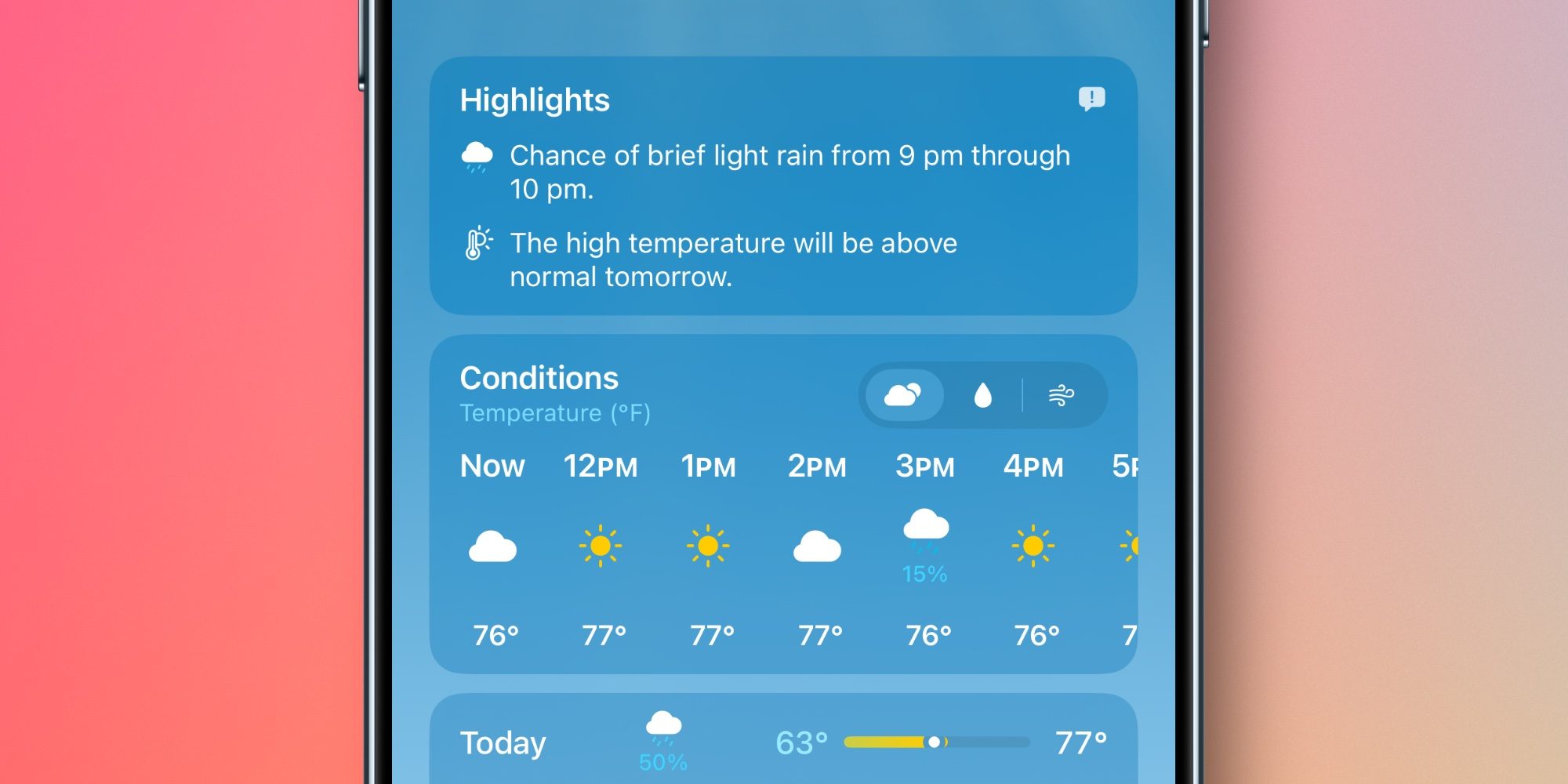
#1: ‘Highlights’ is a new summary of expected conditions
The Weather app has always offered a brief written overview of conditions near the top of the home page. But in iOS 27, Apple has upgraded and expanded this feature into a new ‘Highlights’ section.
’Highlights’ informs you of any noteworthy weather updates happening in the next day or so. It might inform you of rising temperatures, chances of rain or high winds, and the like.
Though Apple hasn’t said this, I suspect the feature might be powered by AI in some way. The iOS 27 beta placement of the ‘Feedback’ icon in the top-right corner of Highlights makes this seem likely.
So far in early testing, I’ve definitely found Highlights more helpful than the condition summaries available in iOS 26 and earlier. The updates seem more descriptive and relevant than what was offered before.
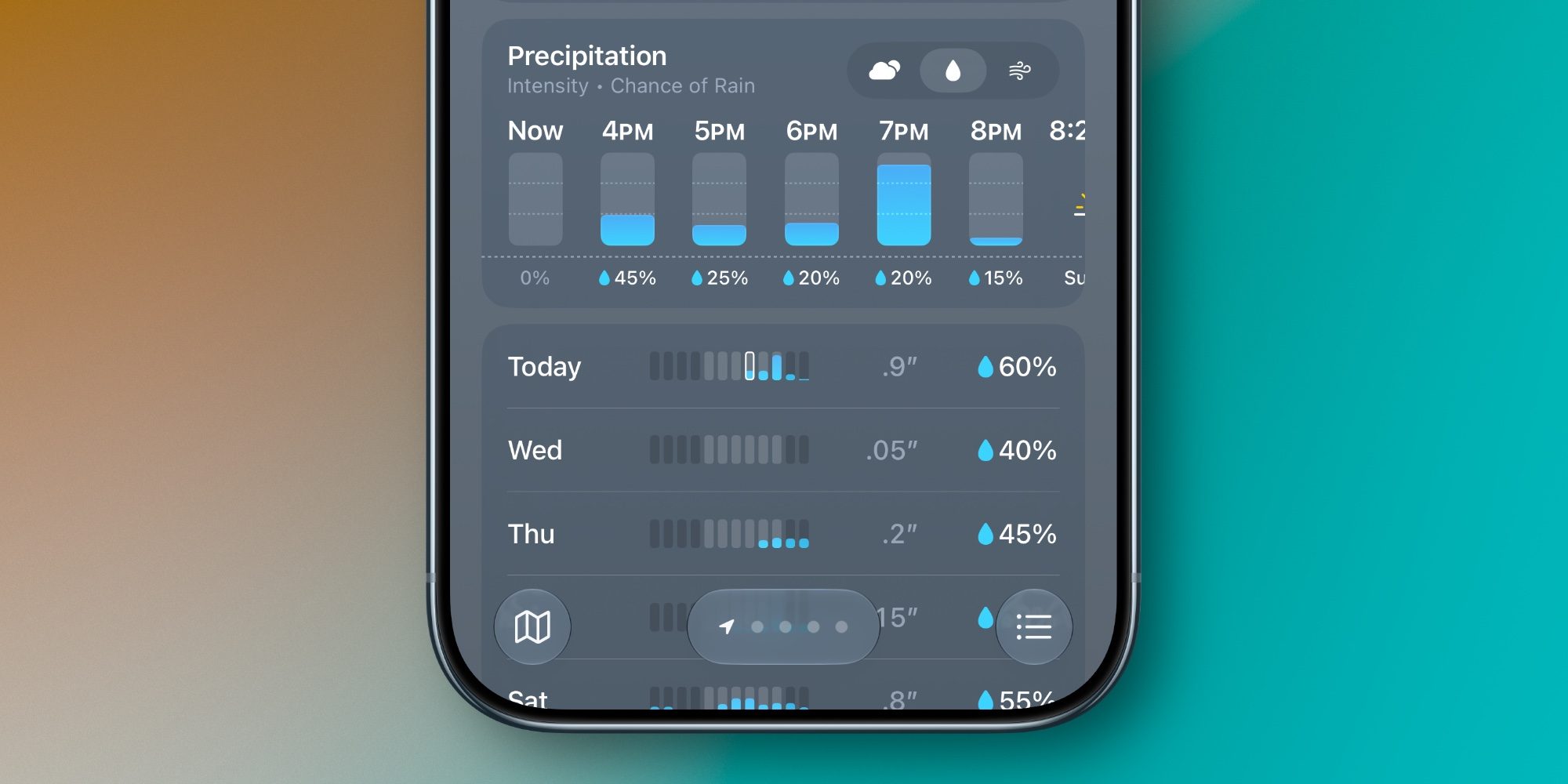
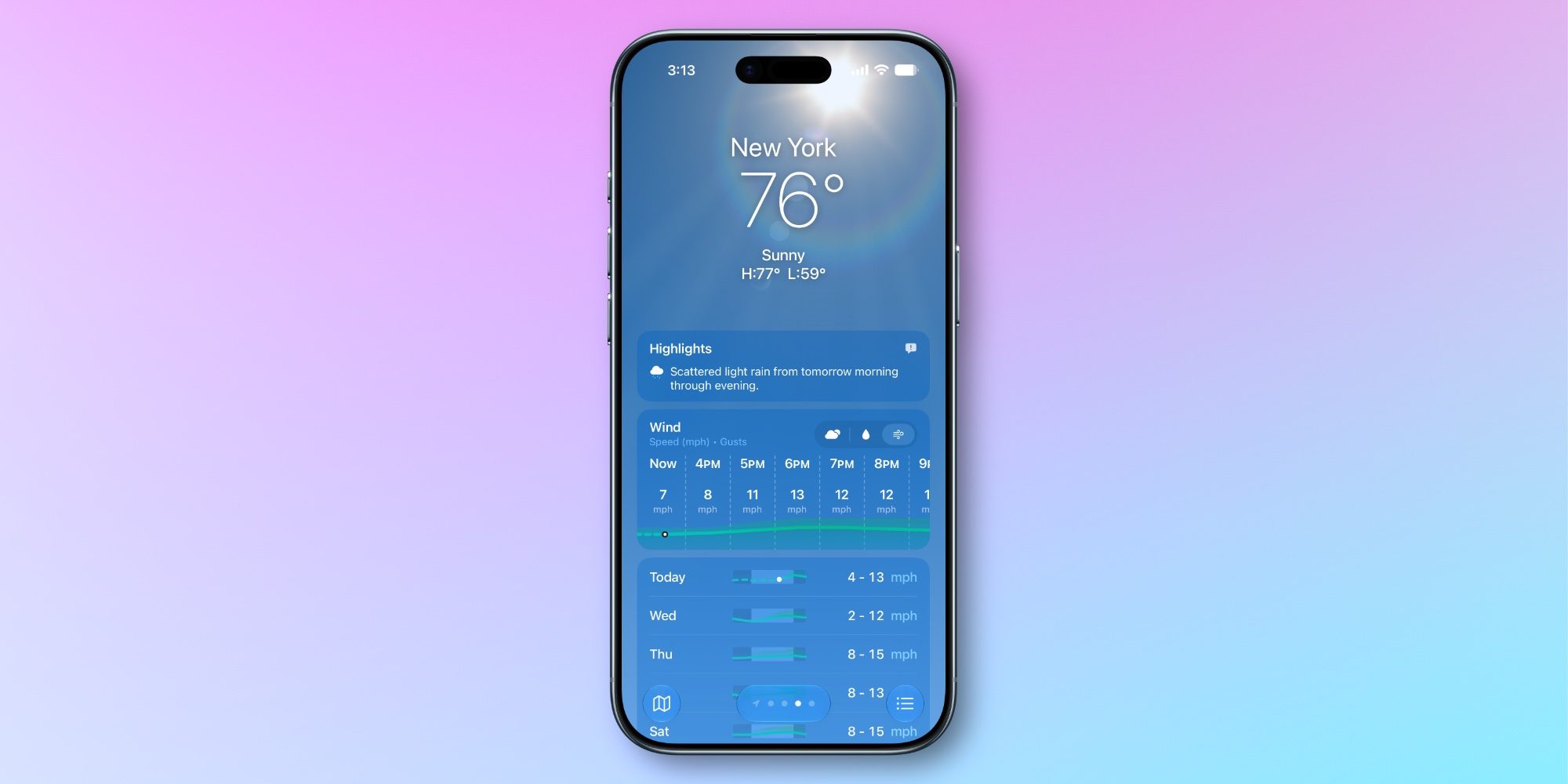
#2: New rain and wind forecast views
Another big change in iOS 27’s Weather app involves convenient new forecast views for Precipitation and Wind that live right on the home page.
You’ll notice in the images above and below that the Weather app now lets you switch between the default forecast view (signified by the cloud icon with sun behind it) and new rain and wind-focused views.
When you tap on the rain or wind icons, the hourly and daily summaries on the home page change from their default to focus solely on your chosen condition.
I’ve found the new forecast views a great addition to the Weather app. They let you stay in a familiar interface while providing in-depth data on precipitation and wind that you would previously need to dig to find.
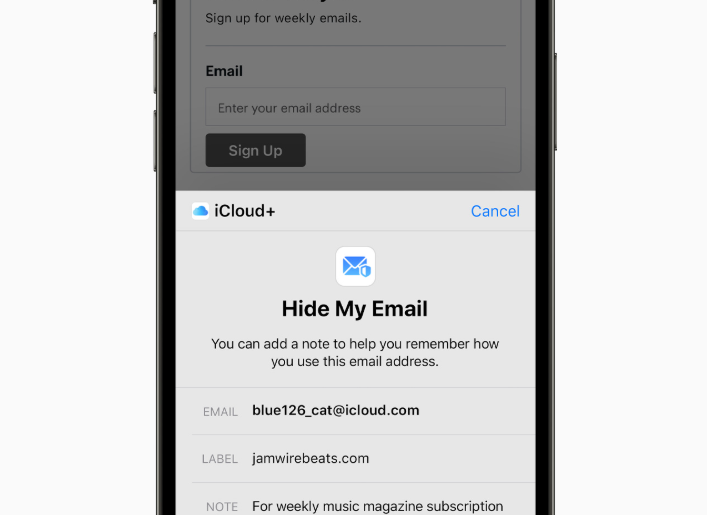
Apple will be bringing Sign in with Apple and Hide My Email under one email domain, according to a new announcement for Developers. These are privacy features that require an iCloud+ subscription, where users can create a temporary email address to sign up for various websites and platforms. These temporary email addresses forward emails to the primary iCloud email address, but it can be turned off if you do not wish to receive emails from that specific website. Sign in with Apple allows users to sign up for a website or platform, and users are given an option to share or hide their primary email address.
A new change to these features will be coming later this summer, where “Apple will unify the email domains used by Sign in with Apple and iCloud+ Hide My Email under a single, shared domain: private.icloud.com.”
According to Apple, “New addresses generated for both features will be issued on the new domain. For example:
Sign in with Apple addresses, previously issued on privaterelay.appleid.com, will be issued on private.icloud.com.
iCloud+ Hide My Email addresses, previously issued on icloud.com, will be issued on private.icloud.com.
Existing addresses on the legacy domains will continue to work and forward mail to users without interruption.”
As implied, users who are currently using these features with existing addresses will be unaffected, and this change will only apply to new addresses created when this change comes into effect later this summer. App developers will be required to update their account systems and email validation to work with the new address alongside the previous one.
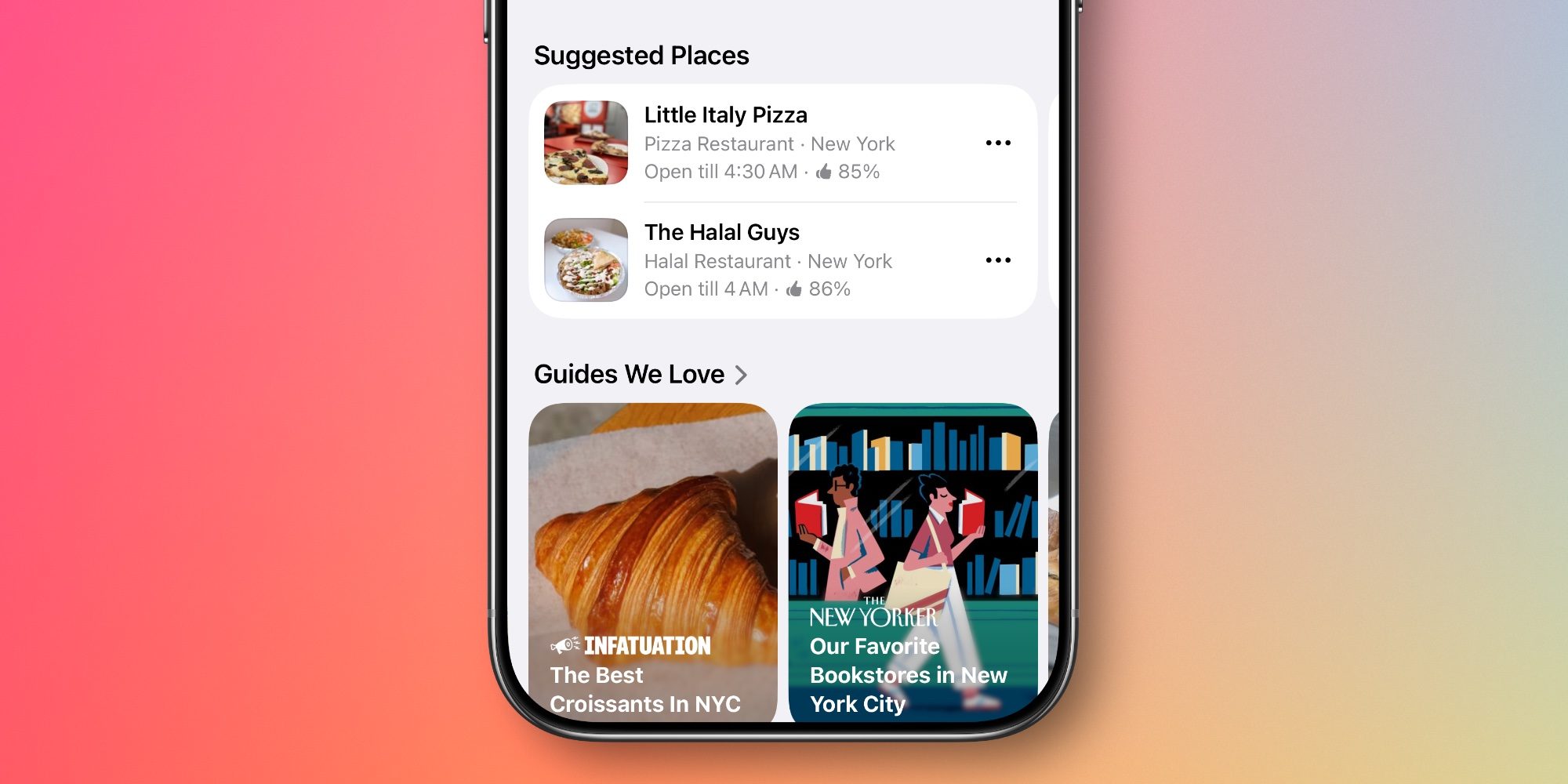
‘Suggested Places’ adds two recommended places to Maps’ search screen every time you tap the search bar to perform a search.
These recommendations are based on two main factors:
What’s trending nearby
Your recent search history
Suggested Places tend to refresh often—in my experience nearly every time I open the search screen.
So if you’re looking for spots near you, the two recommendations will be based in your local area. But if you’re planning a vacation to New York City, and just searched for something there, Apple Maps will offer two NY-based recommendations instead.
#2: Ads support ahead of summer launch
If you’re running iOS 26.5 in the US and Canada, your iPhone will alert you about its support for another Apple Maps change: ads.
Ads haven’t officially launched yet in Apple Maps. Apple previously said they would launch this summer.
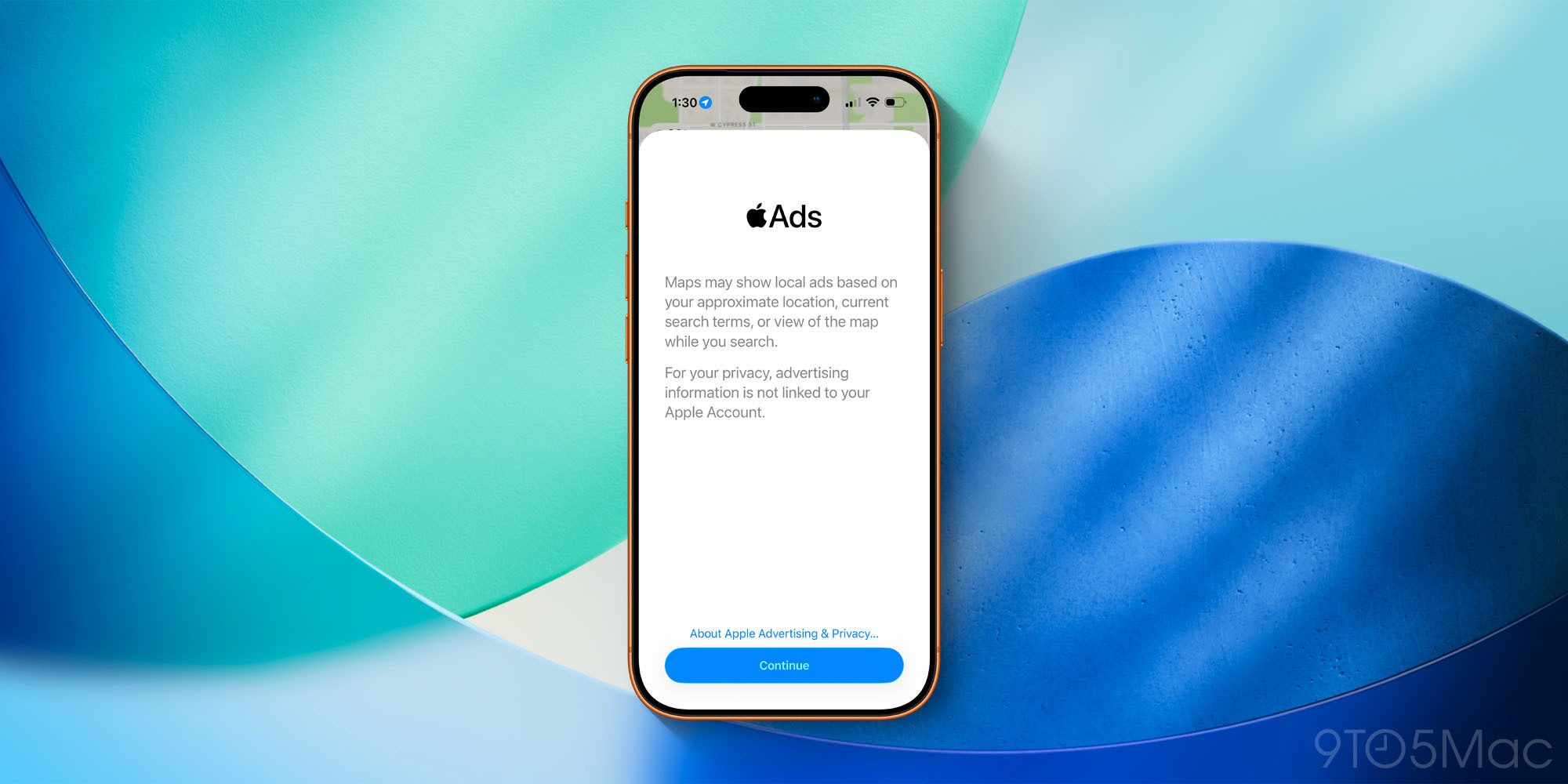
However, iOS 26.5 introduces compatibility for the forthcoming rollout. And it notifies users via a new ads popup when Apple Maps is opened.
Here’s what it says:
Maps may show local ads based on your approximate location, current search terms, or view of the map while you search.
For your privacy, advertising information is not linked to your Apple Account.
Apple’s two-stage rollout is understandably confusing some users.
For example, Polymarket told its 1.4 million followers on X: “Apple officially rolls out ads in Apple Maps.” Which isn’t technically true, but it’s hard to blame them since users who update to iOS 26.5 will be greeted by the ads popup in Maps.
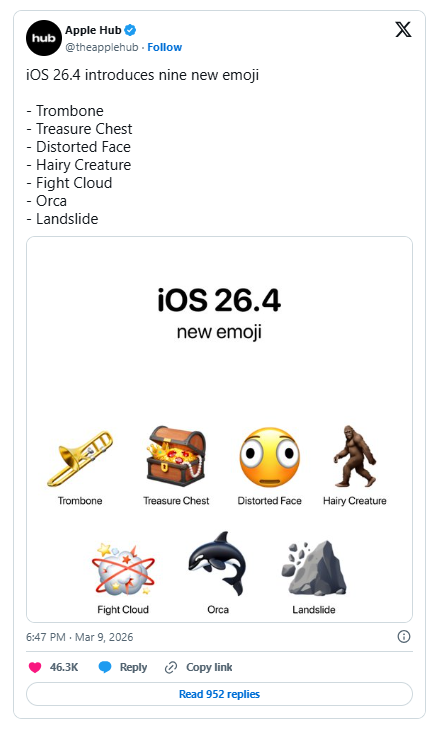
In line with the new iOS 26.4 update, Apple has launched a collection of new emojis, including a familiar (and controversial) face. While the Unicode Consortium officially approved the designs last summer, the new emojis have caused a stir for their unexpected addition, which is giving fans major flashbacks to Apple’s most controversial ad.
From its playful new ads to the Gen Z branding of the new MacBook Neo, it seems Apple is in an exciting new era, finally shedding its stuffy professional skin. The new emoji additions are just another example of how the brand is leaning into its sillier side, even making light of its own past mishaps, much to the delight of fans.
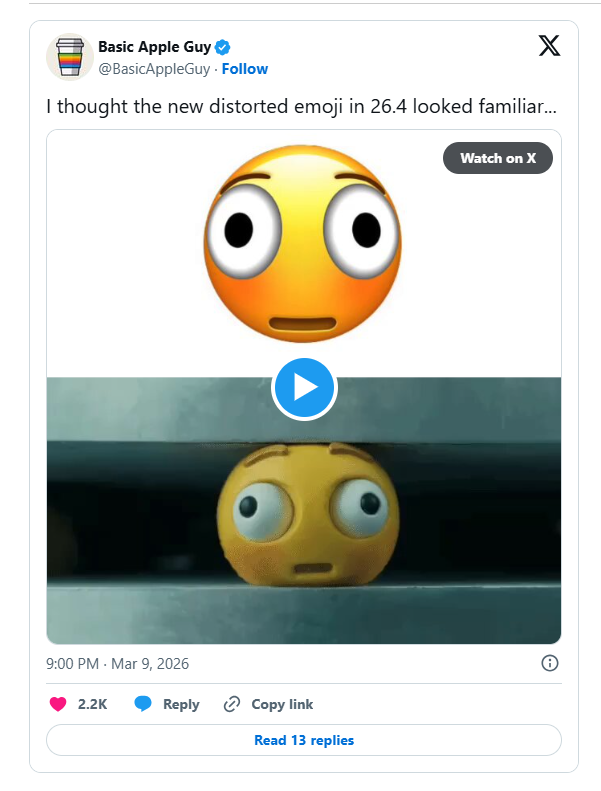
The new iOS 26.4 beta includes the addition of eight new emojis, including a fight cloud, hairy creature (a.k.a bigfoot), landslide, orca, trombone, treasure chest, ballet dancers and the infamous ‘distorted face’. Look familiar? That’s right. He’s the little yellow guy who starred in Apple’s highly controversial ‘Crush’ ad, which appalled audiences so much that the tech titan had to issue an apology.
The addition divided fans, with some seeing the funny side, while others were a little less jovial about it. “Because we needed a memento from that horrible advertisement?” one disgruntled critic wrote on X. “Close enough, welcome back iPad Pro Crush! ad,” another wrote, while one fan predicted, “Distorted Face is about to become the most used emoji overnight.”
Natalie Fear is Creative Bloq’s staff writer. With an eye for trending topics and a passion for internet culture, she brings you the latest in art and design news. Natalie also runs Creative Bloq’s 5 Questions series, spotlighting diverse talent across the creative industries. Outside of work, she loves all things literature and music (although she’s partial to a spot of TikTok brain rot).
The long, happy relationship between Apple and chipmaker TSMC is going through a rough patch. It seems Nvidia has come between them.
As a result, Apple reportedly must pay significantly more for the processors it acquires from the South Korean foundry — and Cupertino might even need to fight to gain access to the latest chips
It’s yet another example of how AI causes problems for Apple.
Apple and TSMC’s long and fruitful relationship
The partnership between Apple and TSMC has been crucial for both companies, and it drove them to the top of their respective markets. The Korean chipmaker became the exclusive manufacturer of Apple’s CPUs in the mid-2010s, and together the two companies have steadily pushed technology forward, from early A-series iPhone processors to today’s super-powerful Apple silicon for Macs, iPads and data centres.
Apple’s enormous scale and willingness to commit billions of dollars in long-term chip orders helped justify TSMC’s massive investments in cutting-edge fabrication plants. Meanwhile, TSMC’s manufacturing expertise gave Apple early access to the most advanced processors, delivering performance and efficiency advantages over rivals.
Apple loses its seat at the front of TSMC’s production line
“Nvidia likely took the top spot in at least one or two quarters of last year,” said Culpan.
Despite occasionally being described as a chipmaker, Nvidia does not manufacture its own GPUs and AI accelerators. Nvidia is a fabless semiconductor company — it designs products but relies on other companies to manufacture them. In fact, TSMC serve as Nvidia’s primary foundry for its most advanced chips.
With the huge growth in AI data centres, Nvidia is selling chips as fast as TSMC can make them. And that gives Nvidia plenty of pull with the Korean company. Maybe more than Apple has.
“Apple, which once held a dominant position on TSMC’s customer list, now needs to fight for production capacity,” said Culpan. “With the continuing AI boom, and each GPU from clients like Nvidia and AMD taking up a larger footprint per wafer, the iPhone maker’s chip designs are no longer guaranteed a place among TSMC’s almost two dozen fabs.”
A-series and M-series chips cost Apple more
Along with more competition comes higher prices. Culpan claims that TSMC hit Apple with “the largest price rise in years” last fall. The analyst did not reveal how much the cost of iPhone, Mac, etc., chips will go up, though.
In the past, being the foundry’s largest customer really helped Apple in negotiations over the cost of processors. But now that Nvidia has taken on that role, Apple is in a weaker bargaining position.
It never rains but it pours
Paying significantly more for processors is only one of the challenges facing Apple thanks to AI. The massive expansion in servers going into data centres being built by OpenAI, Google, Microsoft and others is straining supplies of RAM and other memory, also driving up the cost of these vital components.
With the cost of processors, RAM and SSDs all on the rise, Apple will find itself under pressure to raise prices on its products.
Feature image credit: AI image: Gemini/Cult of Mac
Ed Hardy has been writing full-time about tech for 25 years, and using it for much longer than that. His intro to Apple was a Macintosh Classic II (which he still has), but now he uses a 13-inch iPad Pro as his primary computer. He’s written for NotebookReview, TabletPCReview, and Brighthand, as well as other sites.
It’s easy to change that. You can lock down your location sharing, app sharing, and targeted advertising, as well as enable features that will help you find your device if it’s lost or stolen. All of the settings I’ve rounded up are based on the latest iOS 26 version, which debuted shortly before the release of the iPhone 17. If you have an older version of iOS, certain settings may be in a different location, but the majority of iPhones should have access to most (if not all) of these settings.
iPhone Privacy Settings to Change
Privacy is personal, so you shouldn’t treat the settings I listed here as a checklist. Treat them as suggestions. Your tolerance for data collection and the individual apps you have installed will largely dictate what settings you need to change. And remember, there’s some level of privacy you have to give up with any device connected to the internet, so although these settings will help your online privacy, they won’t make you completely anonymous.
Turn Off App Tracking
ScreenshotApple via Jacob Roach
You’ve undoubtedly come across an app asking to track you, which the iPhone, thankfully, lets you deny. If you want to turn off all tracking, you can. By default, the iPhone allows apps to request to track you, following you around other apps and websites to see what you’re doing. In the settings, you can automatically deny app tracking requests whenever you install a new app.
Open the Settings app, swipe down to the bottom, and choose Privacy & Security. Choose Tracking, and tick off the All Apps to Request to Track setting. You’ll also see any apps you’ve given tracking permission to listed, and you can revoke those permissions if you want.
Customize Location Sharing
ScreenshotApple via Jacob Roach
There are a lot of reasons you’d want to share location data with an app—for example, when using Apple or Google Maps—but apps that don’t need your location might still request it. Follow the same path of Settings, then Privacy & Security, but choose Location Services after. There, you’ll find all of the apps that have access to location services, their individual settings, and the option to turn off location services altogether.
I don’t recommend doing that, but you can still clean things up. First, for any app that doesn’t need a precise GPS signal (for instance, a retailer’s app), turn off the Precise Location setting, which you can find by tapping into an app. Once that’s done, choose System Services, which covers all of the functionality built into the iPhone that accesses location data.
There are a lot of settings here you probably want to leave on, such as Setting Time Zone and Cell Network Search, but there are some you can take off. At the bottom, you’ll find the Product Improvement section, and you can safely turn off those settings. You can also turn off Significant Locations & Routes if you don’t want your iPhone to automatically pick up your home or, for instance, your route to work.
Change App Sharing Settings
In the same Privacy & Security menu, just below the previous two settings, you’ll see a list of apps. These are apps that other apps might request access to, and you can customize those settings here. A great example is already set up on the iPhone. You’ll see that the Focus app is shared with the Messages app, which is pretty useful to let your iMessage friends know that you need some time to focus.
There’s some app sharing you might want to turn off. For example, the Photos app is fully shared with Google Drive on my iPhone, but I don’t use Google Drive for photos. There’s a ton of information that travels along with photos—metadata like the date captured and location—that I’d rather not share. Tapping in, I can change Google Drive to Limited Access to choose what I share, or I can block it outright.
Turn Off Apple Analytics
ScreenshotApple via Jacob Roach
By default, the iPhone doesn’t share a ton of data. In fact, most settings are turned off out of the box, but there are a few analytics you’ll need to dig in and turn off manually. Once again, head to the Privacy & Security menu, and swipe all the way down to the bottom. There, you’ll find two settings: Analytics & Improvements and Apple Advertising.
First, analytics. Tap in, and you’ll find two settings turned on: Share iPhone Analytics and Share With App Developers. Turn those off. You might find some other settings depending on what you’ve connected to your iPhone (like an Apple Watch), and you can turn off that analytics sharing, as well.
Next is advertising. Apple Advertising is more focused on privacy than other platforms, blocking ads from tracking you across websites and services. You can turn off the Personalized Ads toggle. You’ll still get ads, but they’ll be generic. If you turn on Apple Advertising, you can tap into the Ad Targeting Information screen to see what data is shared, such as your birth year, zip code, and the categories for apps you have downloaded.
Generate Privacy Reports
This isn’t really a setting, but the iPhone has built-in privacy reporting tools that can give you insight into what data apps are requesting and using. In the Privacy & Security menu, near the bottom, you’ll see the App Privacy Report and Apple Intelligence Report.
For the former, you’ll see the domains the app contacts each time you use it, as well as a layout of how many domains an app contacts. For Apple Intelligence, you’ll see private compute requests and what data was shared with the request. This report is exported as a JSON file, and you’ll need a text editor to view it. Regardless, both of these reports are fairly technical, and they don’t help your privacy; they just give you more information.
ScreenshotApple via Jacob Roach
Keep Notes Local
Apple automatically stores and syncs anything you put in the Notes app through iCloud, so no, those random thoughts you jotted down five years ago aren’t completely private. Thankfully, you can keep them private with an “On My iPhone” account, which, as the name suggests, doesn’t sync your notes and keeps them local to your device.
To set it up, open Settings and go down to the bottom of the list for Apps. Find the Notes app and toggle the On My iPhone Account setting on. Just above it, you can also set a password if you want to encrypt and lock any highly sensitive notes. Remember, you won’t be able to pull up these notes on another Apple device because they won’t sync, and if you lose your iPhone, you may not be able to access your notes altogether without a recent backup.
Hide (or Lock) Apps and Photos
You can hold down on any app icon, select Edit Home Screen, and tap an app to hide it. That’ll keep the app on your phone, but it won’t appear on your home screen. (You can search for it via Spotlight.) You can also hold down and select Require Face ID to lock the app, meaning it’ll require biometric authorization every time you open the app.
That’s great for apps, but you can do the same thing for photos, as well. Hold down on any photo in the Photos app and select Hide. It’ll be put into your Hidden album, which is locked behind either Face ID or your password. You can find the Hidden album in the Collections tab, at the bottom under the Utilities section.
iPhone Security Settings to Change
The iPhone is pretty secure out of the box, and Apple courts users into leveraging its security features as you set up a new device. Just like the privacy settings, however, the particular settings you use here are up to you. Many security settings will sacrifice privacy, and vice versa. You can’t locate a stolen device if you aren’t using location services, for example.
Use Face ID
ScreenshotApple via Jacob Roach
You need to set up Face ID when you set up an iPhone, and you’re probably using it anyway. But I’ve seen some misconceptions about how Face ID (and biometric authentication more broadly) works. Your fingerprint for Touch ID and images for Face ID are not sent to Apple, and they’re generally more secure than a password or simple PIN.
Instead, your fingerprint or face is used to generate an ID, which is encrypted and stored in Apple’s Secure Enclave, locally on your device. When you unlock your device, Face ID or Touch ID is checked against this ID, and if there’s a match, your device unlocks. If you’ve been avoiding Face ID due to privacy concerns, you aren’t protecting yourself as much as you might think.
Set Up Two-Factor Authentication
You and I both know it—you should be using two-factor authentication (2FA). I hate typing in a code or pulling up a second device as much as the next person, but it’s hard to overstate just how much more secure an account is with two authentication factors instead of one. And, you can easily set up 2FA for your Apple account from your iPhone.
Select your name at the top of the Settings app, which will open your Apple account information. Select Sign-In & Security, and then choose Two-Factor Authentication. Here, you’ll see devices you can use for 2FA, including the iPhone you’re using. When signing into your Apple account on another device, you can use any of the devices listed as your second factor, be it another Apple product or a text sent to a verified phone number.
ScreenshotApple via Jacob Roach
Encrypt Your iPhone’s Cloud Storage
iCloud encrypts your data, but it doesn’t use end-to-end encryption, at least by default. Out of the box, Apple manages your encryption keys, so it could, technically, decrypt the data you store in iCloud. Although that’s unlikely, you can still set up end-to-end encryption and manage your own encryption keys with Advanced Data Protection.
To turn it on, open Settings and select iCloud. Then, scroll down and select Advanced Data Protection. To turn it on, you’ll need to set up some account recovery options. Apple won’t be able to decrypt your data, so if you don’t have any recovery options set up, you won’t be able to decrypt or recover your data.
Turn On Stolen Device Protection
ScreenshotApple via Jacob Roach
Apple includes Stolen Device Protection with your iPhone, but it’s turned off by default. This feature requires you to verify with Face ID or Touch ID when taking certain actions without a password to fall back on, and it enforces a security delay, where critical actions such as changing your Apple password are only possible after a one-hour delay.
There are two forms of Stolen Device Protection. You can either have these features on all the time, or only when you’re away from familiar locations. Note that if you choose the latter, you’ll need to keep the Significant Locations & Routes setting mentioned earlier turned on.
If you set up Stolen Device Protection to only work when you’re away from familiar locations, it’ll kick in automatically. However, Stolen Device Protection doesn’t lock down everything about your iPhone. It crops up in certain situations, which Apple details on its support page. You can turn on the setting in the Privacy & Security menu at the bottom of the page.
Turn On Find My
You often have to trade privacy for better security, and that’s the case for both Stolen Device Protection and Apple’s “Find My” feature. To make sure you have it on, open Settings, select your account at the top, and choose Find My. Make sure Find My iPhone is turned on. If you tap in, you can also turn on Send Last Location, which will update the location of your iPhone if it’s about to die.
Although you’ll need to have location services running, Apple says that devices using iOS 17 and later don’t need to share that location data. When offline, at least, Apple can’t see location information when you have Find My turned on.
Hide Notifications
Finally, a bit of operational security. If you have sensitive information that could pop up in notifications, you can obfuscate how notifications appear while your iPhone is locked. It’s a small change, but it can keep you protected from someone peaking over your shoulder or picking up your phone while it’s locked.
Open Settings and head to Notifications. There, switch the display to Count and change Show Previews to either When Unlocked or Never. If you have a particularly sensitive app—say, an encrypted messaging app—you can also customize individual app notifications on this screen.
iPhone Privacy and Security Apps to Download
The iPhone provides a surprising number of privacy and security tools, from app privacy reports to a built-in password manager via the Passwords app. Some functions are better served with a third-party app, though, either for better security or more features. Although all of the apps I’m recommending here have paid options—and I recommend those paid plans—they all also have a free version if you don’t have the money to spare.
ProtonVPN is the best VPN you can use, and you can get started with it for free. While most free VPNs are questionable at best, Proton’s free service is rock solid. You’re limited to slower speeds and only have access to a handful of servers, but it still works. I’d be worried if a free VPN didn’t impose any limitations, frankly. It’s also one of the best VPNs for iPhone, mainly due to its excellent speed. Proton tops the charts in our speed tests, and although others, such as NordVPN, are close, Proton has maintained its lead across desktop and mobile.
The iPhone has a VPN built in, but it’s not the same thing as commercial VPNs as most people know them. Rather, it’s a configuration tool if you want to set up your own VPN. If you want a tool to mask your IP address and help you stay more private online, you’ll need a third-party VPN, and Proton VPN is the best.
A Password Manager
Bitwarden ranks as the best password manager you can use, though Proton Pass takes a close second. Both offer free options, and they’ll give you more flexibility when storing and sharing credentials compared to Apple’s built-in Passwords app.
Although Apple’s Passwords app is plenty secure, it’s limited. An app like 1Password has apps for Windows and Android, for instance, which Passwords lacks. Third-party password managers let you store a wide range of data, too, from passwords and passkeys to encrypted documents and medical insurance.
Encrypted Email
You’ve locked down your messages; now it’s time for email. Google recently started offering end-to-end encryption for Gmail, but only for Google Workspace customers. If you want end-to-end encryption for personal use, you’ll need an encrypted email service like Proton Mail, which is my favorite option.
There’s a lot to like about Proton Mail, but from a security standpoint, it does a couple of things right. First, if you’re sending emails to another Proton Mail user, you get the convenience of a service like Gmail, but with true end-to-end encryption. Your emails are encrypted before they leave your device, and they’re only decrypted once they’re delivered.
You can also send emails to non-Proton users with end-to-end encryption, either using Proton’s password-protected email feature or by sharing your public key, though that requires a bit of technical know-how on both parties.
Jacob Roach is a product writer and reviewer at WIRED, focused on software as a service (SaaS) products, including VPNs, password managers, cloud storage, and antivirus applications. Previously he worked as lead reporter at Digital Trends, and his work has been cited in Fox News, Business Insider, and Futurism, among … Read More
The first iPad Pro reviews are here, and as we rounded up earlier today, they focus a lot on the new OLED displays, the M4 chip, and the limitations of iPadOS as a platform. In an interview with The Wall Street Journal, Apple marketing executive Tom Boger explained how the iPad compares to the Mac, and touched on whether Apple might ever release a touchscreen Mac.
Boger, who serves as Apple’s vice president of Mac and iPad product marketing, explained to Joanna Stern that Apple doesn’t see the two devices as competitors. Instead, the idea is that the Mac and iPad are complementary. The iPad serves as a “touch-first device” while the Mac is for “indirect manipulation.”
“We don’t see them as competing devices. We see them as complementary devices,” Tom Boger, Apple’s vice president of iPad and Mac product marketing, told me in an interview. The iPad, he said, “has always been a touch-first device” while the Mac is for “indirect manipulation”—aka using a keyboard, mouse and/or trackpad.
This naturally brings up the question: will Apple ever release a touchscreen Mac? Joanna tried to get an answer – even a hint – from Boger multiple times:
He remained firm: iPads are for touch, Macs are not. “MacOS is for a very different paradigm of computing,” he said. He explained that many customers have both types of devices and think of the iPad as a way to “extend” work from a Mac. Apple’s Continuity easily allows you to work across devices, he said.
I did ask Boger if Apple would ever change its mind on the touch-screen situation.
“Oh, I can’t say we never change our mind,” he said.
Bloomberg’s Mark Gurman has reported that Apple is actively developing touchscreen Macs. The company is reportedly targeting a release date for a MacBook Pro with a touchscreen in 2025.
The MacBook Pro revamp being tested inside Apple retains a “traditional laptop design” that includes a standard trackpad and keyboard. The difference, of course, is that the screen would “support touch input and gestures – just like an iPhone and iPad,” Gurman has reported.