
Tag

TV is watching YOU

Browsing

By 

Your smart TV knows too much about you

Your smart TV is collecting detailed information about everything you watch. From which apps you open to what shows you stream, your TV monitors your viewing habits and reports back to the manufacturer. That data gets used for targeted advertising or sold to third parties.

This tracking happens through technology called Automated Content Recognition (ACR), which samples pixels from your screen to identify what content you’re watching. It works whether you’re streaming through apps or watching from external devices like cable boxes or game consoles.

1. Samsung TVs

Samsung TVs use Tizen software and include tracking features for viewing data, voice recognition, and advertising.

Go to Settings, then Support, then Terms & Privacy, then Privacy Choices. This menu contains all the privacy settings you need to adjust. Select Viewing Information Services to disable ACR tracking. This stops Samsung from monitoring what content you watch

To turn off personalized ad tracking, select Interest-Based Advertising. This prevents Samsung from using your viewing data to target ads. If you use Samsung’s voice features, select Voice Recognition Services to disable voice data collection. This stops the TV from recording and analysing voice commands.

2. LG TVs

LG smart TVs run webOS and collect viewing data through several separate services, which means you’ll need to disable more than one setting to fully opt out.

First, go to Settings, General (or System, depending on your model) and select Live Plus, then turn it off. This disables LG’s Automated Content Recognition (ACR), which identifies what you’re watching across apps and external devices.

Next, return to Settings, General, Advertisements and enable Do Not Sell My Personal Information or Limit Ad Tracking. This limits how LG uses your data for targeted advertising.

Finally, open Settings, User Agreements and review each option carefully. Opt out of Viewing InformationInterest-Based AdvertisingVoice Information, and Live Plus Automatic Content Recognition wherever those toggles appear.

3. Amazon Fire TVs

Amazon Fire TV devices, including Fire TV Edition TVs from brands like Toshiba and Insignia, collect viewing and usage data through Amazon’s platform.

Go to Settings, Preferences, and Privacy Settings. This menu contains Amazon’s main privacy controls. First, select Device Usage Data and turn it off. This limits how Amazon collects information about how you use the device and its features.

Next, select Collect App and Over-the-Air Usage and disable it. This reduces tracking of which apps you use and what live or broadcast TV content you watch. Finally, select Interest-Based Ads and turn it off. This stops Amazon from using your activity to personalize ads, though you’ll still see advertising.

4. Roku TVs
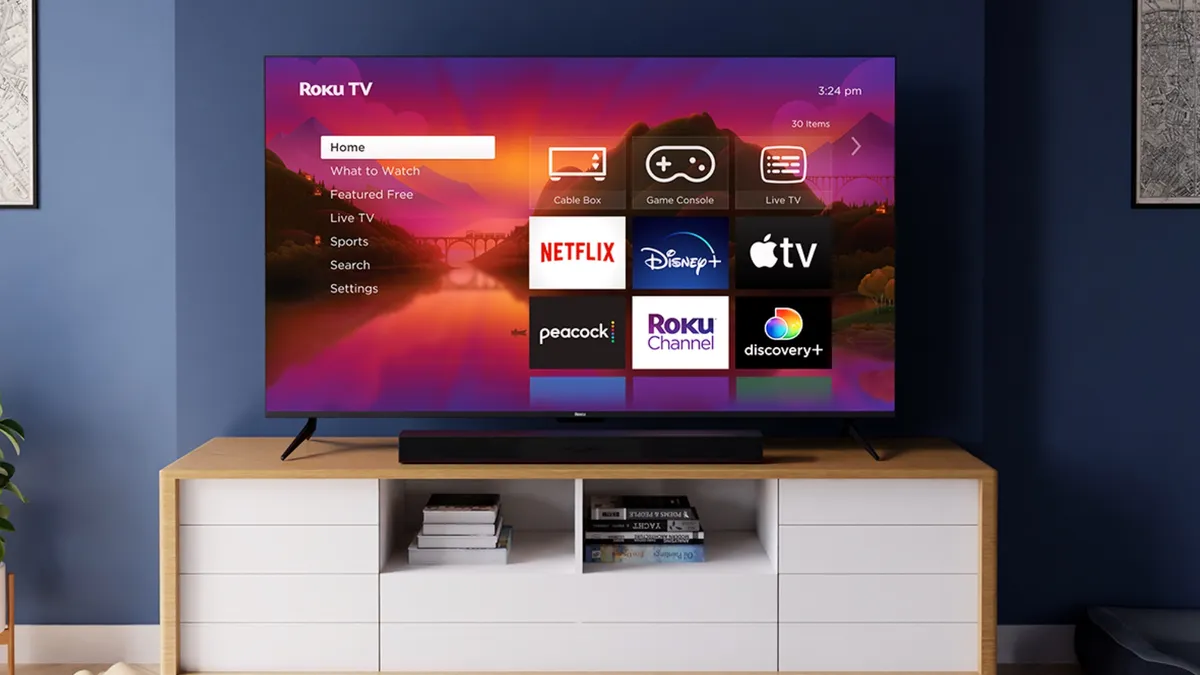
Roku TVs (initially made by TCL, Hisense, and sold under Roku’s own brand) and Roku streaming devices collect viewing data through the Roku platform.

First, go to Settings, then Privacy. This menu contains all privacy-related options. Select Smart TV Experience and disable “Use Info from TV Inputs.” This turns off ACR tracking for content from external devices like cable boxes.

To adjust ad tracking settings and limit personalized advertising, select AdvertisingSelect Microphone to control settings for Channel Microphone Access and Channel Permissions if your Roku remote has voice features.

5. Android and Google TVs

TVs running Android TV or Google TV — including models from Sony, TCL, Hisense, and others, collect viewing and usage data primarily through Google’s advertising and account services. Some models also include third-party Automated Content Recognition (ACR), such as Samba TV.

To limit Google’s ad tracking, go to Settings, Privacy, and Ads. Then turn ofAd Personalization to prevent Google from using your activity on the TV to personalize ads. On some models, this may instead appear under Settings, Accounts, Google, and Ads.

If you’re signed into a Google account on your TV, you can also manage ad settings at the account level by selecting your Google account and reviewing privacy and ad preferences.

On Sony TVs, there is an additional ACR system to disable. Go to Settings, System or Settings, Privacy and turn off Samba Interactive TV. This stops Samba TV from identifying what you’re watching across apps and external inputs.

6. Vizio TVs
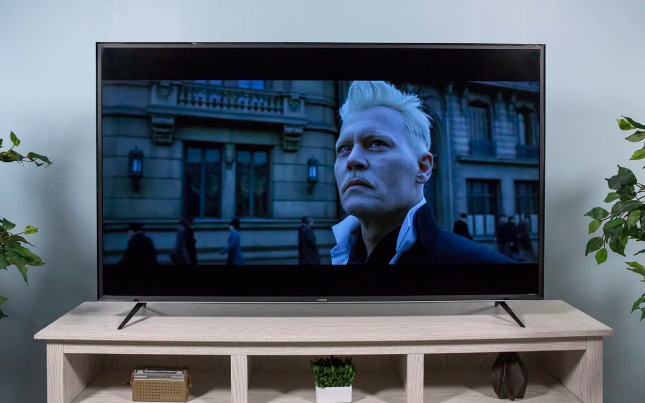
Vizio SmartCast TVs collect detailed viewing data through an ACR system built directly into the platform. This makes disabling these settings especially important if privacy is a concern.

Go to Settings and Admin & Privacy. This is where Vizio groups its privacy controls. Select Viewing Data and turn it off. This disables Vizio’s ACR system, preventing the TV from identifying what you’re watching across apps and connected devices.

Next, select Advertising and disable it to limit ad personalization and tracking tied to your viewing behaviour.

Feature image credit: Samsung

By 

Sourced from tom’s guide

By Kim Komando.

It can be unsettling when you consider what makes a smart TV in your home “smart.” Because a smart TV connects to the internet, collecting data about you and your viewing habits is possible. Add apps into the picture and the data tracking accelerates.

What are TV manufacturers getting? Your viewing history, the ads you watch or skip, as well as other details. This data is shared with advertisers and marketing companies. You can turn the tracking off, so long as you know precisely where to look in the TV’s settings menu.

Tap or click here for steps to turn off the data tracking and spying on a Vizio, Samsung, LG, Amazon Fire TV, Roku TV and more.

But it’s not just the TV makers. Streaming companies are also tracking. Let’s take a look at the top streaming services and tell you how to take back your privacy:

Netflix lets you erase and get a copy of all the data collected about you.

Netflix collects data primarily to provide recommendations on other things you might want to watch. Simply stated, its algorithms want you to see value in continuing your monthly subscription.

Whether the recommendations are off or you want a private Netflix experience, you need to delete your viewing history.

1. Sign-in to your account at Netflix.com.

2. Choose your profile and click on the profile icon in the upper-right corner.

3. Click Account, then scroll down to Profile and Parental Controls.

4. Click your account icon. Then, click Viewing Activity.

5. On the menu, click the circle icon on the right of each entry to remove it from your watch history. To remove your entire watch history, scroll down and click hide all.

Netflix will provide a copy of data it collects about you. This dossier includes more than just your watch history and ratings for content. Netflix hangs on to your device information, account email preferences, IP address, billing information and data from other profiles on your account.

To request a copy, go to netflix.com/account/getmyinfo and follow the instructions. It can take up to 30 days for Netflix to process the request. Your data file will be sent to the email address attached to your account.

While you’re waiting for a copy of your data to arrive, why not dive into some hidden features in Netflix? You can find something new to watch using secret codes, stop that annoying “Are you still watching” prompt and much more. Tap or click here for 7 Netflix tricks you can use all the time.

Amazon Prime membership extends into personalized ads.

Amazon tracks your Prime account activities, including what you watch on Prime Video. This data includes your searches, items you recently viewed, shows and movies you recently watched and product categories you looked through.

PRIME SECRETS: Amazon Prime membership includes way more than free shipping and video streaming. Tap or click here to see my favorite perks, including at-home clothing try-on, free magazine subscriptions and 5 GB of photo storage.

This data helps Amazon create targeted ads. That’s why you’ll see products and suggestions similar to what you’ve watched or looked up. Here’s how to stop Amazon from tracking your browsing activity:

1. Log in to your account at Amazon.com.

2. Click on Browsing History from the menu under the Amazon search bar.

3. On the page that opens, click on the Manage history drop-down arrow.

4. Toggle Turn Browsing History on/off to the Off position.

You can also stop your data from being used for advertising.

1. Hover over Accounts & Lists and click Your Account.

2. Under Communication and content, click on Advertising preferences.

3. Choose Do not show me interest-based ads provided by Amazon. Click Submit.

HOT GIFTS: Top tech gifts under $100 you can buy on Amazon.

Amazon Fire TV users need to take one more step.

If you watch Prime Video on a Fire TV Stick or Cube, there’s one more step you need to take to stop Amazon from tracking you. The Fire TV’s privacy menu gives you the option to limit device data collection, app data collection and interest-based ads.

1. From the Fire TV main menu, select Settings.

2. Click Preferences, followed by Privacy Settings.

3. In the menu that opens, turn off Device Usage Data, Collect App Data Usage, and Interest-based Ads.

You can also disable Data Monitoring, which sends Amazon additional usage stats about your device.

1. From the Fire TV main menu, select Settings.

2. Click Preferences, followed by Data Monitoring.

3. In the menu that opens, turn Data Monitoring off.

Want more Fire TV know-how? Here are 10 tricks only the pros know.

How to stop your smart TV from spying on your viewing habits
Smart TVs have settings for adjusting your preferences. You can take control and tell the TV manufacturers not to sell your data.
USA TODAY

Hulu has three different steps for you to opt-out.

Hulu collects your watch history, personal details, and activity on the service. The service sells some of this data.

To clear and reset the Watch History for the profiles associated with your account, do the following:

1.     Log in to Hulu and open your Account page on a web browser.

2.     Select California Privacy Rights under Privacy and Settings. (Note: Hulu is based in California and follows the state’s regulations.)

3.     Under Manage Activity, click Watch History and Clear Selected. This will clear the entire watch history that Hulu stores for you.

Next, let’s take care of Hulu’s Nielsen Measurement. This collects viewership data that determines ratings for TV and streaming.

1. Log in to Hulu and open your Account page on a web browser.

2. Select Manage Nielsen Measurement under Privacy and Settings.

3. Click Opt-out.

Finally, let’s stop Hulu from selling your data to advertisers. Due to the state of California privacy regulations, you can opt-out of having your personal information and activity data sold.

1. Log in to Hulu and open your Account page on a web browser.

2. Select California Privacy Rights under Privacy and Settings.

3. Under Right to Opt Out, click Change Status.

4. Click Opt out.

Like what you’re reading? Get tips like this delivered to your inbox for free. Sign-up now while you’re thinking of it.

YouTube tracking can be stopped.

Google-owned YouTube uses your search history to build a detailed advertising profile about you. To remove what YouTube knows about you, start with your Google profile.

To get started, let’s tackle our search and activity history.

1. Visit myaccount.google.com and log in. Then, click on Manage your Google Account.

2. Click Manage your data & personalization, found under Privacy & Personalization.

3. Under the Activity controls menu, you will see checkmarks next to Web & App activity tracking, Location History and YouTube History. Click each one to change settings. Toggle each off to stop Google from tracking you.

4. Under Activity controls, click My Activity under Activity and timeline.

5. On the menu that appears in the left sidebar, click on Delete activity by. Choose how far back you would like to delete your history in the pop-up menu. Click Delete to confirm your changes.

Once you’ve followed these steps, you’ll have removed your search history and disabled tracking through apps, location history and YouTube activity.

Next, let’s turn off personalized ads. This is how Google serves you ads based on your activity and history.

1. Visit your Google Account settings once again and click on Data & personalization from the left-hand panel.

2. From the Ad personalization panel, click on Go to ad settings.

3. Toggle the switch next to Ad personalization is ON. You should now see Ad personalization is OFF.

If you use the Chrome browser, you can turn off ad personalization by installing Google’s Interest-Based Ads Opt-Out extension.

Roku makes it simple to opt-out.

Roku is less of a service and more of a hub for many other streaming platforms. But Roku keeps tabs on your data and sells it to advertisers, unless you personally opt-out of ad tracking. Here’s how to do it:

1. From the Roku main menu, open Settings.

2. Open Privacy, followed by Advertising.

3. Check Limit ad tracking to stop Roku from sharing your viewing data.

From Guest Mode to parental controls to custom screensavers, there’s a lot to learn about your Roku. Tap or click here for 8 smart tips (With examples).

By Kim Komando.

Learn about all the latest technology on the Kim Komando Show, the nation’s largest weekend radio talk show. Kim takes calls and dispenses advice on today’s digital lifestyle, from smartphones and tablets to online privacy and data hacks. For her daily tips, free newsletters and more, visit her website at Komando.com.

Sourced from USA Today TECH