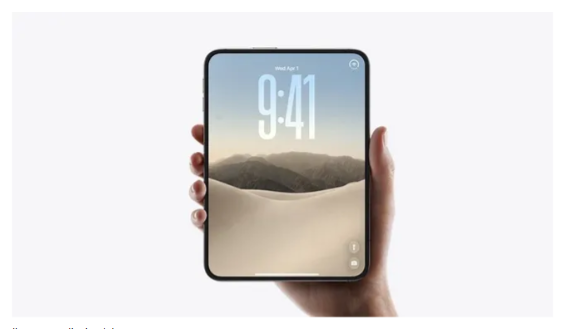
Apple’s trying its best to prove the new foldable is ergonomic.
Apple‘s first foldable, the iPhone Duo, is here, and it’s already proving divisive. Whether it’s the whopping $1,999 price tag or the controversial ‘passport’ design, Apple has its work cut out to convert the naysayers – especially after its latest stunt.
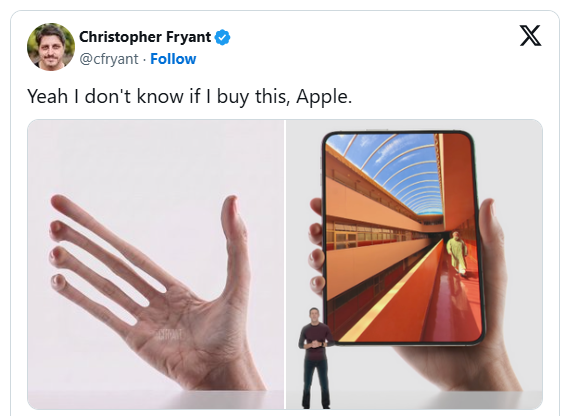
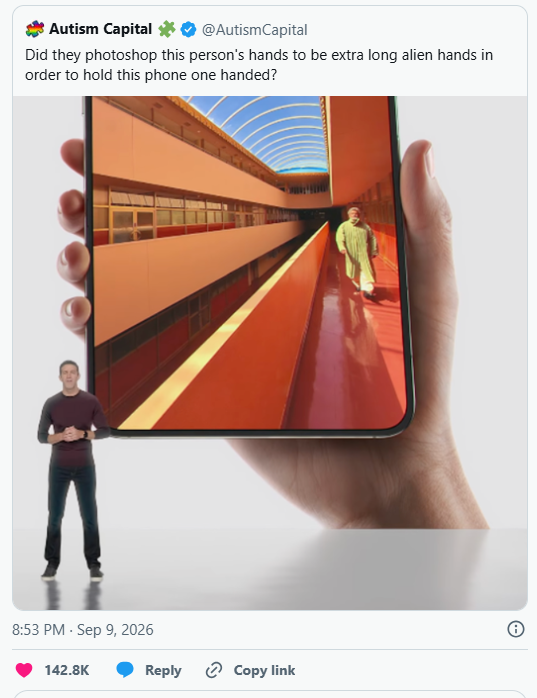
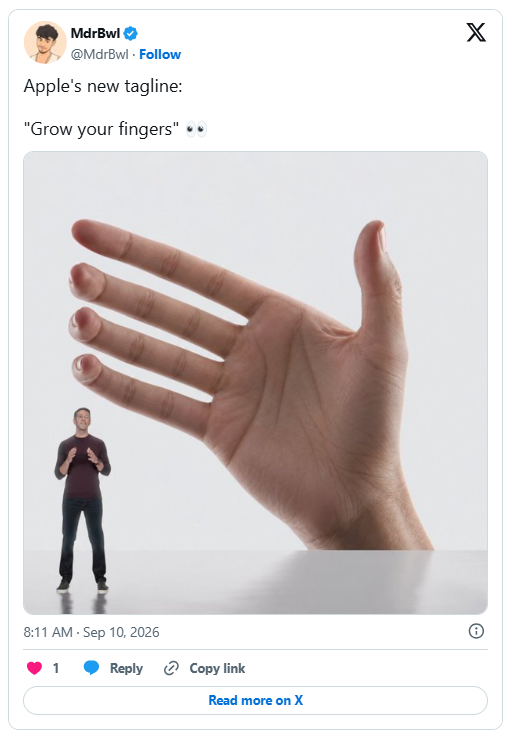
To show off the Duo’s functional, ergonomic design, Apple has tried its best to convince us the phone will easily fit in one hand when unfolded. This would be somewhat believable if the marketing pictures didn’t feature unnaturally long E.T-Esque fingers. My question is, did they think we wouldn’t notice? We wouldn’t have this issue with dumbphones, just saying.
As new CEO John Ternus sung the praises of the Duo at yesterday’s ‘Surprise and Shine’ event, an image of a strange, alien-fingered hand loomed above him. It was almost unassuming enough that it could’ve gone unnoticed, but naturally some eagle-eyed viewers called Apple’s bluff, claiming it was a botched Photoshop job.
“Apple: ‘The phone fits perfectly. Please update your fingers,'” one X user teased. “Oh, you mean your fingers *aren’t* comically long and ten times the size of your entire body?!?! Freaks!” another joked, while another suggested, “maybe they used a long-fingered person.”
Whether or not Apple used a hand model well-endowed in the digits department is beyond the point – the average-sized hand will likely struggle to cradle the Duo in its vertical form… and that’s okay. Apple trying to gaslight us into thinking the Duo is more ergonomic than it actually is? That’s less okay. True, it makes a slick marketing pic, but I can’t help but feel a little deceived.
Natalie Fear is Creative Bloq’s staff writer. With an eye for trending topics and a passion for internet culture, she brings you the latest in art and design news. Natalie also runs Creative Bloq’s 5 Questions series, spotlighting diverse talent across the creative industries. Outside of work, she loves all things literature and music (although she’s partial to a spot of TikTok brain rot).
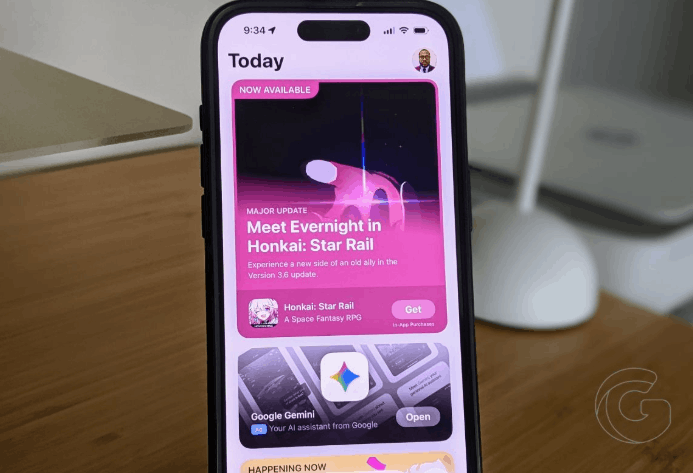
Apple’s services division grew 12% year-over-year to $30.7 billion during the June quarter. However, the result fell short of analyst expectations, leading the company’s chief financial officer to explain the shortfall on Thursday’s earnings call.
CFO Kevan Parekh pointed to two factors dragging on App Store performance: a slowdown in mobile gaming spending and fee structure changes Apple has been forced to adopt in several markets.
In the U.S., a federal court ruling requires Apple to allow developers to link users to external payment pages without collecting a cut of those transactions.
In the European Union, apps distributed through alternative marketplaces now pay reduced fees. Japan and Brazil have also seen adjustments to Apple’s standard commission structure.
What the Court Ruling Actually Costs Apple
The U.S. situation stems from the Epic Games lawsuit, which resulted in a court order compelling Apple to allow developers to direct customers to outside payment options.
When purchases happen through those external links, Apple collects nothing. Parekh confirmed that arrangement continues to weigh on revenue, though he declined to quantify the impact. Apple said it welcomed the Supreme Court’s decision to hear its appeal of that ruling.
For consumers, those link-out provisions mean some apps now offer the option to pay through a developer’s own website, sometimes at a lower price than going through Apple’s own in-app purchase system. That dynamic has been playing out quietly across a range of apps since the ruling took effect.
Mobile Gaming Revenue Is Flattening
Gaming has historically been among the largest revenue categories inside the App Store, driven heavily by in-app purchases in free-to-play titles. Parekh described the current environment as soft without providing specific figures.
The mobile gaming market broadly has been under pressure for several quarters as player spending habits shift and some of the biggest titles age without replacement hits emerging at the same scale.
Despite those pressures, Parekh noted the App Store still posted a June quarter revenue record. Growth elsewhere in the services portfolio offset the drag, with double-digit gains in cloud storage, Apple TV+, Apple Pay, and advertising. Apple Pay in particular reached a record number of active users during the quarter.
1.5 Billion Paid Subscriptions
Apple now counts 1.5 billion paid subscriptions across its ecosystem, including everything from iCloud storage plans to Apple One bundles to third-party app subscriptions transacted through the App Store.
Both the number of paying accounts and the number of transacting accounts hit all-time highs in the quarter.
Currency headwinds added another layer of pressure. Parekh said foreign exchange movements reduced reported growth, and a year-over-year comparison was made harder by the theatrical release of the F1 film during the same quarter last year, which had no equivalent this year.
Looking ahead, Apple guided for services growth in the September quarter to come in at roughly the same rate as June, once a 2.5 percentage point currency drag is stripped out.
Herby has a healthy obsession with all things Apple, especially the iPhone. He loves to rip things apart to see how they work. He is responsible for the editorial direction, strategy, and growth of Gotechtor.
The feature is optional, but it won’t work for search engine results or Mozilla-powered ads.
Firefox for iOS now comes with a built-in ad blocker to hide select online advertisements when browsing the web on your iPhone or iPad. The feature was introduced on Aug. 15, but Mozilla says it remains an “experimental” tool, meaning it’s gradually rolling out to all users.
The ad blocker is optional and remains off unless you enable it. Mozilla says the blocker helps with privacy, such as limiting third-party tracking, and makes it easier to visit websites with intrusive ads, such as pop-ups or overlays.
Mozilla is using the EasyList filter, originally designed for AdBlock tools, to determine what types of ads to remove. However, it won’t block everything, as Mozilla is intentionally making some exceptions. For example, ads shown in search engines won’t be blocked, with Mozilla specifically referring to ads provided by Bing, DuckDuckGo, and Google, among other search providers.
Other sponsored content powered by Mozilla through its Firefox Home or New Tab pages will also continue to appear even when the tool is enabled. There’s no way to remove either of these elements from Mozilla’s web browser.
How to Use Firefox’s Built-In Ad Blocker on iPhone and iPad
When available, you’ll find the ad blocker in the settings. You won’t need to sign up for the tool to appear, but Mozilla says it’s happening on a gradual rollout, so it’s unclear how long it will take to appear on your device.
To find it, head to Firefox for iOS and open the menu, then go to Settings > Browsing. You’ll find a section called Content, where you can toggle Ad Blocker to turn it on. Mozilla’s description says it “reduces ads and ad-related trackers” alongside a warning that “if a site looks broken, try turning this off.”
If you visit a website with bad ads and the blocker is off, you can also activate it from themenu in the bottom-right corner of Firefox. You’ll see a toggle under Content called Ad Blocker to switch it on.
To tell if you have Firefox’s blocker turned on, look for two icons at the top of the site menu labelled Protections and Ad Blocker. If it’s turned on, these will appear with small green shield icons with ticks; when turned off, they’ll appear orange with crosses.
Feature image credit: Timon Schneider/SOPA Images/LightRocket via Getty Images)
Nothing’s Apple challenge is ambitious, confident, and a little hard to watch.
TL;DR
Nothing founder Carl Pei has posted a new video directly challenging Apple.
Pei says he’ll steal Apple’s customers “one bored iPhone user at a time.”
The video continues Pei’s long-running habit of positioning Nothing as the anti-Apple brand.
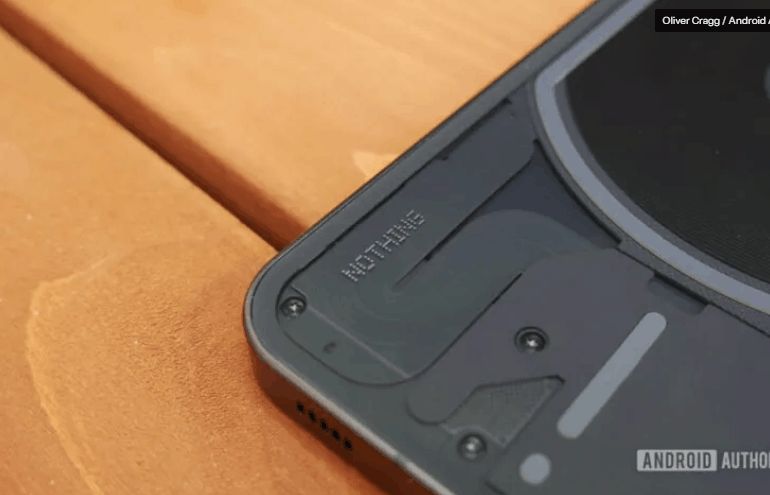
Nothing founder Carl Pei has posted yet another cheeky video taking aim at Apple, and this one might be his most self-affirming effort yet.
In a video posted to Instagram, Pei looks directly into the camera and declares, “This is a message to Apple. My name is Carl. I make phones in London. I’m gonna steal your customers. One bored iPhone user at a time.”
The message appears to be aimed at users who feel smartphones have become uninspiring and repetitive. Unfortunately, the video comes across as far more dramatic than the message probably needed to be.
This isn’t a new strategy for Nothing and Pei. Ever since founding the company, Pei has positioned it as an alternative to what he sees as an increasingly boring smartphone industry. He has repeatedly argued that Apple has lost its creative edge and no longer delivers the kind of innovation that once inspired him. In previous interviews, he’s criticized Apple’s direction while pitching Nothing as the brand for users who want something different from the phones their parents own.
More recently, Pei has leaned heavily into the idea that Nothing can challenge Apple and Samsung by winning over younger users. He believes Gen Z is the key demographic that could help Nothing break into a market dominated by the two smartphone giants.
The funny thing is that Nothing is actually doing decently well without the theatrics.
According to Counterpoint Research, Nothing’s shipments in India jumped 146% year over year in Q2 2025, making it one of the country’s fastest-growing smartphone brands. The company also posted 32% growth in Q4 2025, while its CMF sub-brand was the fastest-growing smartphone sub-brand in India.
But growth percentages only tell part of the story. Despite its impressive momentum, Nothing remains a relatively small player in the global smartphone market, which is dominated by Apple, Samsung, Xiaomi, OPPO, vivo, and others.
That said, Nothing has been making steady moves to grow its business in recent months. The company recently announced plans to significantly expand its retail presence in the US through Best Buy, giving its products far greater visibility in a market where breaking Apple’s and Samsung’s dominance is most difficult.
That’s a more meaningful step toward winning over iPhone users than posting a direct challenge to Apple on Instagram. So yes, Carl Pei and Nothing may very well win over a few bored iPhone users. Whether that’s enough to make Apple lose sleep is another question entirely.
Managing Editor, Adamya Sharma is a tech journalist with over 15 years of experience, currently leading the News Desk at Android Authority. She covers Android news, shares insights, and helps uncover the stories that matter.
We’re only three months out from the launch of Apple’s premium next-generation smartphone line-up, and while we’re not expecting a sea change in terms of functionality, there are still several enhancements rumoured to be coming to the iPhone 18 Pro and iPhone 18 Pro Max.
One thing worth noting is that Apple is reportedly planning a major change to its iPhone release cycle this year, adopting a two-phase rollout starting with the iPhone 18 series. That means the iPhone 18 Pro, iPhone 18 Pro Max, and the long-rumoured foldable iPhone (“iPhone Ultra”) will be released in September 2026, followed by the iPhone 18, iPhone Air 2, and iPhone 18e in spring 2027.
Overall Design
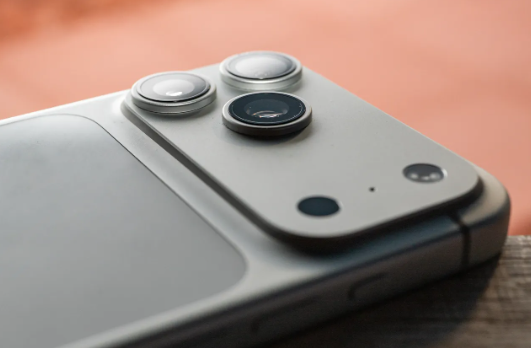
Rumours suggest the iPhone 18 Pro line-up will largely retain the same design as the iPhone 17 Pro models. Most rumours suggest the rear camera system will look identical to the current generation, featuring a raised “plateau” with three lenses arranged in a triangle – although recent dummies indicate a possible thickening of the plateau and the protrusion of individual lenses. Display sizes are also expected to remain unchanged, with the iPhone 18 Pro and iPhone 18 Pro Max continuing to use 6.3-inch and 6.9-inch panels, respectively (the same dimensions introduced with the iPhone 16 Pro series). iPhone 18 Pro models could drop the current two-tone look of the rear casing found on the iPhone 17 Pro in favor of a more seamless aesthetic, while Apple has apparently updated the back-glass “replacement process” to minimize the color difference between the Ceramic Shield 2 glass and the aluminium frame, resulting in a more unified appearance.
Next-Level Battery Life
Thicker Chassis
The iPhone 18 Pro Max will feature a bigger battery for continued best-in-class battery life, claims a Chinese leaker. The Weibo user known as “Digital Chat Station” said that the iPhone 18 Pro Max will have a battery capacity of 5,100 to 5,200 mAh. (The iPhone 17 Pro Max has the biggest iPhone battery to date at 5,088 mAh. Apple says it has a battery life of up to 39 hours.) According to another rumour, the body of the iPhone 18 Pro Max will be slightly thicker than the iPhone 17 Pro Max, raising the device’s weight to around 243 grams. That would make the iPhone 18 Pro Max approximately 3 grams more than the iPhone 14 Pro Max, which is currently the heaviest model Apple has produced. A larger battery is the most likely cause.
Smaller Dynamic Island
Under-Screen Face ID?
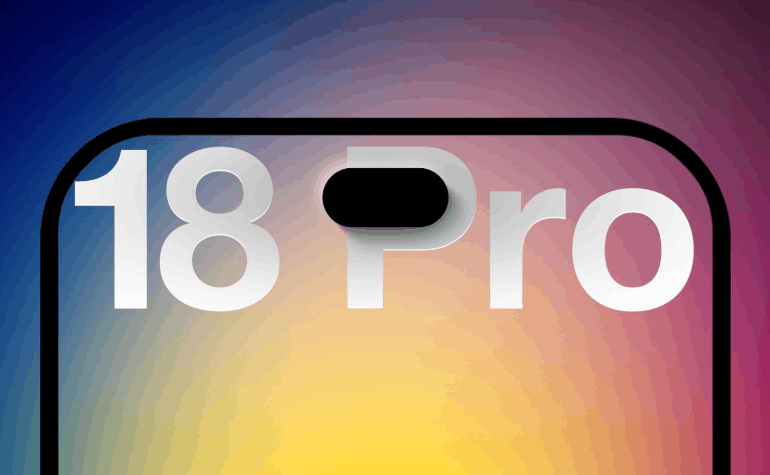
Rumours continue to circulate about whether the iPhone 18 Pro models will introduce under-display Face ID, but reports remain divided on when the technology will actually arrive. The feature would move the TrueDepth camera system beneath the display, eliminating the need for the current Dynamic Island cut-out.
According to Wayne Ma of The Information, Apple is targeting a design without a Dynamic Island, replacing it with a single pinhole camera in the upper-left corner of the screen. However, other sources dispute that claim. Display analyst Ross Young believes under-display Face ID is possible for the iPhone 18 Pro, but says a smaller Dynamic Island will still be present. Bloomberg‘s Mark Gurman has echoed this view, reporting that the new models will feature a slimmed-down Dynamic Island rather than removing it entirely. Apple is also said to be testing new camera miniaturization technology to reduce the size of the front-facing camera currently located within the Dynamic Island.
The Weibo leaker “Ice Universe” has claimed the Dynamic Island cut-out on the iPhone 18 Pro models will be approximately 35% narrower than it is on the iPhone 17 Pro models. Specifically, they said it will have a width of around 13.5mm, down from around 20.7mm.
Meanwhile, Chinese leaker Instant Digital has offered yet another version of events, saying the Dynamic Island will shrink in size, but that under-display Face ID and camera technology won’t debut this year. The latest word on the subject is that Apple is weighing two options for the iPhone 18 Pro’s Dynamic Island, and a final decision has yet to be made. One option apparently retains the existing screen mold from the iPhone 17 Pro, while the other introduces a significantly smaller “Mini Dynamic Island” enabled by moving the Face ID receiver and transmitter components beneath the display.
Upgraded Display
LTPO+
The iPhone 18 Pro models will reportedly use LTPO+ display technology, which should be more power efficient than the current LTPO technology in the iPhone 17 series. Such an upgrade could also contribute to longer battery life (see above), since LPTO+ enables finer control of OLED light emission, potentially allowing the display to optimize its operation based on environmental conditions. In other words, it will know better when to up screen brightness or reduce it, depending on surrounding light sources. The panels are reportedly being supplied by Samsung Display and LG Display.
A20 Pro Chip
2nm Process
The iPhone 18 Pro models will use Apple’s A20 chip, based on TSMC’s 2nm process for power and efficiency improvements. A move to 2nm fabrication increases transistor density, which will enable higher performance. The A20 series is expected to deliver roughly a 15 percent speed gain and about 30 percent better efficiency compared with the A19 series used in Apple’s iPhone 17 models.
Apple’s A20 chip will be packaged with TSMC’s Wafer-Level Multi-Chip Module (WMCM) technology, suggesting at least some A20 chips will have RAM integrated directly onto the same wafer as the CPU, GPU, and Neural Engine, rather than sitting adjacent to the chip and connected via a silicon interposer. This could contribute to faster performance for both overall tasks and Apple Intelligence, and longer battery life from improved power efficiency.
C2 Modem
Replacing Qualcomm
Apple plans to include its next-generation C2 modem in the iPhone 18 Pro models, according to supply chain analyst Jeff Pu. The chip will succeed the C1 modem, which debuted in the lower-cost iPhone 16e as Apple’s first in-house cellular modem, and the C1X modem chip in the iPhone Air, which Apple says is up to 2× faster than the C1. The C2 is expected to bring faster speeds, improved power efficiency, and support for mmWave 5G in the United States – a feature missing from the C1 and C1X.
Apple’s modem roadmap is part of a long-term strategy to reduce reliance on Qualcomm, which currently supplies 5G modems for the rest of the iPhone line-up. The company has been working on developing its own cellular chips for years, aiming for deeper integration and greater control over power management and performance.
New Camera Sensor
Samsung-Made
Samsung is working on a new three-layer stacked image sensor, reportedly intended for the iPhone 18. The sensor, referred to as PD-TR-Logic, integrates three layers of circuitry, which would improve camera responsiveness, reduce noise, and increase dynamic range. The leak comes from a source known as “Jukanlosreve,” who claims the sensor is being developed specifically for Apple’s 2026 iPhone line-up. Sony has long been Apple’s sole image sensor supplier, so Samsung’s entry would be a big shift in the iPhone’s camera supply chain.
Variable Aperture
DSLR-Style
Apple intends to equip this year’s iPhone 18 Pro models with a variable aperture lens, according to reports. Weibo-based leaker Digital Chat Station claims the main rear camera – what Apple calls the 48-megapixel Fusion camera – on both iPhone 18 Pro models will offer variable aperture, which would be a first for the iPhone. A variable-aperture system physically adjusts the lens opening, letting more light in for low-light shots or narrowing the opening for brighter scenes and deeper depth of field.
The main cameras on the iPhone 15 Pro, 16 Pro, and 17 Pro all use a fixed ƒ/1.78 aperture, where the lens is permanently set to its widest setting. With a variable lens, the iPhone 18 Pro would allow users to manually shift the aperture, similar to on a DSLR camera. This would mean more control over depth of field, enabling sharper focus on subjects or smoother background blur. Industry analyst Ming-Chi Kuo said in November 2024 that Apple’s iPhone 18 Pro models will get the feature.
5G Satellite Internet
Non-Terrestrial Data
According to a report by The Information, Apple plans to add support for 5G networks that operate via satellites rather than Earth-based towers as early as next year. This advancement would allow future iPhones to gain full internet connectivity through satellite, not just limited emergency features.
If Apple meets the 2026 target, the first devices to feature 5G satellite internet would likely be the iPhone 18 Pro, iPhone 18 Pro Max, and the long-rumoured foldable iPhone. Apple partners with Globalstar for its iPhone satellite features, but there is currently no service that delivers full 5G satellite internet directly to a smartphone. That said, Amazon and Globalstar announced in April a definitive merger agreement under which Amazon will acquire the satellite operator. Amazon’s Leo satellite network will power existing iPhone features – with scope for additional feature support as part of a forthcoming infrastructure upgrade.
Simplified Camera Control
New Design
Apple is reportedly working to simplify the Camera Control button’s design on iPhone 18 models in order to reduce costs. The current Camera Control button on iPhone 17 models uses both capacitive and pressure sensors beneath a sapphire crystal surface. The capacitive layer detects touch gestures, while the force sensor recognizes different pressure levels for taps, presses, and swipes.
However, according to the Weibo-based account Instant Digital, Apple will remove the capacitive sensing layer and retain only pressure sensing recognition in the second iteration to achieve all Camera Control functions on the iPhone 18. The simplified version is not about reducing functionality in the button, but about saving money. The current solution is said to be very expensive for Apple and is generating costly after-sales repairs.
We don’t expect Camera Control to go away anytime soon – Apple apparently sees it as a key feature, so much so that it has reportedly made deliberate engineering compromises to ensure that the first foldable iPhone features the button.
New Colours
Three in Testing
In February 2026, Bloomberg‘s Mark Gurman reported that Apple is testing a deep red finish for the iPhone 18 Pro and iPhone 18 Pro Max. Rumours of purple and brown finishes have also circulated, but Gurman believes those are just variants of the same red idea. Since then, we’ve seen aligned rumours that the devices will come in light blue, dark cherry, dark grey, and silver.
The iPhone 14 Pro and iPhone 14 Pro Max were previously available in Deep Purple, and Apple has never released an iPhone in a genuinely brown color. According to a Chinese leaker, Apple’s iPhone 18 Pro models won’t come in black this year. If the rumor is true, it will be the second consecutive year Apple has ditched what was arguably its most classic color option for the Pro lineup.
iOS 27
Smarter Siri
The iPhone 18 Pro will ship with iOS 27, which brings the biggest Siri shake-up in the assistant’s history. Apple introduced Siri AI at WWDC in June – a rebuilt, more conversational version of Siri with onscreen awareness, personal context understanding, and broad world knowledge that lets it pull up-to-date answers from the web. It also gains its own standalone app for revisiting past conversations, an expanded Visual Intelligence mode, and writing tools that work across email, messages, and documents. Like the iPhone 17 Pro, the iPhone 18 Pro is expected to carry 12GB of RAM, so it should run the full range of Siri AI and Apple Intelligence features.
Most people assume their iPhone is protecting them the moment they turn it on. Spoiler: it’s not doing nearly as much as you’d think.
A surprising number of privacy controls sit buried in menus, switched off by default, quietly letting apps, websites, and even Apple itself collect far more than you’d probably be comfortable with.
The good news is that you can fix most of it in under ten minutes. Here’s where to start.
Your Location Is Probably Overshared
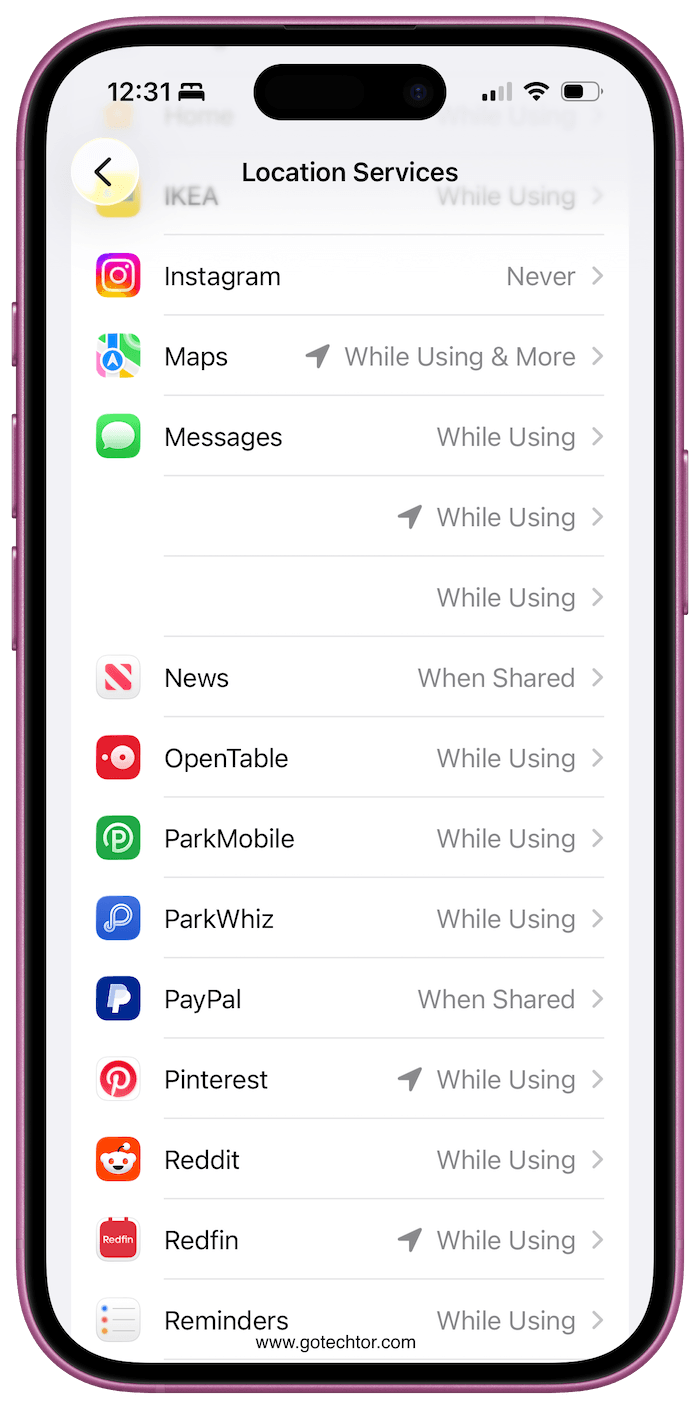
Head to Settings, then Privacy and Security, then Location Services. You’ll likely find apps with “Always” access that have absolutely no business knowing where you are around the clock.
Flip most of them to “While Using the App” and turn off “Significant Locations” under System Services. Clear the history while you’re there, too.
Safari Knows More About You Than You’d Expect
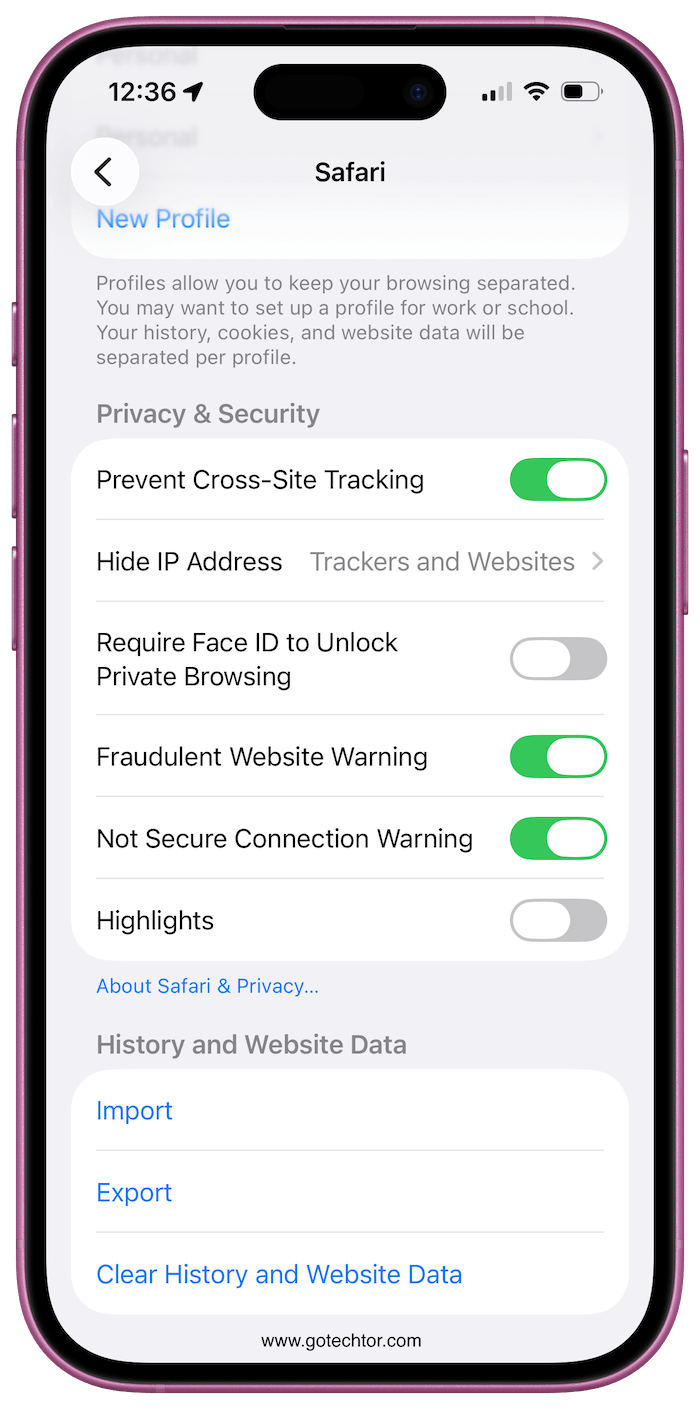
Inside Settings, go to Safari and open Privacy and Security. Turn on cross-site tracking prevention, hide your IP address from trackers, and enable the fraudulent website warning.
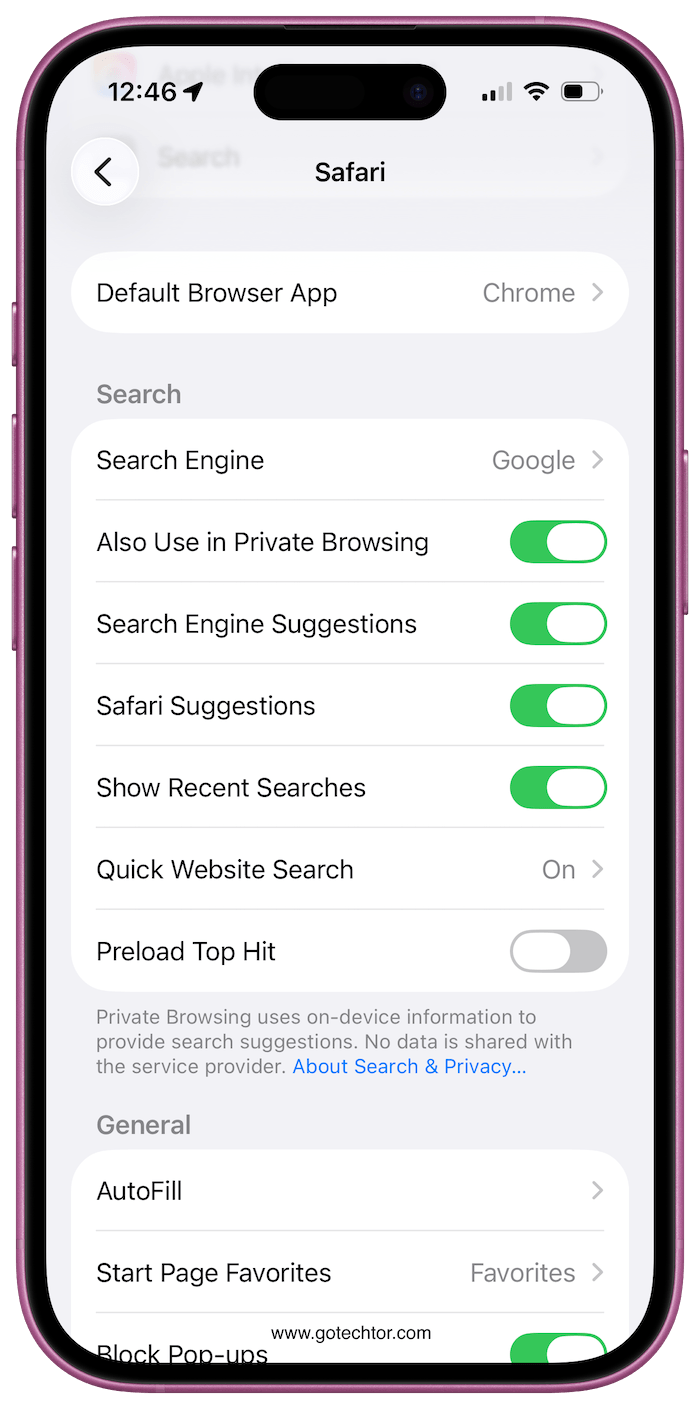
While you’re in the Safari settings, jump into the Search section and disable live search suggestions.
Every letter you type in that search bar gets sent off before you even hit enter, and turning that off keeps your queries to yourself.
Apps Are Listening, Sometimes Literally
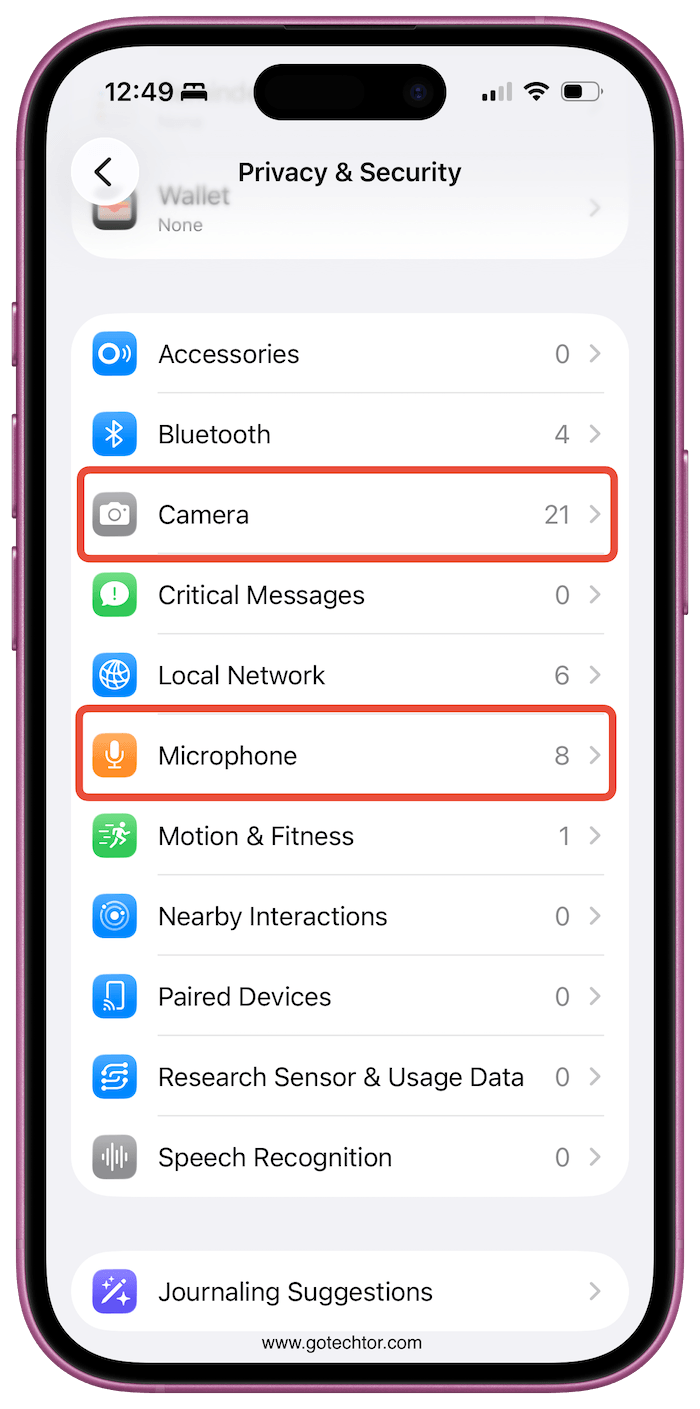
Go to Privacy and Security, then Microphone. Scroll through the list and ask yourself honestly whether each app needs that access.
If the answer isn’t obvious, revoke it. The same logic applies to camera permissions. Neither should be handed out freely.
Flip the Switch on Ad Tracking
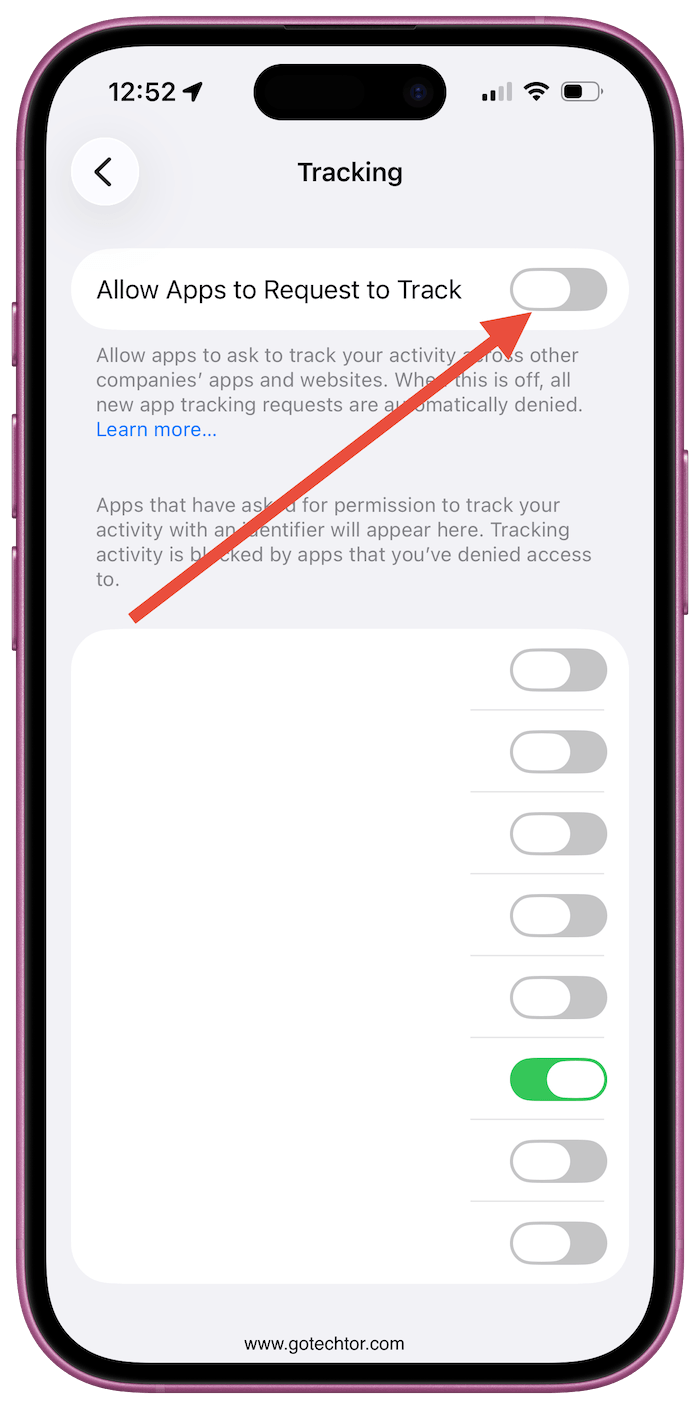
Under Privacy and Security, find Tracking and turn off the option that lets apps ask to track you.
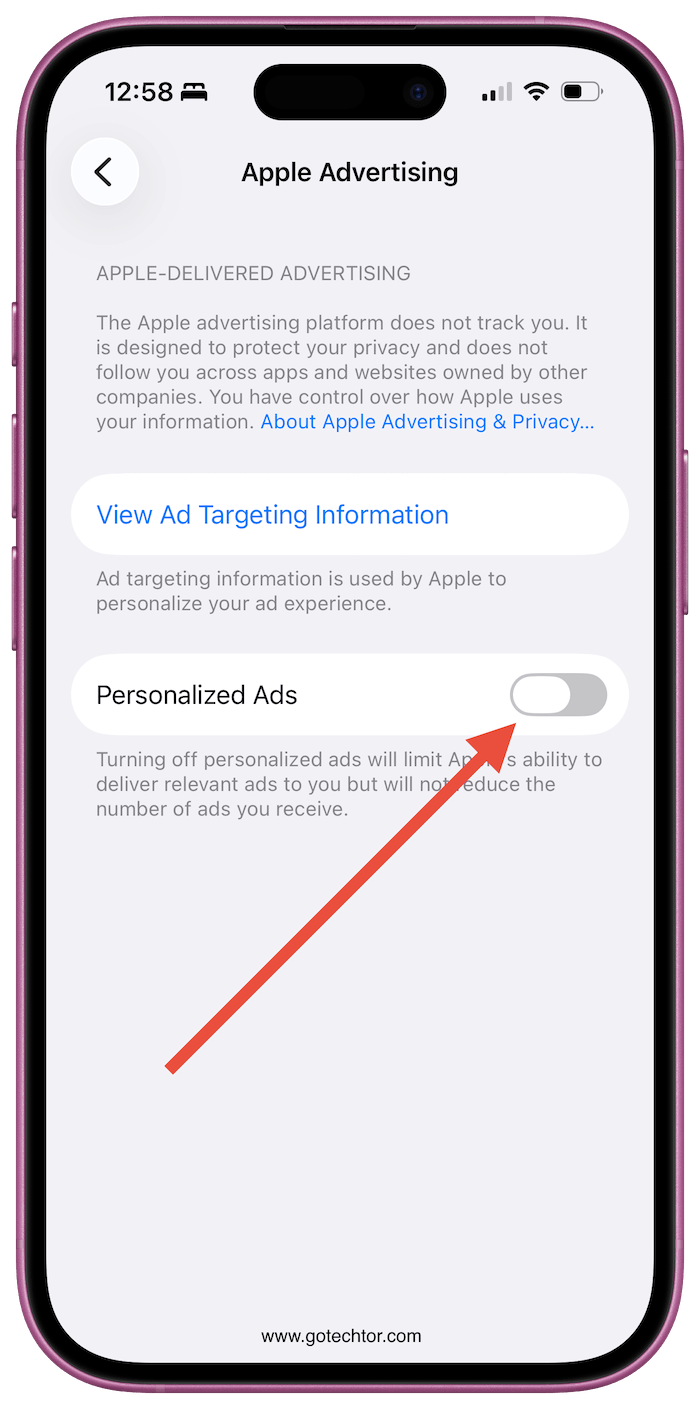
Then scroll down to Apple Advertising and switch off personalized ads. Also, check Analytics and Improvements and disable everything in there.
Apple frames data collection as a way to improve services, but you’re under no obligation to contribute.
Websites Shouldn’t Have Permanent Access to Your Hardware
In Safari’s settings, look for Settings for Websites. Configure it so that the camera, microphone, and location access always require a fresh permission prompt.
Websites don’t need ongoing access, and setting this up means nothing will get through without your active approval each time.
Passwords Are Outdated. Here’s What to Use Instead
Whenever a supported app or site offers a passkey, use it. Passkeys are device-specific and cryptographically secured, which means they can’t be phished or stolen the way a password can.
It’s a much smarter login method, and it’s already built into iOS.
Spam Calls Have a Fix You Probably Haven’t Tried
In your Phone settings, look for Call Filtering and enable Ask Reason for Calling. Unknown callers get screened before they reach you.
Over in Messages settings, turn on Filter Unknown Senders so random texts are automatically sorted away. Both features are underused and genuinely helpful.
Old App Permissions Pile Up Fast
Every few months, open Privacy and Security and go through each category, location, microphone, and camera, and check what still has access.
Apps you downloaded once and forgot about can hold onto permissions indefinitely. A quick audit takes five minutes and cuts down on a lot of background data collection you never agreed to in the first place.
Herby has a healthy obsession with all things Apple, especially the iPhone. He loves to rip things apart to see how they work. He is responsible for the editorial direction, strategy, and growth of Gotechtor.
Every iPhone ships with a built-in cross-app tracking opt-out. Here’s why most people haven’t enabled it, and how to do it in seconds.
Most people know, in a vague sort of way, that their phone is being used to target them with ads. What fewer people know is exactly how that targeting works, and that Apple has given every iPhone user a direct way to disrupt it.
The mechanism is called App Tracking Transparency, and it was introduced specifically to give you control over whether apps can use your device’s advertising identifier to track behaviour across other apps and websites. Turning it on doesn’t make you invisible, but it does cut off one of the primary pipelines between your phone and the advertising ecosystem built around it.
Apple’s App Tracking Transparency feature gives Apple users a simple choice: to allow apps to track their activity or not. If you choose to opt out, Apple will prevent the app from accessing identifiers that link your device with your activity on an app, usually shared with advertisers to create targeted ads. Unless you give an app explicit permission to track you (including apps made by Apple), it can’t use your data for targeted ads, including sharing your location data, advertising ID or any other identifiers with advertisers or third parties.
In iOS 17, Apple made a change that lets users select their default search engine when in private browsing mode, giving them the option to choose a search engine other than Google while in a private Safari tab, and added a feature that makes it harder for thieves to access sensitive information on stolen devices. The phone-maker continued to add robust anti-tracking features with each new iteration of the OS, ensuring users. are always the ones in control of their data.
The impact of Apple’s App Tracking Transparency feature has been wide-reaching across the tech industry. The feature drew support from privacy advocates but criticism from companies such as Meta, which said the move would hurt its ad business. Meta’s concerns manifested across the board for social media platforms, with a 2021 investigation from the Financial Times estimating that the feature cost Snapchat, Facebook, Twitter and YouTube a collective $9.85 billion in lost ad sales, as most Apple users opted out of tracking.
Even if you didn’t initially opt out, you can change whether or not to allow tracking at any time. Here’s how to use the App Tracking Transparency feature.
How to turn off app tracking on new apps
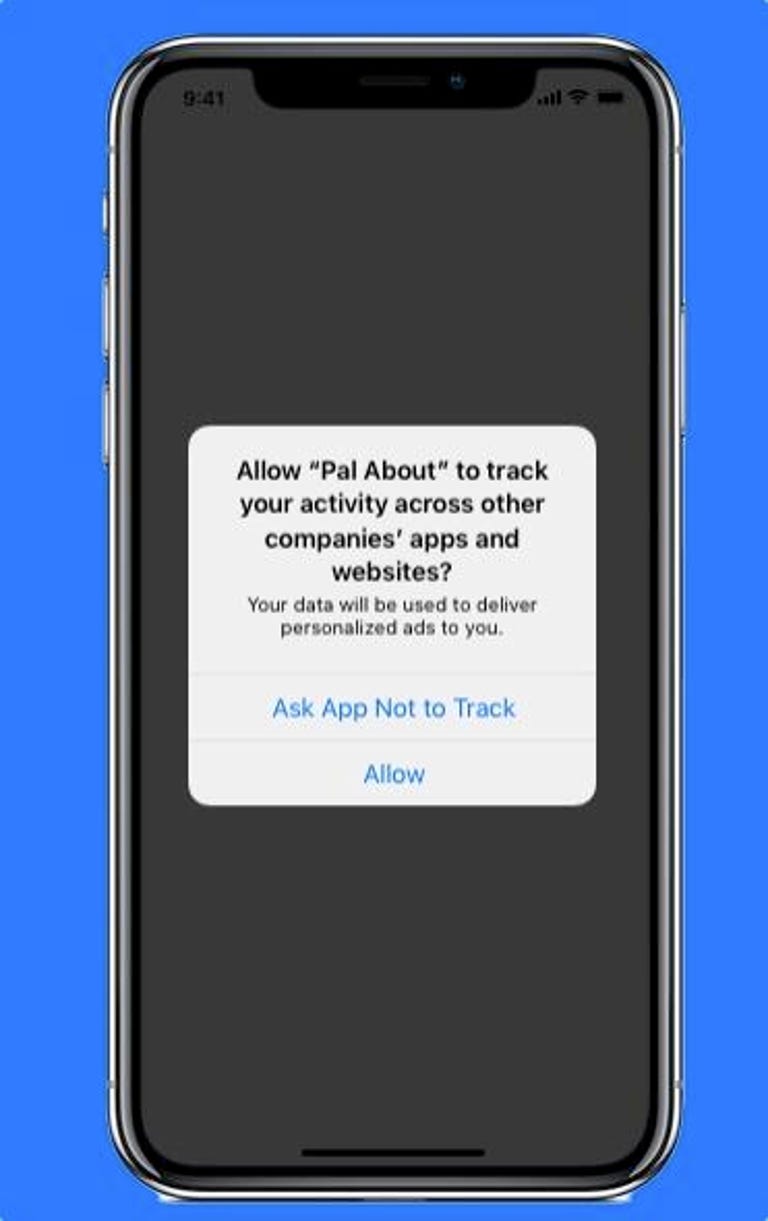
When you download and open a new app, you’ll get a pop-up notification that asks if you want to let the app track your activity across other companies’ apps and websites. You’ll also see information about what the app would track. You can tap Ask App Not to Track to block that activity or Allow.
When you download an app, you’ll see a notification pop up giving you a choice of whether you want to give the app permission to track you.Apple
You can also opt out of app tracking across every app you download by going to Settings > Privacy & Security > Tracking and toggling off Allow Apps to Request to Track. This means any app that tries to ask for your permission will be automatically blocked from asking and informed that you have requested not to be tracked. All apps (other than those you’ve given permission to track in the past) will be blocked from accessing your device’s information used for advertising, according to Apple.
It’s important to note that this doesn’t mean ads will disappear. It just means that you’ll be more likely to see generic ads, not one for that pair of shoes you clicked on one time.
How to turn off app tracking on already downloaded apps
To do that, go to Settings > Privacy & Security > Tracking. You should see a list of apps that have requested to track you. Tap the toggle next to the apps you want to stop tracking you.
All app developers are required to ask for permission for tracking. If Apple learns a developer is tracking users who asked not to be tracked, they will need to either update their tracking practices or else potentially face rejection from the app store.
Apple believes that privacy features like these are a differentiator for its products, compared to other tech giants like Google and Samsung. Cook has said that because the company’s business model isn’t built on selling ads, it can focus on privacy, which he has called a “fundamental human right.”
Even so, it’s important to bear in mind that when you ask apps not to track you, what you’re saying is that you don’t want app developers to have access to your unique identifier that Apple creates specifically for advertisers — your IDFA. Denying access to your iPhone’s IDFA doesn’t necessarily mean app developers won’t track you through other means, so it’s critical to be mindful of the apps you use and how you interact with them.
Feature image credit: Apple/CNET
By Alison DeNisco Rayome
Managing Editor Alison DeNisco Rayome joined CNET in 2019, and is a member of the Home team. She is a co-lead of the CNET Tips and We Do the Math series, and manages the Home Tips series, testing out new hacks for cooking, cleaning and tinkering with all of the gadgets and appliances in your house. Alison was previously an editor at TechRepublic. See full bio
iOS 26.2 is launching soon, and it’s packed with a bunch of new features. Many of those features are additions to Apple’s built-in iPhone apps. Here’s everything new across six Apple apps in iOS 26.2.
Reminders
Reminders used to be a simple list app, but after years of progress Apple has made it into a full-featured task manager. And iOS 26.2 adds a new feature I’ve been wanting for years.
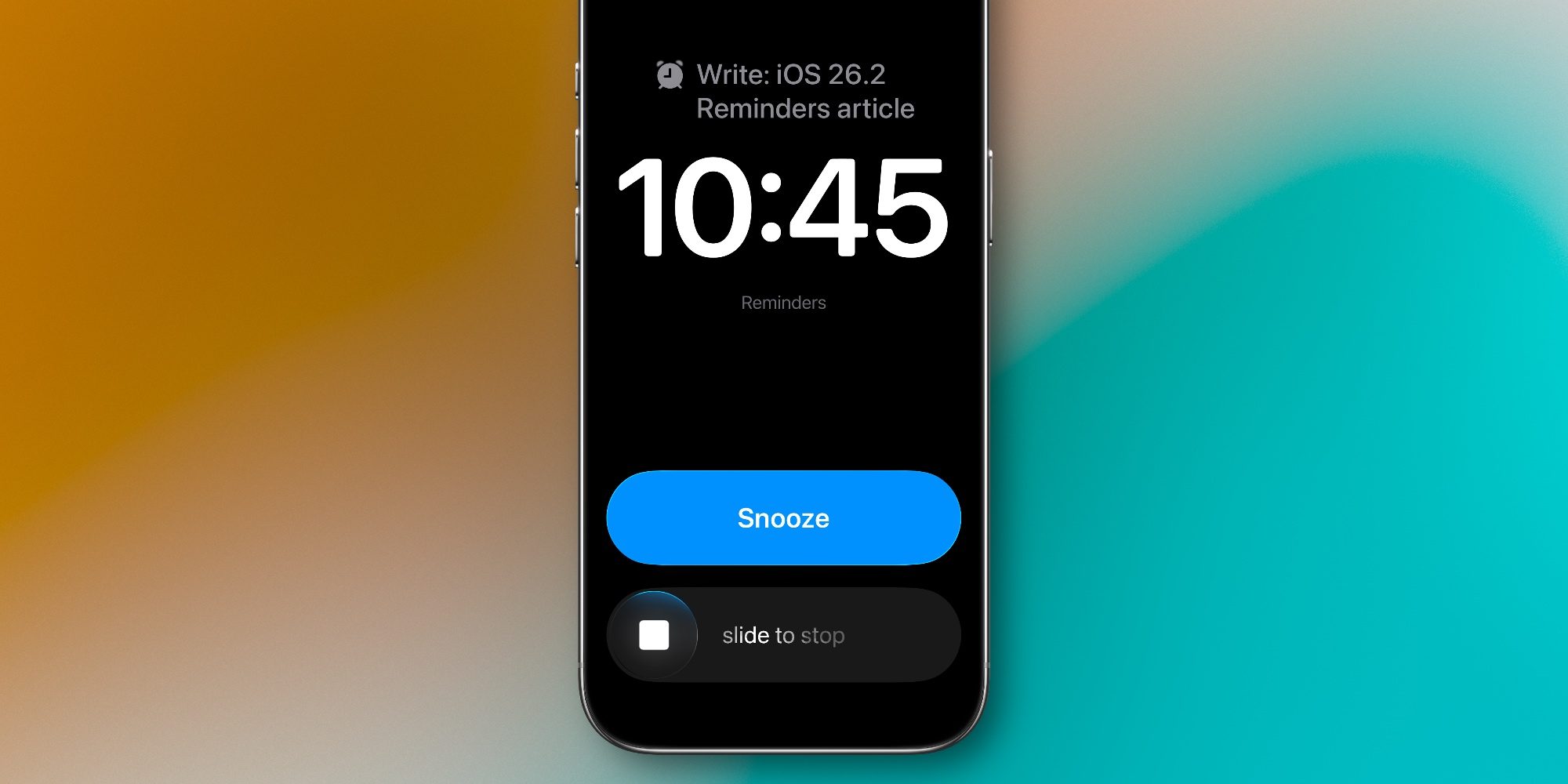
You can now mark a reminder as ‘Urgent’ when it has a set due time. Marking it ‘urgent’ means an alarm will go off on your iPhone when that reminder comes due.
Just like your morning wakeup alarm, the new Reminders alarm can be snoozed for 9 minutes. So if you can’t get to a task right then, you can silence the alarm temporarily without forgetting about the task entirely.
The new alarm feature also uses Live Activities as a further visual prompt so you don’t forget about a task.
Apple Podcasts
Apple Podcasts is just one of many popular podcast apps available on iPhone, alongside YouTube, Spotify, Overcast, and more.
But in iOS 26.2, three new features make Apple’s Podcasts app more compelling than ever:
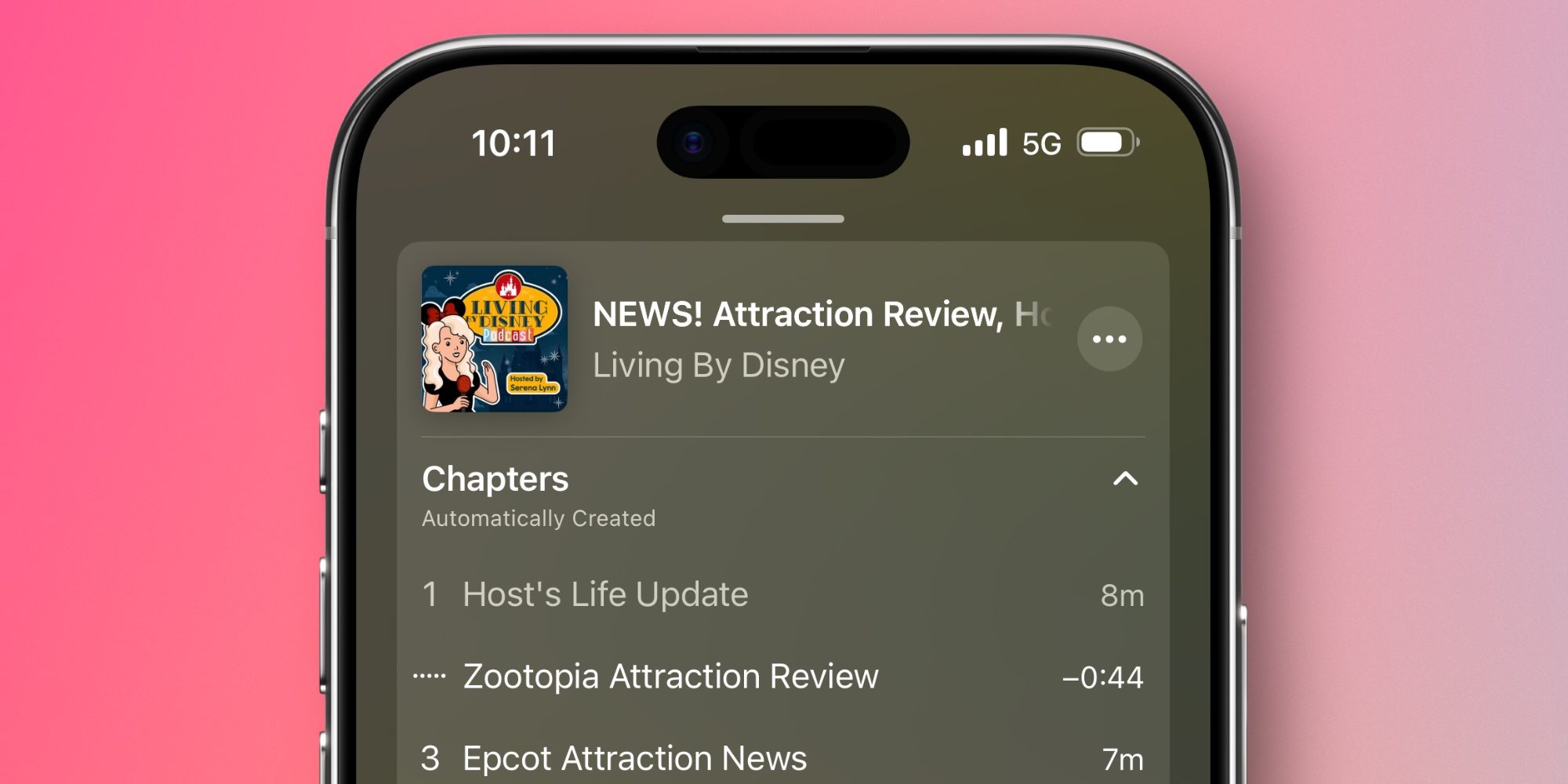
Automatic chapters
Podcast mentions
’From this episode’
My early favourite of the group is automatic chapters. Apple is using its excellent podcast transcripts feature, feeding that transcript into its Apple Intelligence models, and creating chapters for all podcasts automatically.
Tech-focused podcasts often have creator-generated chapters. But most mainstream podcasts don’t offer chapters. Now in iOS 26.2, they will—at least in Apple Podcasts.
The other additions aim to make it easier for users listening to a show to access links to other podcast episodes that are mentioned by hosts, or recommendations of TV shows, music, books, and other links.
If you’re not familiar with Freeform, it’s Apple’s open canvas whiteboard/playground app where you can create ‘boards’ filled with a mixture of text, images, charts, files, links, and more. It’s especially great for collaboration.
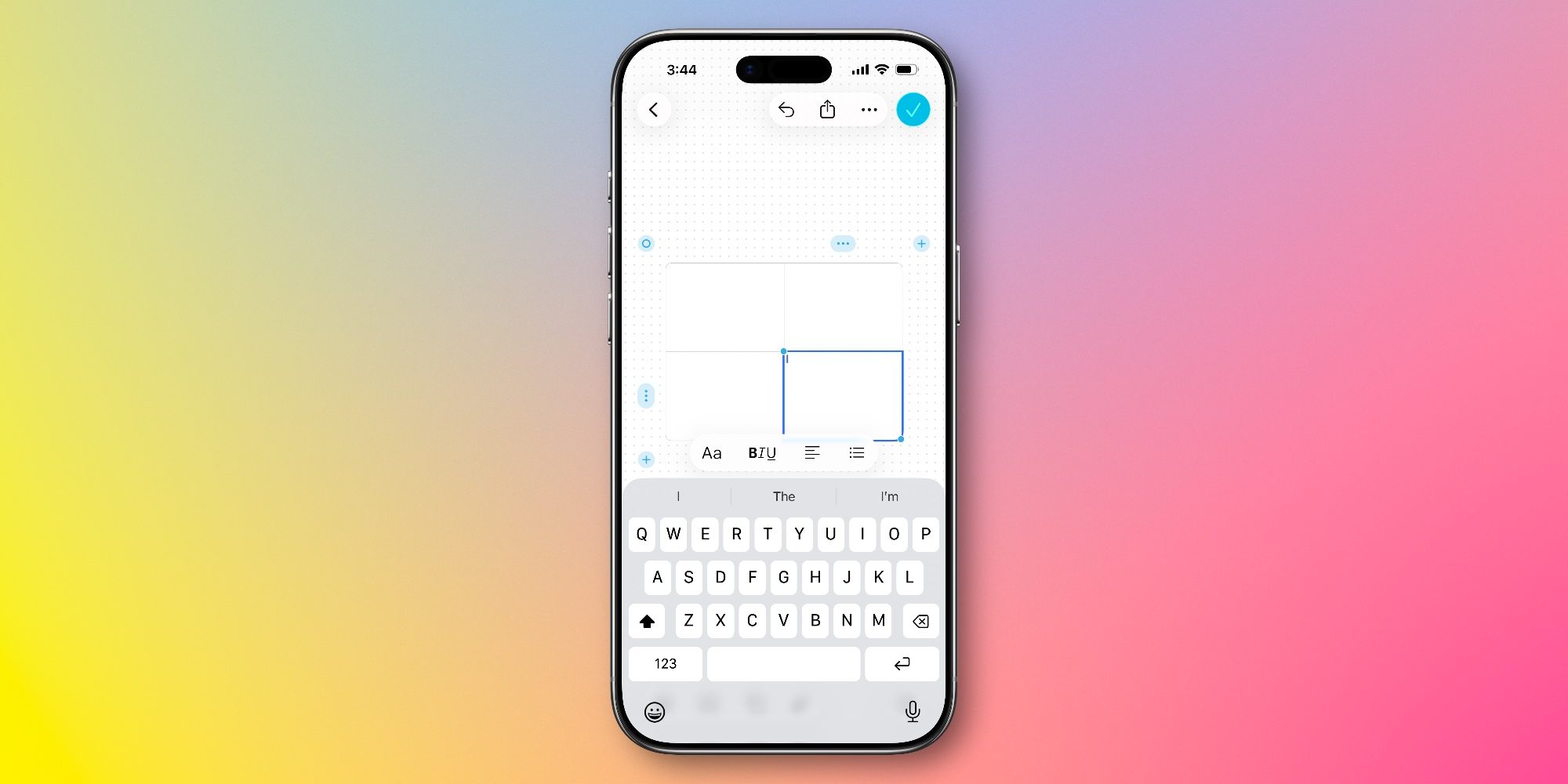
Now Freeform has expanded its available toolset with tables. If you’ve used tables in other Apple apps like Notes, it’s a similar experience in Freeform.
Apple Games
Apple Games is a brand new app that was added in iOS 26. And after gathering initial user feedback, Apple has three enhancements coming in iOS 26.2:
Library Filters: Now you can filter your game library in several new ways, including by titles that offer challenges, or ones your friends are playing.
Controller Support: If you’re doing any serious gaming, there’s a decent chance you might use a Bluetooth controller, so iOS 26.2 makes the Games app easier to navigate via controller.
Real-time challenge updates: Challenge scores now stay current while you’re playing thanks to live, real-time updates.
Whether you’re new to the Games app or a regular user, these changes should hopefully make it a more refined experience overall.
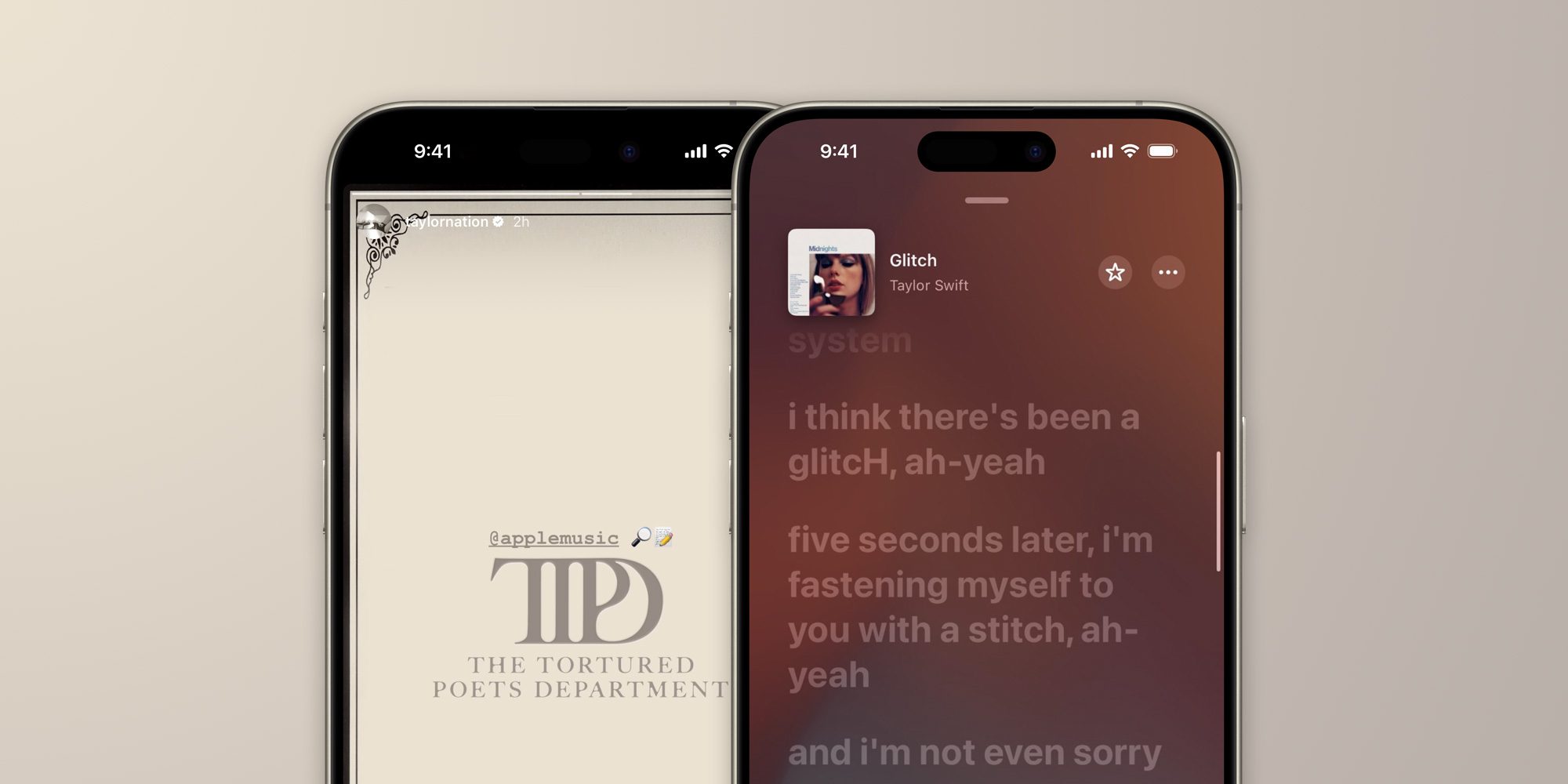
Lyrics debuted years ago and quickly became one of my favourite features in the Music app. But they’ve always required a Wi-Fi or cellular connection.
Now lyrics will be available even when you’re on a flight, underground train, or roaming the wilderness with no connection.
It’s unclear exactly what triggers the Music app downloading a song’s lyrics offline. Hopefully though, all music added to your Library will support the feature.
Apple News
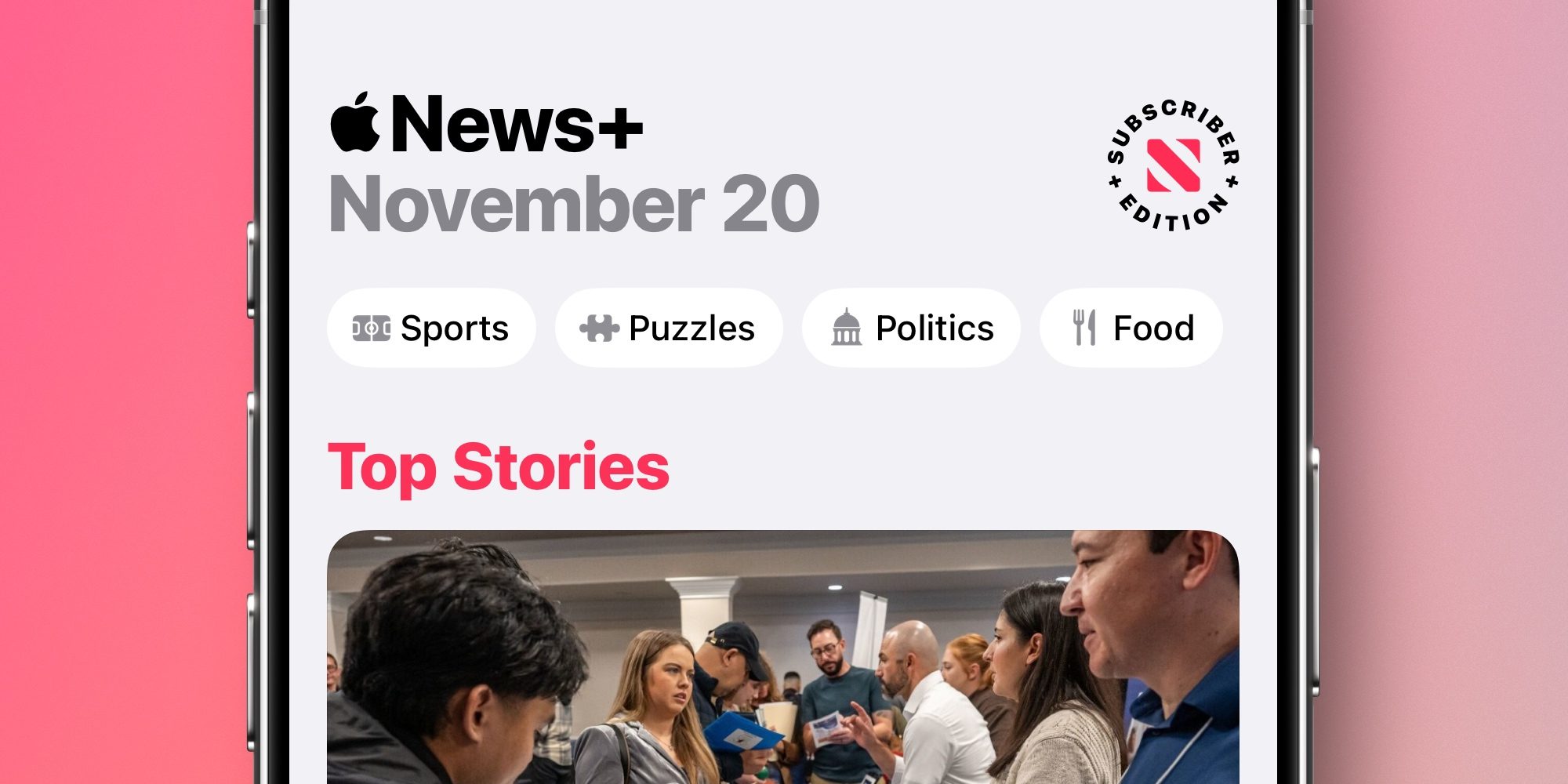
Apple News has some great updates in iOS 26.2 centred around making the app’s expanding feature set easier to access.
iOS 26.2 brings several design changes that surface previously buried features so they are much more prominent.
For example, there are brand new quick links at the top of the Today screen for accessing sections like Puzzles, Sports, Politics, and Food.
Additionally, the navigation tab bar has been updated in two ways.
Following is a new tab containing content that used to be hidden behind the Search tab. And Search adds new quick link recommendations.
Which new iOS 26.2 features are you most excited about? Let us know in the comments.
It’s easy to change that. You can lock down your location sharing, app sharing, and targeted advertising, as well as enable features that will help you find your device if it’s lost or stolen. All of the settings I’ve rounded up are based on the latest iOS 26 version, which debuted shortly before the release of the iPhone 17. If you have an older version of iOS, certain settings may be in a different location, but the majority of iPhones should have access to most (if not all) of these settings.
iPhone Privacy Settings to Change
Privacy is personal, so you shouldn’t treat the settings I listed here as a checklist. Treat them as suggestions. Your tolerance for data collection and the individual apps you have installed will largely dictate what settings you need to change. And remember, there’s some level of privacy you have to give up with any device connected to the internet, so although these settings will help your online privacy, they won’t make you completely anonymous.
Turn Off App Tracking
ScreenshotApple via Jacob Roach
You’ve undoubtedly come across an app asking to track you, which the iPhone, thankfully, lets you deny. If you want to turn off all tracking, you can. By default, the iPhone allows apps to request to track you, following you around other apps and websites to see what you’re doing. In the settings, you can automatically deny app tracking requests whenever you install a new app.
Open the Settings app, swipe down to the bottom, and choose Privacy & Security. Choose Tracking, and tick off the All Apps to Request to Track setting. You’ll also see any apps you’ve given tracking permission to listed, and you can revoke those permissions if you want.
Customize Location Sharing
ScreenshotApple via Jacob Roach
There are a lot of reasons you’d want to share location data with an app—for example, when using Apple or Google Maps—but apps that don’t need your location might still request it. Follow the same path of Settings, then Privacy & Security, but choose Location Services after. There, you’ll find all of the apps that have access to location services, their individual settings, and the option to turn off location services altogether.
I don’t recommend doing that, but you can still clean things up. First, for any app that doesn’t need a precise GPS signal (for instance, a retailer’s app), turn off the Precise Location setting, which you can find by tapping into an app. Once that’s done, choose System Services, which covers all of the functionality built into the iPhone that accesses location data.
There are a lot of settings here you probably want to leave on, such as Setting Time Zone and Cell Network Search, but there are some you can take off. At the bottom, you’ll find the Product Improvement section, and you can safely turn off those settings. You can also turn off Significant Locations & Routes if you don’t want your iPhone to automatically pick up your home or, for instance, your route to work.
Change App Sharing Settings
In the same Privacy & Security menu, just below the previous two settings, you’ll see a list of apps. These are apps that other apps might request access to, and you can customize those settings here. A great example is already set up on the iPhone. You’ll see that the Focus app is shared with the Messages app, which is pretty useful to let your iMessage friends know that you need some time to focus.
There’s some app sharing you might want to turn off. For example, the Photos app is fully shared with Google Drive on my iPhone, but I don’t use Google Drive for photos. There’s a ton of information that travels along with photos—metadata like the date captured and location—that I’d rather not share. Tapping in, I can change Google Drive to Limited Access to choose what I share, or I can block it outright.
Turn Off Apple Analytics
ScreenshotApple via Jacob Roach
By default, the iPhone doesn’t share a ton of data. In fact, most settings are turned off out of the box, but there are a few analytics you’ll need to dig in and turn off manually. Once again, head to the Privacy & Security menu, and swipe all the way down to the bottom. There, you’ll find two settings: Analytics & Improvements and Apple Advertising.
First, analytics. Tap in, and you’ll find two settings turned on: Share iPhone Analytics and Share With App Developers. Turn those off. You might find some other settings depending on what you’ve connected to your iPhone (like an Apple Watch), and you can turn off that analytics sharing, as well.
Next is advertising. Apple Advertising is more focused on privacy than other platforms, blocking ads from tracking you across websites and services. You can turn off the Personalized Ads toggle. You’ll still get ads, but they’ll be generic. If you turn on Apple Advertising, you can tap into the Ad Targeting Information screen to see what data is shared, such as your birth year, zip code, and the categories for apps you have downloaded.
Generate Privacy Reports
This isn’t really a setting, but the iPhone has built-in privacy reporting tools that can give you insight into what data apps are requesting and using. In the Privacy & Security menu, near the bottom, you’ll see the App Privacy Report and Apple Intelligence Report.
For the former, you’ll see the domains the app contacts each time you use it, as well as a layout of how many domains an app contacts. For Apple Intelligence, you’ll see private compute requests and what data was shared with the request. This report is exported as a JSON file, and you’ll need a text editor to view it. Regardless, both of these reports are fairly technical, and they don’t help your privacy; they just give you more information.
ScreenshotApple via Jacob Roach
Keep Notes Local
Apple automatically stores and syncs anything you put in the Notes app through iCloud, so no, those random thoughts you jotted down five years ago aren’t completely private. Thankfully, you can keep them private with an “On My iPhone” account, which, as the name suggests, doesn’t sync your notes and keeps them local to your device.
To set it up, open Settings and go down to the bottom of the list for Apps. Find the Notes app and toggle the On My iPhone Account setting on. Just above it, you can also set a password if you want to encrypt and lock any highly sensitive notes. Remember, you won’t be able to pull up these notes on another Apple device because they won’t sync, and if you lose your iPhone, you may not be able to access your notes altogether without a recent backup.
Hide (or Lock) Apps and Photos
You can hold down on any app icon, select Edit Home Screen, and tap an app to hide it. That’ll keep the app on your phone, but it won’t appear on your home screen. (You can search for it via Spotlight.) You can also hold down and select Require Face ID to lock the app, meaning it’ll require biometric authorization every time you open the app.
That’s great for apps, but you can do the same thing for photos, as well. Hold down on any photo in the Photos app and select Hide. It’ll be put into your Hidden album, which is locked behind either Face ID or your password. You can find the Hidden album in the Collections tab, at the bottom under the Utilities section.
iPhone Security Settings to Change
The iPhone is pretty secure out of the box, and Apple courts users into leveraging its security features as you set up a new device. Just like the privacy settings, however, the particular settings you use here are up to you. Many security settings will sacrifice privacy, and vice versa. You can’t locate a stolen device if you aren’t using location services, for example.
Use Face ID
ScreenshotApple via Jacob Roach
You need to set up Face ID when you set up an iPhone, and you’re probably using it anyway. But I’ve seen some misconceptions about how Face ID (and biometric authentication more broadly) works. Your fingerprint for Touch ID and images for Face ID are not sent to Apple, and they’re generally more secure than a password or simple PIN.
Instead, your fingerprint or face is used to generate an ID, which is encrypted and stored in Apple’s Secure Enclave, locally on your device. When you unlock your device, Face ID or Touch ID is checked against this ID, and if there’s a match, your device unlocks. If you’ve been avoiding Face ID due to privacy concerns, you aren’t protecting yourself as much as you might think.
Set Up Two-Factor Authentication
You and I both know it—you should be using two-factor authentication (2FA). I hate typing in a code or pulling up a second device as much as the next person, but it’s hard to overstate just how much more secure an account is with two authentication factors instead of one. And, you can easily set up 2FA for your Apple account from your iPhone.
Select your name at the top of the Settings app, which will open your Apple account information. Select Sign-In & Security, and then choose Two-Factor Authentication. Here, you’ll see devices you can use for 2FA, including the iPhone you’re using. When signing into your Apple account on another device, you can use any of the devices listed as your second factor, be it another Apple product or a text sent to a verified phone number.
ScreenshotApple via Jacob Roach
Encrypt Your iPhone’s Cloud Storage
iCloud encrypts your data, but it doesn’t use end-to-end encryption, at least by default. Out of the box, Apple manages your encryption keys, so it could, technically, decrypt the data you store in iCloud. Although that’s unlikely, you can still set up end-to-end encryption and manage your own encryption keys with Advanced Data Protection.
To turn it on, open Settings and select iCloud. Then, scroll down and select Advanced Data Protection. To turn it on, you’ll need to set up some account recovery options. Apple won’t be able to decrypt your data, so if you don’t have any recovery options set up, you won’t be able to decrypt or recover your data.
Turn On Stolen Device Protection
ScreenshotApple via Jacob Roach
Apple includes Stolen Device Protection with your iPhone, but it’s turned off by default. This feature requires you to verify with Face ID or Touch ID when taking certain actions without a password to fall back on, and it enforces a security delay, where critical actions such as changing your Apple password are only possible after a one-hour delay.
There are two forms of Stolen Device Protection. You can either have these features on all the time, or only when you’re away from familiar locations. Note that if you choose the latter, you’ll need to keep the Significant Locations & Routes setting mentioned earlier turned on.
If you set up Stolen Device Protection to only work when you’re away from familiar locations, it’ll kick in automatically. However, Stolen Device Protection doesn’t lock down everything about your iPhone. It crops up in certain situations, which Apple details on its support page. You can turn on the setting in the Privacy & Security menu at the bottom of the page.
Turn On Find My
You often have to trade privacy for better security, and that’s the case for both Stolen Device Protection and Apple’s “Find My” feature. To make sure you have it on, open Settings, select your account at the top, and choose Find My. Make sure Find My iPhone is turned on. If you tap in, you can also turn on Send Last Location, which will update the location of your iPhone if it’s about to die.
Although you’ll need to have location services running, Apple says that devices using iOS 17 and later don’t need to share that location data. When offline, at least, Apple can’t see location information when you have Find My turned on.
Hide Notifications
Finally, a bit of operational security. If you have sensitive information that could pop up in notifications, you can obfuscate how notifications appear while your iPhone is locked. It’s a small change, but it can keep you protected from someone peaking over your shoulder or picking up your phone while it’s locked.
Open Settings and head to Notifications. There, switch the display to Count and change Show Previews to either When Unlocked or Never. If you have a particularly sensitive app—say, an encrypted messaging app—you can also customize individual app notifications on this screen.
iPhone Privacy and Security Apps to Download
The iPhone provides a surprising number of privacy and security tools, from app privacy reports to a built-in password manager via the Passwords app. Some functions are better served with a third-party app, though, either for better security or more features. Although all of the apps I’m recommending here have paid options—and I recommend those paid plans—they all also have a free version if you don’t have the money to spare.
ProtonVPN is the best VPN you can use, and you can get started with it for free. While most free VPNs are questionable at best, Proton’s free service is rock solid. You’re limited to slower speeds and only have access to a handful of servers, but it still works. I’d be worried if a free VPN didn’t impose any limitations, frankly. It’s also one of the best VPNs for iPhone, mainly due to its excellent speed. Proton tops the charts in our speed tests, and although others, such as NordVPN, are close, Proton has maintained its lead across desktop and mobile.
The iPhone has a VPN built in, but it’s not the same thing as commercial VPNs as most people know them. Rather, it’s a configuration tool if you want to set up your own VPN. If you want a tool to mask your IP address and help you stay more private online, you’ll need a third-party VPN, and Proton VPN is the best.
A Password Manager
Bitwarden ranks as the best password manager you can use, though Proton Pass takes a close second. Both offer free options, and they’ll give you more flexibility when storing and sharing credentials compared to Apple’s built-in Passwords app.
Although Apple’s Passwords app is plenty secure, it’s limited. An app like 1Password has apps for Windows and Android, for instance, which Passwords lacks. Third-party password managers let you store a wide range of data, too, from passwords and passkeys to encrypted documents and medical insurance.
Encrypted Email
You’ve locked down your messages; now it’s time for email. Google recently started offering end-to-end encryption for Gmail, but only for Google Workspace customers. If you want end-to-end encryption for personal use, you’ll need an encrypted email service like Proton Mail, which is my favorite option.
There’s a lot to like about Proton Mail, but from a security standpoint, it does a couple of things right. First, if you’re sending emails to another Proton Mail user, you get the convenience of a service like Gmail, but with true end-to-end encryption. Your emails are encrypted before they leave your device, and they’re only decrypted once they’re delivered.
You can also send emails to non-Proton users with end-to-end encryption, either using Proton’s password-protected email feature or by sharing your public key, though that requires a bit of technical know-how on both parties.
Jacob Roach is a product writer and reviewer at WIRED, focused on software as a service (SaaS) products, including VPNs, password managers, cloud storage, and antivirus applications. Previously he worked as lead reporter at Digital Trends, and his work has been cited in Fox News, Business Insider, and Futurism, among … Read More
Keep your phone private and block personalized ads on iPhone
It’s important to know how to block personalized ads on iPhone. In 2022, user data is a modern-day currency and even companies like Apple use iPhone owners’ usage patterns to personalize the ads they see.
While it’s not quite to the same extent as the likes of Meta, who are looking to track our every eye movement in the Meta Quest Pro, personalized ads tracking our behaviour might still be scary to some. It’s natural then to want to block ads on iPhone and, thankfully, privacy is something Apple is now championing. As such there is a super quick way to block personalized ads on iPhone. Here’s how.
Note: blocking personalized ads doesn’t mean ads will be blocked altogether, so you will still receive the same amount of ads. It’s just that your behavioural data won’t be used by Apple to tailor the ads to you. To block ads altogether, you’ll need one of the best ad blockers for mobile.
How to block personalized ads on iPhone
1. Open theSettings app and tap Privacy & Security.
(Image credit: Future)
3. Scroll down then tapApple Advertising.
(Image credit: Future)
4. Toggle off Personalized ads.
(Image credit: Future)
And that’s all you have to do to block personalized ads on iPhone. Of course, there are plenty of other things you need to do to stay private online, using a VPN is a great way to do so but you could also consider a dedicated privacy browser such as DuckDuckGo.
Andy is Tom’s Guide’s Trainee Writer, which means that he currently writes about pretty much everything we cover. He has previously worked in copywriting and content writing both freelance and for a leading business magazine. His interests include gaming, music and sports- particularly Formula One, football and badminton. Andy’s degree is in Creative Writing and he enjoys writing his own screenplays and submitting them to competitions in an attempt to justify three years of studying.